Kontakte, Kalender, Fotos und Videos sichern: Aspera R40
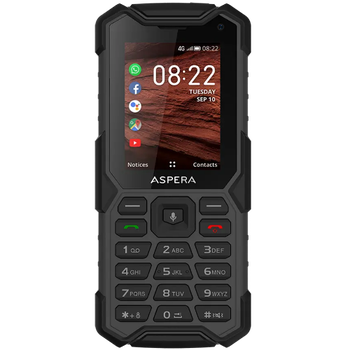
Verfügbare Anleitungen für die Synchronisierung mit der sicheren Cloud
Unterstützte Funktionen
- Kontakt-Synchronisation
- Kalender-Synchronisation
- Foto-Synchronisierung
- Video-Synchronisation
- automatisch synchronisieren


Übertragen Sie Ihre Kontakte, Kalender, Fotos und Videos von Aspera R40 in einen Online-Speicher und zurück, um sie sicher und aktuell zu halten.
Aspera R40 wird von PhoneCopy unterstützt.
Bitte beachten Sie, dass die folgenden Einstellungen je nach Firmware-Version leicht variieren können.
Bestätigte Modelle
Bestätigte Versionen
News
- 22.11.21
- Ein neuer Telefonbenutzer hat seine Kontakte von Australien aus mit PhoneCopy synchronisiert.
KaiOS-Versionen auf Aspera R40
Bei der Synchronisierung hatten PhoneCopy-Benutzer folgende KaiOS-Versionen auf ihrem Aspera R40: KaiOS 2.5.3.1 (100.00%).
Aspera R40 Nutzer auf der ganzen Welt
Laut unseren Statistiken verwenden PhoneCopy-Benutzer Aspera R40 für die Datensicherung in Ländern Australien - 100.00%.
Die folgende Heatmap zeigt Kontaktsynchronisierungen mit Aspera R40 über PhoneCopy weltweit.
Textanleitung - So sichern Sie Ihre Daten
Von Aspera R40
- Download our PhoneCopy for KaiOS from application KaiOS Marketplace to your mobile device.
- After launching the application, create a new account from the application. If you have already created an account on web pages www.phonecopy.com, log in to this existing account in the application.
- After succesful login press "Synchronize" for complete synchronization, you can choose "This device >> Server" for one-way sync.
If you need more help with the settings, visit our step by step screenshot guide: How to synchronize contacts to phone with KaiOS
If you need more help with the settings, visit our step by step screenshot guide: How to backup contacts from phone with Kai OS
Bei Problemen mit der Synchronisierung, bitte kontaktieren Sie uns.
Zu Aspera R40
- Download our PhoneCopy for KaiOS from application KaiOS Marketplace to your mobile device.
- After launching the application, log in to this existing account in the application.
- After succesful login press "Synchronize" for complete synchronization, you can choose "Server >> This device" for one-way sync.
If you need more help with the settings, visit our step by step screenshot guide: How to synchronize contacts to phone with KaiOS
If you need more help with the settings, visit our step by step screenshot guide: How to backup contacts from phone with Kai OS
Bei Problemen mit der Synchronisierung, bitte kontaktieren Sie uns.
Benutzer Kommentare
Um einen Kommentar zu hinterlassen, melden Sie sich an.
-
How can I send contacts, photos, sms messages from a Samsung Galaxy A11... to a windows 10 pc as a back up in case my samsung phone crashes? alexoxox1970, 21.12.21
-
Hi, set your android first https://www.phonecopy.com/en/pages/how_to_backup_contacts_from_android
Then, please, download PhoneCopy for Windows and install it to your PC https://www.phonecopy.com/en/pages/how_to_synchronize_data_to_windows_10
-
