Kontakte, Kalender, Fotos und Videos sichern: BLU Zoey Smart
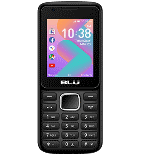
Verfügbare Anleitungen für die Synchronisierung mit der sicheren Cloud
Unterstützte Funktionen
- Kontakt-Synchronisation
- Kalender-Synchronisation
- Foto-Synchronisierung
- Video-Synchronisation
- automatisch synchronisieren


Übertragen Sie Ihre Kontakte, Kalender, Fotos und Videos von BLU Zoey Smart in einen Online-Speicher und zurück, um sie sicher und aktuell zu halten.
BLU Zoey Smart wird von PhoneCopy unterstützt.
Bitte beachten Sie, dass die folgenden Einstellungen je nach Firmware-Version leicht variieren können.
Bestätigte Modelle
Bestätigte Versionen
News
- 20.05.22
- Ein neuer Telefonbenutzer hat seine Kontakte von Honduras aus mit PhoneCopy synchronisiert.
- 18.03.22
- Ein Benutzer aus Kenia hat seine Kontakte mit seinem Telefon synchronisiert.
- 05.03.22
- Ein neuer Telefonbenutzer hat seine Kontakte von Chile aus mit PhoneCopy synchronisiert.
- 09.11.21
- Ein Benutzer aus Trinidad und Tobago hat seine Kontakte mit seinem Telefon synchronisiert.
- 08.08.21
- Ein Benutzer aus El Salvador hat seine Kontakte mit seinem Telefon synchronisiert.
KaiOS-Versionen auf BLU Zoey Smart
Bei der Synchronisierung hatten PhoneCopy-Benutzer folgende KaiOS-Versionen auf ihrem BLU Zoey Smart: KaiOS 2.5.1.1 (100.00%).
BLU Zoey Smart Nutzer auf der ganzen Welt
Laut unseren Statistiken verwenden PhoneCopy-Benutzer BLU Zoey Smart für die Datensicherung in Ländern Venezuela - 34.48%, Vereinigte Staaten (Estados Unidos, États-Unis, ‘Amelika Hui Pū ‘ia) - 34.48%, Trinidad und Tobago - 10.34%, Chile - 5.17%, El Salvador - 5.17%, Honduras - 1.72%, Kenia - 1.72%, Vereinigtes Königreich (Y Deyrnas Unedig, Unitit Kinrick, Rìoghachd Aonaichte, Ríocht Aontaithe, An Rywvaneth Unys) - 1.72%, Argentinien - 1.72%, Panama (Panamá) - 1.72%, Mexiko (México, Mēxihco) - 1.72%.
Die Karte zeigt die Nutzung von BLU Zoey Smart für die Kontaktsicherung mit PhoneCopy weltweit.
Textanleitung - So sichern Sie Ihre Daten
Von BLU Zoey Smart
- Download our PhoneCopy for KaiOS from application KaiOS Marketplace to your mobile device.
- After launching the application, create a new account from the application. If you have already created an account on web pages www.phonecopy.com, log in to this existing account in the application.
- After succesful login press "Synchronize" for complete synchronization, you can choose "This device >> Server" for one-way sync.
If you need more help with the settings, visit our step by step screenshot guide: How to synchronize contacts to phone with KaiOS
If you need more help with the settings, visit our step by step screenshot guide: How to backup contacts from phone with Kai OS
Bei Problemen mit der Synchronisierung, bitte kontaktieren Sie uns.
Zu BLU Zoey Smart
- Download our PhoneCopy for KaiOS from application KaiOS Marketplace to your mobile device.
- After launching the application, log in to this existing account in the application.
- After succesful login press "Synchronize" for complete synchronization, you can choose "Server >> This device" for one-way sync.
If you need more help with the settings, visit our step by step screenshot guide: How to synchronize contacts to phone with KaiOS
If you need more help with the settings, visit our step by step screenshot guide: How to backup contacts from phone with Kai OS
Bei Problemen mit der Synchronisierung, bitte kontaktieren Sie uns.
Benutzer Kommentare
Um einen Kommentar zu hinterlassen, melden Sie sich an.
-
Hi, I found and tried your workaround for KaiOS calendar sync using CalDAV (as described on previous comment), and it works well. However, I noticed that changes made in my Google Calendar don’t sync automatically, I have to press a button in the web version each time to update. Is there a way to enable automatic syncing, or is this a current limitation! Thanks! akiesel, 28.12.25
-
Hello,
we have deployed experimental invocation of Google Calendar sync when syncing device via CalDAV. Hopefully it will work for you. -
Hello,
currently Google Calendar sync is invoked only when syncing other device either via SyncML, our apps, or Activesync. We will look into possibility of invoking sync via CardDAV as well. Please stay tuned, we will inform you as soon as we will know whether it is possible.
-