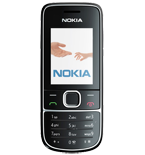
Kontakte, Kalender, Aufgaben und Notizen sichern: Nokia 2700 classic
Verfügbare Anleitungen für die Synchronisierung mit der sicheren Cloud
Unterstützte Funktionen
- Kontakt-Synchronisation
- Kalender-Synchronisation
- Aufgabe-Synchronisation
- Notiz-Synchronisierung

Übertragen Sie Ihre Kontakte, Kalender, Aufgaben und Notizen von Nokia 2700 classic in einen Online-Speicher und zurück, um sie sicher und aktuell zu halten.
Nokia 2700 classic wird von PhoneCopy unterstützt.
Bitte beachten Sie, dass die folgenden Einstellungen je nach Firmware-Version leicht variieren können.
Bestätigte Modelle
Bestätigte Versionen
News
- 03.02.22
- Jemand hat gerade PhoneCopy zur Sicherung von Nokia 2700 classic im Land Aserbaidschan verwendet. Seine Kontakte wurden gesichert.
- 11.12.21
- Dieses Telefonmodell wurde gerade von einem PhoneCopy-Benutzer in Rumänien synchronisiert. Es hat Kontakte übertragen.
- 18.04.21
- Sogar in Pakistan haben wir einen Benutzer mit einem Nokia 2700 classic-Telefon. Er sichert seine Kontakte.
- 08.10.20
- Wir haben gerade den ersten Benutzer von Nokia 2700 classic in Kenia bekommen! Jemand hat gerade seine Kontakte von einem neuen Telefon gesichert.
- 05.10.20
- Jemand hat PhoneCopy zur Sicherung dieses Telefonmodells in Sri Lanka verwendet. Seine Kontakte wurden übertragen.
Nokia 2700 classic Nutzer auf der ganzen Welt
Nokia 2700 classic wird für die Kontaktsicherung von PhoneCopy-Benutzern in mehreren Ländern auf der ganzen Welt bevorzugt - Äthiopien (Ityop'ia, ኢትዮጵያ) - 77.60%, Indien (Bharôt, ভাৰত, ভারত, Bhārat, ભારત, भारत, Bhārata, ಭಾರತ, Bhāratam, ഭാരതം, Bharôtô, ଭାରତ, ਭਾਰਤ, भारतम्, Bārata, பாரதம், Bhāratadēsam, భారత దేశం) - 8.80%, Ghana (Gaana, Gana) - 4.00%, Pakistan (Pākistān, پاکستان) - 2.40%, Rumänien (România) - 1.60%, Südafrika (Suid-Afrika, iNingizimu Afrika, uMzantsi Afrika, Afrika-Borwa, Afrika Borwa, Aforika Borwa, Afurika Tshipembe, Afrika Dzonga, iSewula Afrika) - 1.60%, Nigeria (Nijeriya, Naigeria, Nàìjíríà) - 1.60%, Aserbaidschan (Azərbaycan) - 0.80%, Sri Lanka (Sri Lankā, ශ්රී ලංකාව, இலங்கை) - 0.80%, Kenia - 0.80%.
Auf der Karte
Das Histogramm zeigt die Nokia 2700 classic-Sicherung mit PhoneCopy weltweit.
Textanleitung - So sichern Sie Ihre Daten
Mit Nokia 2700 classic
- Press Menu and choose Settings - Configuration - Personal config. sett..
- Press Options and choose Add new - Synchronization and configure given fields.
▼ hide fields
- Account name: Write PhoneCopy
- Server address: Write http://www.phonecopy.com/sync
- User name: your_username
- Password: your_password
- Contacts database:
- Database address
- Write contacts
- User name
- Leave empty.
- Password
- Leave empty.
- Calendar database:
- Database address
- Write calendar
- User name
- Leave empty.
- Password
- Leave empty.
- Notes database:
- Database address
- Write notes
- User name
- Leave empty.
- Password
- Leave empty.
- Use pref. access pt.: If you want to use your preferred access point to connect to PhoneCopy, choose Yes, otherwise choose No and set up the access point in the next menu item Access point settings.
- Press Back, go to the name of the profile you have just created, press Options and choose Activate.
- Press Back twice.
- Choose Sync and backup - Data transfer and go to Server sync but do not enter this item.
- Press Options - Edit - Sync settings and configure given fields.
▼ hide fields
- Configuration: Choose Personal config. - Select.
- Account: Choose PhoneCopy - Select.
- User name: Fill in your user name.
- Password: Fill in your password.
- Press Back and choose Synchronized data.
- Mark the items you want to synchronize and press Done (or Back if you made no changes).
- If the cell phone asks you Save changes?, choose Yes.
- Choosing Server sync you can now start synchronization with PhoneCopy.
If you need more help with the settings, visit our step by step screenshot guide.
Und nun bitte weisen Sie Ihr Telefon Ihrem PhoneCopy-Konto zu.
Bei Problemen mit der Synchronisierung, bitte kontaktieren Sie uns.
