Kontakte, Kalender, Aufgaben und Notizen sichern: Nokia 6630
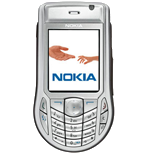
Verfügbare Anleitungen für die Synchronisierung mit der sicheren Cloud
Unterstützte Funktionen
- Kontakt-Synchronisation
- Kalender-Synchronisation
- Aufgabe-Synchronisation
- Notiz-Synchronisierung

Übertragen Sie Ihre Kontakte, Kalender, Aufgaben und Notizen von Nokia 6630 in einen Online-Speicher und zurück, um sie sicher und aktuell zu halten.
Nokia 6630 wird von PhoneCopy unterstützt.
Bitte beachten Sie, dass die folgenden Einstellungen je nach Firmware-Version leicht variieren können.
Bestätigte Modelle
News
- 27.12.25
- Ein Benutzer aus Vereinigte Arabische Emirate hat seine Kontakte mit seinem Telefon synchronisiert.
- 02.12.19
- Ein Benutzer aus Vereinigtes Königreich hat seine Kontakte mit seinem Telefon synchronisiert.
Nokia 6630 Nutzer auf der ganzen Welt
Laut unseren Statistiken verwenden PhoneCopy-Benutzer Nokia 6630 für die Datensicherung in Ländern Vereinigtes Königreich (Y Deyrnas Unedig, Unitit Kinrick, Rìoghachd Aonaichte, Ríocht Aontaithe, An Rywvaneth Unys) - 66.67%, Vereinigte Arabische Emirate (Al-’Imārat Al-‘Arabiyyah Al-Muttaḥidah, الإمارات العربيّة المتّحدة) - 33.33%.
Auf der Karte
Die folgende Heatmap zeigt den Anteil der Benutzer weltweit, die ihr Nokia 6630 mit PhoneCopy synchronisieren.
Textanleitung - So sichern Sie Ihre Daten
Mit Nokia 6630
First go to the phone's Main Menu and then follow these steps:
- Select Connections, then Sync. Under Sync select Options and afterwards New sync profile.
- Configure given fields.
▼ hide fields
- Sync Profile Name: PhoneCopy
- Data bearer: Internet
- Access point: Select your operator's GPRS access point. We recommend using the "Internet" data profiles if possible.
- Host address: write http://www.phonecopy.com/sync
- Port: write 80
- User name: choose and write name
- Password: choose and write password
- Allow sync request: Yes
- Accept all sync requests: No
- Press Back and select Applications.
- Select items you want to back up:
▼ hide contacts
- Include in sync: Yes
- Remote database: contacts
- Synchronization type:
- Press: Back
▼ hide calendar- Include in sync: Yes
- Remote database: calendar
- Synchronization type:
- Press: Back
▼ hide notes- Include in sync: Yes
- Remote database: notes
- Synchronization type:
- Press: Back
▼ hide sms- Include in sync: Yes
- Remote database: sms
- Synchronization type:
- Press: Back
Congratulations!
Now, you can start syncing with PhoneCopy and get your phone backed up!
Remember, you need to sync your phone first. On your phone, click PhoneCopy and Synchronize now.
Und nun bitte weisen Sie Ihr Telefon Ihrem PhoneCopy-Konto zu.
Bei Problemen mit der Synchronisierung, bitte kontaktieren Sie uns.
