Kontakte, Kalender, Aufgaben, Notizen und SMS-Nachrichten sichern: Sony Ericsson Vivaz (U5)
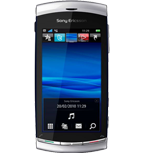
Verfügbare Anleitungen für die Synchronisierung mit der sicheren Cloud
Unterstützte Funktionen
- Kontakt-Synchronisation
- Kalender-Synchronisation
- Aufgabe-Synchronisation
- Notiz-Synchronisierung
- sms-Sicherung

Übertragen Sie Ihre Kontakte, Kalender, Aufgaben, Notizen und SMS-Nachrichten von Sony Ericsson Vivaz (U5) in einen Online-Speicher und zurück, um sie sicher und aktuell zu halten.
Sony Ericsson Vivaz (U5) wird von PhoneCopy unterstützt.
Bitte beachten Sie, dass die folgenden Einstellungen je nach Firmware-Version leicht variieren können.
Bestätigte Modelle
Bestätigte Versionen
Textanleitung - So sichern Sie Ihre Daten
Mit Sony Ericsson Vivaz (U5)
First go to the phone's Main Menu and then follow these steps:
- Select Settings, then Connectivity. Under Connectivity select Data transfer and afterwards Sync.
- Click Option and select New sync profile.
- Click Start and in Profile name write PhoneCopy, then as Server version select 1.2.
- Tick the items you want to back up:
▼ hide contacts
- Contact database: contacts
▼ hide calendar- Calendar database: calendar
▼ hide notes- Notes database: notes
▼ hide text messages- Test messages database: sms
- Then configure given fields.
▼ hide fields
- Data bearer: Internet
- Host address: write http://www.phonecopy.com/sync
- Server ID: leave blank
- User name: your_username
- Password: your_password
- Choosing Yes will activate your new synchronization profile.
Congratulations!
Now, you can start syncing with PhoneCopy and get your phone backed up!
Remember, you need to sync your phone first. On your phone, in section Sync, click Options and select Synchronize.
If you need more help with the settings, visit our step by step screenshot guide.
Und nun bitte weisen Sie Ihr Telefon Ihrem PhoneCopy-Konto zu.
Bei Problemen mit der Synchronisierung, bitte kontaktieren Sie uns.
