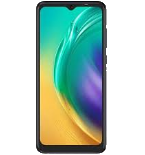
Backup contacts, photos, videos, sms messages and call logs from Tecno POP 5 Go (BD1)
Available guides for synchronization to the secure cloud
Supported functions
- contact synchronization
- sms backup
- call log backup
- photo synchronization
- video synchronization
- automatic sync


Transfer your contacts, photos, videos, sms messages and call logs from Tecno POP 5 Go (BD1) to an online storage and back to keep them safe and up to date.
Tecno POP 5 Go (BD1) is supported on PhoneCopy.
Please note that following settings may vary a little depending on the firmware version.
Confirmed models
Confirmed versions
- Android 11
News
- 08/12/2025
- User from Kenya has synchronized contacts with his phone.
- 19/07/2023
- First user from Ethiopia just synced his contacts on Tecno POP 5 Go (BD1) phone.
- 14/02/2022
- We freshly support Tecno POP 5 Go (BD1) with Android 11 OS for photo, video, call logs, SMS and contact backup.
- 10/02/2022
- Even in United States we have a user with Tecno POP 5 Go (BD1) phone. He backs up his contacts.
Android versions running on Tecno POP 5 Go (BD1)
PhoneCopy for Android app supports various Android versions. Our users synchronized their Tecno POP 5 Go (BD1) running Android 11 (100.00%).
Tecno POP 5 Go (BD1) users around the world
According to our statistics, PhoneCopy users use Tecno POP 5 Go (BD1) for data backup in countries Kenya - 33.33%, United States (Estados Unidos, États-Unis, ‘Amelika Hui Pū ‘ia) - 33.33%, Ethiopia (Ityop'ia, ኢትዮጵያ) - 33.33%.
Histogram depicts Tecno POP 5 Go (BD1) backup with PhoneCopy around the world.
Text guideline - How to backup
With Tecno POP 5 Go (BD1)
- Download our PhoneCopy for Android application to your mobile device.
- After launching the application, create a new account from the application. If you have already created an account on web pages www.phonecopy.com, log in to this existing account in the application.
- After successful login, go through the application setup wizard and then select Synchronize (for an account with an existing backup) / Backup (for an empty account) or press the Later button and then select option in the side menu Back up contacts / Restore contacts for one-way synchronization.
For more information about our app, visit our PhoneCopy for Android page.
In the case of problems with synchronization, please contact us.
User comments
To leave a comment please sign in.
-
-
Hello, 96,486 is really big count of SMS. It is possible that the processing of such a number of items takes a long time and it is possible that server terminate the communication due to a long time without response from the device.
We are curently working on optimalization of application, which may solve issue like yours. We will release new version of app asap, within a few days at the latest. We will contact you. Please, be patient.
Thank you-
Hello,
we developed a promised new beta version (3.4.3) of app. This optimized version should solve your reported issue. Please, download and install new version and try to sync again with it.
I recommend, plug in charger during sync, because sync of big count of items take long time and it is possible that Android system will try to limit the app due to battery life.
Download link: https://www.phonecopy.com/android/download/phonecopy.apk
Please, send us feedback, if it works now or not.
Thank you for your patience and cooperation.
-
-

My phone has 96,486 SMS that has to be backed up but the process keeps terminating due to "internet connection lost". My fiber internet access is quite stable so I don't think disruption is the cause. Is there a way I can back up the sms in parts? mebacal1960, 19/10/2020