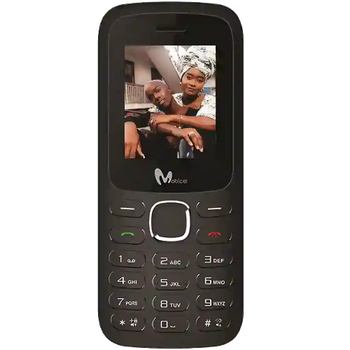
Realizar copia de seguridad de contactos, calendário, fotos y vídeos desde Mobicel S1 Smart
Guías disponibles para la sincronización con la nube segura
Funciones compatibles
- sincronización de contactos
- sincronización de calendario
- sincronización de fotos
- sincronización de vídeos
- sincronización automática


Transfiera sus contactos, calendário, fotos y vídeos desde Mobicel S1 Smart a un almacenamiento en línea y viceversa para mantenerlos seguros y actualizados.
Mobicel S1 Smart es compatible con PhoneCopy.
Tenga en cuenta que la siguiente configuración puede variar ligeramente según la versión del firmware.
Modelos confirmados
Versiones confirmadas
Noticias
- 19/1/23
- El primer usuario de Sudáfrica acaba de sincronizar sus contactos y multimedia en su teléfono Mobicel S1 Smart.
versiones de KaiOS ejecutándose en Mobicel S1 Smart
La aplicación PhoneCopy para KaiOS es compatible con varias versiones de KaiOS. Nuestros usuarios sincronizaron su Mobicel S1 Smart con KaiOS 2.5.3.2 (100.00%).
usuarios de Mobicel S1 Smart en todo el mundo
Mobicel S1 Smart es preferido para la copia de seguridad de contactos por usuarios de PhoneCopy en varios países del mundo - Sudáfrica (Suid-Afrika, iNingizimu Afrika, uMzantsi Afrika, Afrika-Borwa, Afrika Borwa, Aforika Borwa, Afurika Tshipembe, Afrika Dzonga, iSewula Afrika) - 100.00%.
El siguiente mapa de calor ilustra la proporción de usuarios de todo el mundo que sincronizan su Mobicel S1 Smart utilizando PhoneCopy.
Guía de texto - Cómo hacer copias de seguridad
Desde Mobicel S1 Smart
- Download our PhoneCopy for KaiOS from application KaiOS Marketplace to your mobile device.
- After launching the application, create a new account from the application. If you have already created an account on web pages www.phonecopy.com, log in to this existing account in the application.
- After succesful login press "Synchronize" for complete synchronization, you can choose "This device >> Server" for one-way sync.
If you need more help with the settings, visit our step by step screenshot guide: How to synchronize contacts to phone with KaiOS
If you need more help with the settings, visit our step by step screenshot guide: How to backup contacts from phone with Kai OS
En el caso de problemas con la sincronización, contacte con nosotros.
A Mobicel S1 Smart
- Download our PhoneCopy for KaiOS from application KaiOS Marketplace to your mobile device.
- After launching the application, log in to this existing account in the application.
- After succesful login press "Synchronize" for complete synchronization, you can choose "Server >> This device" for one-way sync.
If you need more help with the settings, visit our step by step screenshot guide: How to synchronize contacts to phone with KaiOS
If you need more help with the settings, visit our step by step screenshot guide: How to backup contacts from phone with Kai OS
En el caso de problemas con la sincronización, contacte con nosotros.
Comentarios de usuarios
Para dejar un comentario, por favor inicie sesión.
-
-
If you will find similar settings like in our guide, it will work.
https://www.phonecopy.com/en/phones/view/samsung_xcover_271_%28gt-b2710%29?referrer=Samsung#text-guideline-
Thank you for your suggestion. I do not own the cell phone today, I am looking for a new one. One important criterium for me is whether you support it.
So, alas, I cannot check...
What about the NOKIA 5710 XpressAudio? Is this in planing or...? The N5700 with & w/o Xpressmusic is supported.
Beafone and Swisstone are off your radar, are they?
Thank you for your patience.
-
Everytime you can check list of our supported phoned https://www.phonecopy.com/en/phones/
-
-
-

Dou you also support Samsung B2710?
I have no idea what might be the difference between the two.
Thank you. nachtkrabb, 28/2/23