Realizar copia de seguridad de contactos, calendário, fotos y vídeos desde Multilaser P70S
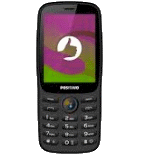
Guías disponibles para la sincronización con la nube segura
Funciones compatibles
- sincronización de contactos
- sincronización de calendario
- sincronización de fotos
- sincronización de vídeos
- sincronización automática


Transfiera sus contactos, calendário, fotos y vídeos desde Multilaser P70S a un almacenamiento en línea y viceversa para mantenerlos seguros y actualizados.
Multilaser P70S es compatible con PhoneCopy.
Tenga en cuenta que la siguiente configuración puede variar ligeramente según la versión del firmware.
Guía de texto - Cómo hacer copias de seguridad
Desde Multilaser P70S
- Download our PhoneCopy for KaiOS from application KaiOS Marketplace to your mobile device.
- After launching the application, create a new account from the application. If you have already created an account on web pages www.phonecopy.com, log in to this existing account in the application.
- After succesful login press "Synchronize" for complete synchronization, you can choose "This device >> Server" for one-way sync.
If you need more help with the settings, visit our step by step screenshot guide: How to synchronize contacts to phone with KaiOS
If you need more help with the settings, visit our step by step screenshot guide: How to backup contacts from phone with Kai OS
En el caso de problemas con la sincronización, contacte con nosotros.
A Multilaser P70S
- Download our PhoneCopy for KaiOS from application KaiOS Marketplace to your mobile device.
- After launching the application, log in to this existing account in the application.
- After succesful login press "Synchronize" for complete synchronization, you can choose "Server >> This device" for one-way sync.
If you need more help with the settings, visit our step by step screenshot guide: How to synchronize contacts to phone with KaiOS
If you need more help with the settings, visit our step by step screenshot guide: How to backup contacts from phone with Kai OS
En el caso de problemas con la sincronización, contacte con nosotros.
Comentarios de usuarios
Para dejar un comentario, por favor inicie sesión.
-
Hi, I found and tried your workaround for KaiOS calendar sync using CalDAV (as described on previous comment), and it works well. However, I noticed that changes made in my Google Calendar don’t sync automatically, I have to press a button in the web version each time to update. Is there a way to enable automatic syncing, or is this a current limitation! Thanks! akiesel, 28/12/25
-
Hello,
we have deployed experimental invocation of Google Calendar sync when syncing device via CalDAV. Hopefully it will work for you. -
Hello,
currently Google Calendar sync is invoked only when syncing other device either via SyncML, our apps, or Activesync. We will look into possibility of invoking sync via CardDAV as well. Please stay tuned, we will inform you as soon as we will know whether it is possible.
-
