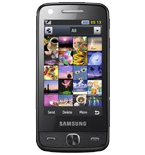
Fazer cópia de segurança de contactos, calendário, tarefas e notas de Samsung Pixon 12 (GT-M8910)
Guias disponíveis para sincronização com a nuvem segura
Funções suportadas
- sincronização de contactos
- sincronização de calendário
- sincronização de tarefas
- sincronização de notas

Transfira os seus contactos, calendário, tarefas e notas de Samsung Pixon 12 (GT-M8910) para um armazenamento online e vice-versa para os manter seguros e atualizados.
Samsung Pixon 12 (GT-M8910) é suportado pelo PhoneCopy.
Por favor, tenha em conta que as definições seguintes podem variar ligeiramente consoante a versão do firmware.
Modelos confirmados
Versões confirmadas
Guia de texto - Como fazer a cópia de segurança
Com Samsung Pixon 12 (GT-M8910)
A guia ainda não foi traduzida para o seu idioma.
First go to the phone's Main Menu and then follow these steps:
- Select Synchronize and choose Add.
- Configure given fields.
▼ hide fields
- Profile name: write PhoneCopy
- Synchronization category: Select the items you would like to synchronize. All will synchronize all items.
- Contacts
- to remote contacts write contacts, the rest can be left blank
- Plan
- to remote calendar write calendar, the rest can be left blank
- Task
- to remote task write tasks, the rest can be left blank
- Notes
- to remote notes write notes, the rest can be left blank
- Synchronization type: select Complete synchronization
- Synchronization server:
- Address
- write http://www.phonecopy.com/sync
- Login ID
- your_username
- Password
- your_password
- Save the data.
- Go to section Synchronise, select PhoneCopy profile and press OK to start the synchronization.
E agora, por favor, associe o seu telemóvel à sua conta PhoneCopy.
Em caso de problemas com a sincronização, contacte-nos.