Nokia 2323 dan yedeklenen kişiler, takvim, görevler ve notlar
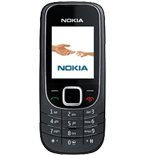
Güvenli buluta senkronizasyon için mevcut kılavuzlar
Desteklenen işlevler
- Kişiler senkronizasyonu
- Takvim senkronizasyonu
- görev senkronizasyonu
- Notlar senkronizasyonu

kişiler, takvim, görevler ve notlar verilerinizi Nokia 2323 cihazından çevrimiçi bir depolama alanına ve geri aktararak güvende ve güncel tutun.
Nokia 2323 cihazını PhoneCopy desteklenmektedir.
Lütfen aşağıdaki ayarların ürün yazılımı sürümüne bağlı olarak biraz değişebileceğini unutmayın.
Onaylanan modeller
Onaylanan sürümler
Haberler
- 13.03.2023
- A new phone user has synchronized his kişiler to PhoneCopy from Sri Lanka.
- 6.01.2022
- User from Gana has synchronized kişiler with his phone.
- 30.05.2021
- We detected PhoneCopy app on Nokia 2323 phone in Litvanya. All kişiler were backed up.
- 27.04.2021
- First user from Tanzanya just synced his kişiler on Nokia 2323 phone.
- 25.05.2020
- Even in Filipinler we have a user with Nokia 2323 phone. He backs up his kişiler.
dünya genelindeki Nokia 2323 kullanıcıları
Nokia 2323, dünya genelindeki birçok ülkede PhoneCopy kullanıcıları tarafından kişi yedeklemesi için tercih edilmektedir - Gana (Gaana, Gana) - 54.55%, Tanzanya - 27.27%, Sri Lanka (Sri Lankā, ශ්රී ලංකාව, இலங்கை) - 9.09%, Litvanya (Lietuva) - 4.55%, Filipinler (Pilipinas) - 4.55%.
Haritada
Aşağıdaki ısı haritası, PhoneCopy kullanarak Nokia 2323 cihazlarını senkronize eden dünya genelindeki kullanıcılar arasındaki payı göstermektedir.
Talimat metni - Nasıl yedekleme yapılır
Nokia 2323 ile
- Press Menu and choose Settings - Configuration - Personal config. sett..
- Press Options and choose Add new - Synchronization and configure given fields.
▼ hide fields
- Account name: Write PhoneCopy
- Server address: Write http://www.phonecopy.com/sync
- User name: your_username
- Password: your_password
- Contacts database:
- Database address
- Write contacts
- User name
- Leave empty.
- Password
- Leave empty.
- Calendar database:
- Database address
- Write calendar
- User name
- Leave empty.
- Password
- Leave empty.
- Notes database:
- Database address
- Write notes
- User name
- Leave empty.
- Password
- Leave empty.
- Use pref. access pt.: If you want to use your preferred access point to connect to PhoneCopy, choose Yes, otherwise choose No and set up the access point in the next menu item Access point settings.
- Press Back, go to the name of the profile you have just created, press Options and choose Activate.
- Press Back twice.
- Choose Sync and backup - Data transfer and go to Server sync but do not enter this item.
- Press Options - Edit - Sync settings and configure given fields.
▼ hide fields
- Configuration: Choose Personal config. - Select.
- Account: Choose PhoneCopy - Select.
- User name: Fill in your user name.
- Password: Fill in your password.
- Press Back and choose Synchronized data.
- Mark the items you want to synchronize and press Done (or Back if you made no changes).
- If the cell phone asks you Save changes?, choose Yes.
- Choosing Server sync you can now start synchronization with PhoneCopy.
If you need more help with the settings, visit our step by step screenshot guide.
Ve lütfen şimdi, Telefonunuzu PhoneCopy hesabınıza atama işlemini yapınız
Senkronizasyon esnasında herhangi bir problemle karşılaşırsanız Yardım İsteyin
