Sony Ericsson J20i (Hazel) dan yedeklenen kişiler, takvim, görevler ve notlar
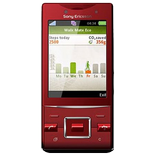
Güvenli buluta senkronizasyon için mevcut kılavuzlar
Desteklenen işlevler
- Kişiler senkronizasyonu
- Takvim senkronizasyonu
- görev senkronizasyonu
- Notlar senkronizasyonu

kişiler, takvim, görevler ve notlar verilerinizi Sony Ericsson J20i (Hazel) cihazından çevrimiçi bir depolama alanına ve geri aktararak güvende ve güncel tutun.
Sony Ericsson J20i (Hazel) cihazını PhoneCopy desteklenmektedir.
Lütfen aşağıdaki ayarların ürün yazılımı sürümüne bağlı olarak biraz değişebileceğini unutmayın.
Onaylanan modeller
Onaylanan sürümler
Haberler
- 28.05.2023
- User from Yunanistan has synchronized kişiler with his phone.
- 8.03.2023
- User from Irak has synchronized kişiler with his phone.
- 13.02.2023
- A new phone user has synchronized his kişiler to PhoneCopy from Slovakya.
- 2.09.2020
- Sony Ericsson J20i (Hazel) phone was synchronized by PhoneCopy user in Belarus. His kişiler were transferred.
- 25.03.2020
- We just got first user of Sony Ericsson J20i (Hazel) in İran! Someone just backed up his kişiler from a new phone.
dünya genelindeki Sony Ericsson J20i (Hazel) kullanıcıları
Sony Ericsson J20i (Hazel), PhoneCopy kullanıcıları tarafından Slovakya (Slovensko) - 52.38%, İran (Īrān, ایران) - 28.57%, Irak (Al-'Iraq, العراق, Îraq) - 9.52%, Belarus (Bielaruś, Беларусь) - 4.76%, Yunanistan (Hellas, Ελλάς, Ellada, Ελλάδα) - 4.76% gibi ülkelerde sıklıkla kullanılmaktadır.
Haritada
Harita, dünya genelinde PhoneCopy ile kişi yedeklemesi için Sony Ericsson J20i (Hazel) kullanımını göstermektedir.
Talimat metni - Nasıl yedekleme yapılır
Sony Ericsson J20i (Hazel) ile
- Press Menu and select Organizer
- Select Synchronization
- Select New account and press Add
- Select SyncML
- Write PhoneCopy and press Continue. Configure given fields.
▼ hide fields
- Server address: Write http://www.phonecopy.com/sync
- Server username: your_username
- Server password: your_password
- Connection: Choose a network connection PhoneCopy should use.
- Remote initiation: We recommend keeping the default choice - Always ask
- Select Applications and mark items you want to synchronize. Accept by pressing OK
- Select Application settings and configure given fields.
▼ hide fields
- Phonebook: Write contacts. Leave Username and Password blank.
- Calendar: Write calendar. Leave Username and Password blank.
- Tasks: Write tasks. Leave Username and Password blank.
- Notes: Write notes. Leave Username and Password blank.
- Press OK, Back and Save.
- You can synchronize any time now by choosing PhoneCopy and pressing Start.
Ve lütfen şimdi, Telefonunuzu PhoneCopy hesabınıza atama işlemini yapınız
Senkronizasyon esnasında herhangi bir problemle karşılaşırsanız Yardım İsteyin
