Backup Kontakte, Fotos, videos, sms messages und call logs from Vivo Y71 (1724)
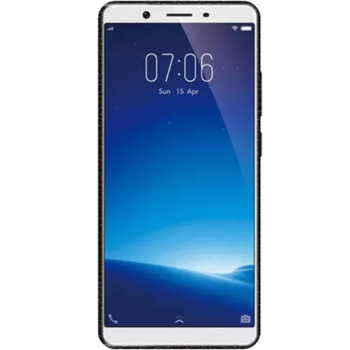
Available guides for synchronization to the secure cloud
Supported functions
- Kontakt-Synchronisation
- sms-Sicherung
- call log backup
- Foto-Synchronisierung
- Video-Synchronisation
- automatisch synchronisieren


Transfer your Kontakte, Fotos, videos, sms messages und call logs from Vivo Y71 (1724) to an online storage and back to keep them safe and up to date.
Vivo Y71 (1724) wird von PhoneCopy unterstützt.
Please note that following settings may vary a little depending on the firmware version.
Confirmed models
Confirmed versions
- Android 8.1 Oreo
News
- 12.08.22
- Someone used PhoneCopy for backup of this phone model in Thailand. His Kontakte und sms messages were transferred.
- 26.09.20
- First user from Indien just synced his Kontakte on Vivo Y71 (1724) phone.
- 19.01.20
- Even in Indonesien we have a user with Vivo Y71 (1724) phone. He backs up his Kontakte.
Android versions running on Vivo Y71 (1724)
When synchronizing, PhoneCopy users had following Android versions on their Vivo Y71 (1724): Android 8.1 Oreo (100.00%).
Vivo Y71 (1724) Nutzer auf der ganzen Welt
Vivo Y71 (1724) wird häufig von PhoneCopy-Benutzern in Ländern wie Indien (Bharôt, ভাৰত, ভারত, Bhārat, ભારત, भारत, Bhārata, ಭಾರತ, Bhāratam, ഭാരതം, Bharôtô, ଭାରତ, ਭਾਰਤ, भारतम्, Bārata, பாரதம், Bhāratadēsam, భారత దేశం) - 62.50%, Indonesien - 31.25%, Thailand (Thai, Prathet Thai, Ratcha-anachak Thai, ไทย, ประเทศไทย, ราชอาณาจักรไทย) - 6.25% verwendet.
Following heat map shows contacts synchronisations with Vivo Y71 (1724) using PhoneCopy across the globe.
Text guideline - How to backup
Mit Vivo Y71 (1724)
- Download our PhoneCopy for Android application to your mobile device.
- After launching the application, create a new account from the application. If you have already created an account on web pages www.phonecopy.com, log in to this existing account in the application.
- After successful login, go through the application setup wizard and then select Synchronize (for an account with an existing backup) / Backup (for an empty account) or press the Later button and then select option in the side menu Back up contacts / Restore contacts for one-way synchronization.
For more information about our app, visit our PhoneCopy for Android page.
Bei Problemen mit der Synchronisierung, bitte kontaktieren Sie uns.
Benutzer Kommentare
Um einen Kommentar zu hinterlassen, melden Sie sich an.
-
-
Hello, PhoneCopy backs up all SMS on the phone, there is no need to set anything else. Our records show a backup of 1818 SMS firstly and then adding of two more SMS (one by one) during consequent backups. Are you sure that the other messages that were not backed up are also SMS?
-

I don't see where to add more. Can anyone help me figure this out?
adolph1960, 01.08.22