Backup contacts, calendar, photos and videos from Apple iPad 4
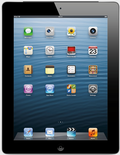
Available guides for synchronization to the secure cloud
Supported functions
- contact synchronization
- calendar synchronization
- photo synchronization
- video synchronization
- automatic sync

Transfer your contacts, calendar, photos and videos from Apple iPad 4 to an online storage and back to keep them safe and up to date.
Apple iPad 4 is supported on PhoneCopy.
Please note that following settings may vary a little depending on the firmware version.
News
- 01/07/2024
- Someone just used PhoneCopy for backup of Apple iPad 4 in country Egypt. His contacts were backed up.
- 15/09/2021
- User from Turkey has synchronized contacts with his phone.
- 12/09/2021
- We just got first user of Apple iPad 4 in Greece! Someone just backed up his contacts from a new phone.
- 20/02/2020
- First user from Germany just synced his contacts on Apple iPad 4 phone.
- 02/02/2020
- Apple iPad 4 phone was synchronized by PhoneCopy user in Ethiopia. His contacts were transferred.
Apple iPad 4 users around the world
Apple iPad 4 is often used by PhoneCopy users in countries like Czechia (Czech Republic, Česká republika) - 99.19%, Turkey (Türkiye) - 0.20%, Slovakia (Slovensko) - 0.14%, Austria (Österreich) - 0.14%, Greece (Hellas, Ελλάς, Ellada, Ελλάδα) - 0.14%, Egypt (Misr, Masr, مصر) - 0.07%, Germany (Deutschland) - 0.07%, Ethiopia (Ityop'ia, ኢትዮጵያ) - 0.07%.
On the map
Following heat map illustrates share between users around the world synchronizing their Apple iPad 4 using PhoneCopy.
Text guideline - How to backup
With Apple iPad 4
- Install PhoneCopy for iPhone / iPad from App Store.
- Launch it and follow the wizard that appears. Sign on if you already have a PhoneCopy account or register if you want to create a new one.
- Authorize access to contacts and then select sources (accounts) that you want to synchronize. Next authorize access to media and then select whether you want to synchronize photos and/or videos. If you do not allow PhoneCopy access to your media, only your contacts will by synchronized.
- If you already have media on your PhoneCopy account you can opt in to synchronize (download) them to this device.
- Finally tap on Synchronize to perform the complete synchronization.
If you need to synchronize calendar, see our guide on how to sync calendars with iOS devices.
In the case of problems with synchronization, please contact us.
