Backup contacts, photos, videos, sms messages and call logs from DooGee S61
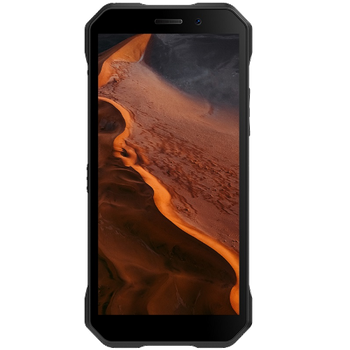
Available guides for synchronization to the secure cloud
Supported functions
- contact synchronization
- sms backup
- call log backup
- photo synchronization
- video synchronization
- automatic sync


Transfer your contacts, photos, videos, sms messages and call logs from DooGee S61 to an online storage and back to keep them safe and up to date.
DooGee S61 is supported on PhoneCopy.
Please note that following settings may vary a little depending on the firmware version.
Confirmed models
Confirmed versions
- Android 12
News
- 08/05/2023
- We freshly support DooGee S61 with Android 12 OS for photo, video, SMS and contact backup.
- 01/05/2023
- We detected PhoneCopy app on DooGee S61 phone in United Kingdom. All contacts and sms messages were backed up.
Android versions running on DooGee S61
When synchronizing, PhoneCopy users had following Android versions on their DooGee S61: Android 12 (100.00%).
DooGee S61 users around the world
According to our statistics, PhoneCopy users use DooGee S61 for data backup in countries United Kingdom (Y Deyrnas Unedig, Unitit Kinrick, Rìoghachd Aonaichte, Ríocht Aontaithe, An Rywvaneth Unys) - 100.00%.
Following heat map shows contacts synchronisations with DooGee S61 using PhoneCopy across the globe.
Text guideline - How to backup
With DooGee S61
- Download our PhoneCopy for Android application to your mobile device.
- After launching the application, create a new account from the application. If you have already created an account on web pages www.phonecopy.com, log in to this existing account in the application.
- After successful login, go through the application setup wizard and then select Synchronize (for an account with an existing backup) / Backup (for an empty account) or press the Later button and then select option in the side menu Back up contacts / Restore contacts for one-way synchronization.
For more information about our app, visit our PhoneCopy for Android page.
In the case of problems with synchronization, please contact us.
User comments
To leave a comment please sign in.
-
I received the notification to sycronize messages and cotacts since the tenth day of this month.I gave a try but unsuccesful to syncronize.That made outgoing calls very impossible.So please assist as soon as possible. georgeweikel16, 26/12/2023
-
We didn't find any synchronized phone in your profile. Are you sure you received notification from PhoneCopy?
-
