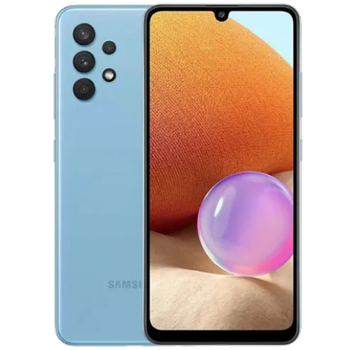
Backup contacts, photos, videos, sms messages and call logs from Samsung Galaxy A37 SM-A037b
Available guides for synchronization to the secure cloud
Supported functions
- contact synchronization
- sms backup
- call log backup
- photo synchronization
- video synchronization
- automatic sync


Transfer your contacts, photos, videos, sms messages and call logs from Samsung Galaxy A37 SM-A037b to an online storage and back to keep them safe and up to date.
Samsung Galaxy A37 SM-A037b is supported on PhoneCopy.
Please note that following settings may vary a little depending on the firmware version.
Confirmed models
Confirmed versions
- Android 17
- Android 16
News
- 01/11/2026
- Android 17 can be officially updated even on Samsung Galaxy A37 SM-A037b.
- 31/10/2026
- A new phone user has synchronized his contacts to PhoneCopy from Czechia.
- 04/10/2026
- We added Samsung Galaxy A37 SM-A037b to supported devices with Android 16.
- 10/09/2026
- We just got first user of Samsung Galaxy A37 SM-A037b in Serbia! Someone just backed up his contacts from a new phone.
Android versions running on Samsung Galaxy A37 SM-A037b
When synchronizing, PhoneCopy users had following Android versions on their Samsung Galaxy A37 SM-A037b: Android 16 (90.91%), Android 17 (9.09%).
Following chart shows contacts synchronisations with Samsung Galaxy A37 SM-A037b running different Android versions.
Samsung Galaxy A37 SM-A037b users around the world
Samsung Galaxy A37 SM-A037b is preffered for contact backup by PhoneCopy users in several countries around the world - Serbia (Srbija, Србија) - 90.91%, Czechia (Czech Republic, Česká republika) - 9.09%.
Following heat map shows contacts synchronisations with Samsung Galaxy A37 SM-A037b using PhoneCopy across the globe.
Text guideline - How to backup
With Samsung Galaxy A37 SM-A037b
- Download our PhoneCopy for Android application to your mobile device.
- After launching the application, create a new account from the application. If you have already created an account on web pages www.phonecopy.com, log in to this existing account in the application.
- After successful login, go through the application setup wizard and then select Synchronize (for an account with an existing backup) / Backup (for an empty account) or press the Later button and then select option in the side menu Back up contacts / Restore contacts for one-way synchronization.
For more information about our app, visit our PhoneCopy for Android page.
In the case of problems with synchronization, please contact us.
User comments
To leave a comment please sign in.
-
-
What do I need to download my photos
-
Please check our guide https://www.phonecopy.com/en/pages/how_to_synchronize_contacts_to_android
-
-
abbas
-
When you synchronize your photos to PhoneCopy.com you can download them from your profile or you can synchronize them directly to your Windows PC via PhoneCopy for Windows. https://www.phonecopy.com/discussion/?comment_id=7263&category_id=237
-

jakeabobich, 22/10/2021