Backup contacts, photos, videos, sms messages and call logs from Samsung Galaxy J2 Core (SM-J260A)
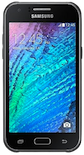
Available guides for synchronization to the secure cloud
Supported functions
- contact synchronization
- sms backup
- call log backup
- photo synchronization
- video synchronization
- automatic sync


Transfer your contacts, photos, videos, sms messages and call logs from Samsung Galaxy J2 Core (SM-J260A) to an online storage and back to keep them safe and up to date.
Samsung Galaxy J2 Core (SM-J260A) is supported on PhoneCopy.
Please note that following settings may vary a little depending on the firmware version.
Confirmed models
Confirmed versions
- Android 9.0 Pie
News
- 16/12/2019
- User from United States has synchronized contacts with his phone.
Android versions running on Samsung Galaxy J2 Core (SM-J260A)
When synchronizing, PhoneCopy users had following Android versions on their Samsung Galaxy J2 Core (SM-J260A): Android 9.0 Pie (100.00%).
Samsung Galaxy J2 Core (SM-J260A) users around the world
According to our statistics, PhoneCopy users use Samsung Galaxy J2 Core (SM-J260A) for data backup in countries United States (Estados Unidos, États-Unis, ‘Amelika Hui Pū ‘ia) - 100.00%.
The map shows usage of Samsung Galaxy J2 Core (SM-J260A) for contact backup with PhoneCopy around the world.
Text guideline - How to backup
With Samsung Galaxy J2 Core (SM-J260A)
- Download our PhoneCopy for Android application to your mobile device.
- After launching the application, create a new account from the application. If you have already created an account on web pages www.phonecopy.com, log in to this existing account in the application.
- After successful login, go through the application setup wizard and then select Synchronize (for an account with an existing backup) / Backup (for an empty account) or press the Later button and then select option in the side menu Back up contacts / Restore contacts for one-way synchronization.
For more information about our app, visit our PhoneCopy for Android page.
In the case of problems with synchronization, please contact us.
User comments
To leave a comment please sign in.
-
For some strange reason, app cannot access phone contacts stored on device - after granting proper permission it will show 0 contacts. Checked with other contact app, and they can be accessed. Android 11 (Lineage OS 18.1), Sony Xperia ZX 1 Compact gladykov, 03/01/2022
-
Answered via private email.
-
Nuruseyd842@gmail.com
-
-
