Backup contacts, photos, videos, sms messages and call logs from Samsung Galaxy S25+ sm-s936n
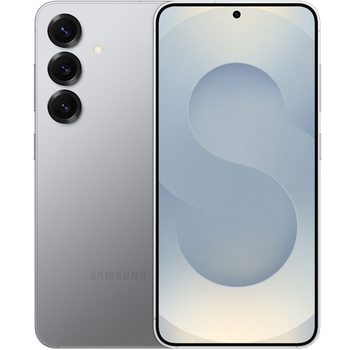
Available guides for synchronization to the secure cloud
Supported functions
- contact synchronization
- sms backup
- call log backup
- photo synchronization
- video synchronization
- automatic sync


Transfer your contacts, photos, videos, sms messages and call logs from Samsung Galaxy S25+ sm-s936n to an online storage and back to keep them safe and up to date.
Samsung Galaxy S25+ sm-s936n is supported on PhoneCopy.
Please note that following settings may vary a little depending on the firmware version.
Confirmed models
Confirmed versions
- Android 16
News
- 15/04/2026
- First user from United Kingdom just synced his contacts on Samsung Galaxy S25+ sm-s936n phone.
- 16/03/2026
- We just added Samsung Galaxy S25+ sm-s936n to supported devices with the Android 16 operating system. We allow synchronization and backup of contacts, SMSes, call log, photos, and videos to a secure PhoneCopy Cloud.
- 13/03/2026
- Even in South Korea we have a user with Samsung Galaxy S25+ sm-s936n phone. He backs up his contacts.
Android versions running on Samsung Galaxy S25+ sm-s936n
When synchronizing, PhoneCopy users had following Android versions on their Samsung Galaxy S25+ sm-s936n: Android 16 (100.00%).
Samsung Galaxy S25+ sm-s936n users around the world
Samsung Galaxy S25+ sm-s936n is preffered for contact backup by PhoneCopy users in several countries around the world - South Korea (Hanguk, 한국, 韓國, Namhan, 남한) - 93.55%, United Kingdom (Y Deyrnas Unedig, Unitit Kinrick, Rìoghachd Aonaichte, Ríocht Aontaithe, An Rywvaneth Unys) - 6.45%.
Following heat map shows contacts synchronisations with Samsung Galaxy S25+ sm-s936n using PhoneCopy across the globe.
Text guideline - How to backup
With Samsung Galaxy S25+ sm-s936n
- Download our PhoneCopy for Android application to your mobile device.
- After launching the application, create a new account from the application. If you have already created an account on web pages www.phonecopy.com, log in to this existing account in the application.
- After successful login, go through the application setup wizard and then select Synchronize (for an account with an existing backup) / Backup (for an empty account) or press the Later button and then select option in the side menu Back up contacts / Restore contacts for one-way synchronization.
For more information about our app, visit our PhoneCopy for Android page.
In the case of problems with synchronization, please contact us.
User comments
To leave a comment please sign in.
-
Thanks for all. bikorimanasamuel, 24/07/2026