Backup contacts, calendar, tasks and notes from Sony Ericsson C702
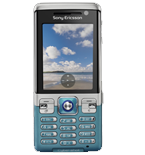
Available guides for synchronization to the secure cloud
Supported functions
- contact synchronization
- calendar synchronization
- task synchronization
- note synchronization

Transfer your contacts, calendar, tasks and notes from Sony Ericsson C702 to an online storage and back to keep them safe and up to date.
Sony Ericsson C702 is supported on PhoneCopy.
Please note that following settings may vary a little depending on the firmware version.
Confirmed models
Confirmed versions
News
- 14/09/2026
- We just got first user of Sony Ericsson C702 in Hungary! Someone just backed up his contacts from a new phone.
Sony Ericsson C702 users around the world
Sony Ericsson C702 is often used by PhoneCopy users in countries like Hungary (Magyarország) - 100.00%.
On the map
Histogram depicts Sony Ericsson C702 backup with PhoneCopy around the world.
Text guideline - How to backup
With Sony Ericsson C702
- Press Menu and select Organizer
- Select Synchronization
- Select New account and press Add
- Select SyncML
- Write PhoneCopy and press Continue. Configure given fields.
▼ hide fields
- Server address: Write http://www.phonecopy.com/sync
- Server username: your_username
- Server password: your_password
- Connection: Choose a network connection PhoneCopy should use.
- Remote initiation: We recommend keeping the default choice - Always ask
- Select Applications and mark items you want to synchronize. Accept by pressing OK
- Select Application settings and configure given fields.
▼ hide fields
- Phonebook: Write contacts. Leave Username and Password blank.
- Calendar: Write calendar. Leave Username and Password blank.
- Tasks: Write tasks. Leave Username and Password blank.
- Notes: Write notes. Leave Username and Password blank.
- Press OK, Back and Save.
- You can synchronize any time now by choosing PhoneCopy and pressing Start.
And now please, assign your phone to your PhoneCopy account.
In the case of problems with synchronization, please contact us.
