Realizar copia de seguridad de contactos, fotos, vídeos, mensajes SMS y registros de llamadas desde Alcatel Pixi 4 5.0 LTE 5045T
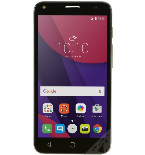
Guías disponibles para la sincronización con la nube segura
Funciones compatibles
- sincronización de contactos
- copia de seguridad de SMS
- copia de seguridad del registro de llamadas
- sincronización de fotos
- sincronización de vídeos
- sincronización automática


Transfiera sus contactos, fotos, vídeos, mensajes SMS y registros de llamadas desde Alcatel Pixi 4 5.0 LTE 5045T a un almacenamiento en línea y viceversa para mantenerlos seguros y actualizados.
Alcatel Pixi 4 5.0 LTE 5045T es compatible con PhoneCopy.
Tenga en cuenta que la siguiente configuración puede variar ligeramente según la versión del firmware.
Modelos confirmados
Versiones confirmadas
- Android 6.0 Marshmallow
Noticias
- 21/10/20
- El primer usuario de Malasia acaba de sincronizar sus contactos en su teléfono Alcatel Pixi 4 5.0 LTE 5045T.
versiones de Android ejecutándose en Alcatel Pixi 4 5.0 LTE 5045T
La aplicación PhoneCopy para Android es compatible con varias versiones de Android. Nuestros usuarios sincronizaron su Alcatel Pixi 4 5.0 LTE 5045T con Android 6.0 Marshmallow (100.00%).
usuarios de Alcatel Pixi 4 5.0 LTE 5045T en todo el mundo
Según nuestras estadísticas, los usuarios de PhoneCopy utilizan Alcatel Pixi 4 5.0 LTE 5045T para la copia de seguridad de datos en los países Malasia (Mǎláixīyà, 马来西亚, Malēṣiyā, மலேசியா) - 100.00%.
El histograma muestra la copia de seguridad de Alcatel Pixi 4 5.0 LTE 5045T con PhoneCopy en todo el mundo.
Guía de texto - Cómo hacer copias de seguridad
Con Alcatel Pixi 4 5.0 LTE 5045T
- Descargue nuestra aplicación PhoneCopy para Android en su dispositivo móvil.
- Después de abrir la aplicación, cree una nueva cuenta desde la aplicación. Si ya ha creado una cuenta en la página web www.phonecopy.com, inicie sesión con esa cuenta existente en la aplicación.
- Tras iniciar sesión correctamente, siga el asistente de configuración de la aplicación y, a continuación, seleccione Synchronize (para una cuenta con una copia de seguridad existente) / Backup (para una cuenta vacía), o pulse el botón Later y luego seleccione la opción correspondiente en el menú lateral Back up contacts / Restore contacts para una sincronización unidireccional.
Para obtener más información sobre nuestra aplicación, visite nuestra página de PhoneCopy para Android.
En el caso de problemas con la sincronización, contacte con nosotros.
Comentarios de usuarios
Para dejar un comentario, por favor inicie sesión.
-
-
Hi, did you download PhoneCopy application from Google Play or Huawei AppGallery?
-
Hi, on Windowsphone it was from Google Play, on new P40 plus, I honestly don't remember, but THINK it was from H AppGalley. I even paid for a month's premium upgrade. Having a look around 'tinternet' I've seen one version of PhoneCopy with the red/black background and another with a pale blue background. Both mine are red/black. Should I delete both phones and start again? Can't actually find the 'pale-blue-one' in a store? Is the blue one the newer version? Regards, Trevor L
-
Hi, Windows mobile (Lumia) has older design because we keep it working until Microsoft will keep live their store. That step don't need to be repeated. Huawei P40 application is the same like on the following guide https://www.phonecopy.com/en/pages/how_to_synchronize_contacts_to_android . We found your phone contacting our servers but still not synchronized. Our technical team will contact you on Monday to check what should be wrong.
-
Hello again, and thank you for your prompt response. I will be patient and wait 'till Monday then. Trevor L
-
Hello,
your Huawei does not support Google Play Services.
In this case, please, install PhoneCopy for Huawei:
https://appgallery7.huawei.com/#/app/C102701109-
-
My Huawei DOES support Google Play Services...., what it will NOT do is respond to the link that you've sent me. I think I may have to write-off the £1:92 I've paid to PhoneCopy. I still have the same problem! I've successfully uploaded my contacts from my Lumia 640 LTE to your 'Cloud'. But cannot download anything to my Huawei P40 pro. In the app, the P40 Think I want to UPload, but says there is nothing to upload. Is there anything else you can suggest please?
-
Hello again, sorry, but official Huawei documentation says that Huawei P40 does not contain Google Services and running on Android 10.
In our logs, generated by communication with your phone is named as P40 pro, but running on Android 4.4.2 KITKAT with older type of processor, what is very unusual.
We will send you more informaction to your private mail.-
Thank you for this information. I've had this handset for less than a week. It came unlocked, apparently 'sealed', boxed, with the usual very small instruction leaflet, from a usually reliable source that I've used for a long time. I do now wonder though, if it is a genuine Huawei product? I have not owned any Huawei products before, so cannot compare. It is advertised variously at between £695:00 and £875:00 approx. I am very careful about buying things on the internet, but there's always a first time to be conned. I'm SURE that your information is correct. I'll await your further contact with interest. Thanks again, Trevor L
-
-
-
-
-
Answered via private mail.
-
Hello again PhoneCopy team,
Just wanted to say a really big thank you. After a complete week of communication to/fro between us, I have finally synchronised my Lumia 640 LTE with my new (highly suspect P40 pro) You even built a version of your app specifically for my use.
I now have all 87 contacts and hundreds of diary entries on the Android P40 pro. Sorted all the contacts; now just looking around for a decent calendar📅diary for other content.
Upgraded to premium at the start of this 'adventure' and have just paid for a bit😊more storage, (not that I'll need it) by way of a Thank You. Kind Regards, Trevor L
-
Thanks
-
-
-
-
-
-
-

I have uploaded my contacts+diary etc, from my Lumia 640 LTE (windows phone) successfully, but I don't seem to be able to download (from your cloud) to my new Huawei P40 Pro..., (previously known as the P40 els-nx9) which your systems say is supported. Spent hours so far..., even losing weight now! Help PLEASE...., REGARDS, Trev. trevor.lidbury, 29/8/20