Realizar copia de seguridad de contactos, fotos, vídeos, mensajes SMS y registros de llamadas desde Micromax Canvas Tab P702
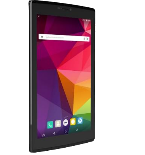
Guías disponibles para la sincronización con la nube segura
Funciones compatibles
- sincronización de contactos
- copia de seguridad de SMS
- copia de seguridad del registro de llamadas
- sincronización de fotos
- sincronización de vídeos
- sincronización automática


Transfiera sus contactos, fotos, vídeos, mensajes SMS y registros de llamadas desde Micromax Canvas Tab P702 a un almacenamiento en línea y viceversa para mantenerlos seguros y actualizados.
Micromax Canvas Tab P702 es compatible con PhoneCopy.
Tenga en cuenta que la siguiente configuración puede variar ligeramente según la versión del firmware.
Modelos confirmados
Versiones confirmadas
- Android 6.0 Marshmallow
- Android 5.1 Lollipop
Noticias
- 6/3/20
- Detectamos la aplicación PhoneCopy en un teléfono Micromax Canvas Tab P702 en India. Todos los contactos fueron respaldados.
versiones de Android ejecutándose en Micromax Canvas Tab P702
La aplicación PhoneCopy para Android es compatible con varias versiones de Android. Nuestros usuarios sincronizaron su Micromax Canvas Tab P702 con Android 5.1 Lollipop (66.67%), Android 6.0 Marshmallow (33.33%).
El gráfico muestra la copia de seguridad de Micromax Canvas Tab P702 con PhoneCopy, ejecutando varias versiones de Android.
usuarios de Micromax Canvas Tab P702 en todo el mundo
Micromax Canvas Tab P702 es utilizado a menudo por usuarios de PhoneCopy en países como India (Bharôt, ভাৰত, ভারত, Bhārat, ભારત, भारत, Bhārata, ಭಾರತ, Bhāratam, ഭാരതം, Bharôtô, ଭାରତ, ਭਾਰਤ, भारतम्, Bārata, பாரதம், Bhāratadēsam, భారత దేశం) - 100.00%.
El histograma muestra la copia de seguridad de Micromax Canvas Tab P702 con PhoneCopy en todo el mundo.
Guía de texto - Cómo hacer copias de seguridad
Con Micromax Canvas Tab P702
- Descargue nuestra aplicación PhoneCopy para Android en su dispositivo móvil.
- Después de abrir la aplicación, cree una nueva cuenta desde la aplicación. Si ya ha creado una cuenta en la página web www.phonecopy.com, inicie sesión con esa cuenta existente en la aplicación.
- Tras iniciar sesión correctamente, siga el asistente de configuración de la aplicación y, a continuación, seleccione Synchronize (para una cuenta con una copia de seguridad existente) / Backup (para una cuenta vacía), o pulse el botón Later y luego seleccione la opción correspondiente en el menú lateral Back up contacts / Restore contacts para una sincronización unidireccional.
Para obtener más información sobre nuestra aplicación, visite nuestra página de PhoneCopy para Android.
En el caso de problemas con la sincronización, contacte con nosotros.
Comentarios de usuarios
Para dejar un comentario, por favor inicie sesión.
-
Please send me a script to uptodate emails with my information about any working products android may use and plus I have to send you these applications about the Mexican Mexican apple butter apply app steals and regains grades from wire craigandre06, 20/7/26
