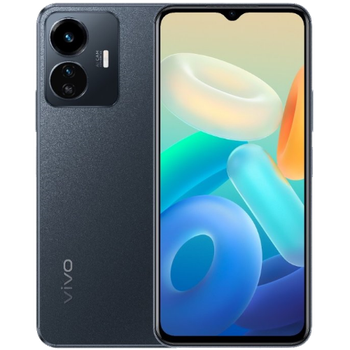
Realizar copia de seguridad de contactos, fotos, vídeos, mensajes SMS y registros de llamadas desde Vivo Y77 (v2169)
Guías disponibles para la sincronización con la nube segura
Funciones compatibles
- sincronización de contactos
- copia de seguridad de SMS
- copia de seguridad del registro de llamadas
- sincronización de fotos
- sincronización de vídeos
- sincronización automática


Transfiera sus contactos, fotos, vídeos, mensajes SMS y registros de llamadas desde Vivo Y77 (v2169) a un almacenamiento en línea y viceversa para mantenerlos seguros y actualizados.
Vivo Y77 (v2169) es compatible con PhoneCopy.
Tenga en cuenta que la siguiente configuración puede variar ligeramente según la versión del firmware.
Modelos confirmados
Versiones confirmadas
- Android 14
- Android 13
Noticias
- 17/10/24
- We noticed the update possibility of Vivo Y77 (v2169) to a new Android operating system version 14.
- 27/2/23
- We tested new Android 13 on Vivo Y77 (v2169) with our PhoneCopy app and it's completely working.
- 25/2/23
- Un usuario de Malasia ha sincronizado sus contactos y mensajes SMS con su teléfono.
versiones de Android ejecutándose en Vivo Y77 (v2169)
La aplicación PhoneCopy para Android es compatible con varias versiones de Android. Nuestros usuarios sincronizaron su Vivo Y77 (v2169) con Android 13 (92.86%), Android 14 (7.14%).
El gráfico muestra la copia de seguridad de Vivo Y77 (v2169) con PhoneCopy, ejecutando varias versiones de Android.
usuarios de Vivo Y77 (v2169) en todo el mundo
Vivo Y77 (v2169) es utilizado a menudo por usuarios de PhoneCopy en países como Malasia (Mǎláixīyà, 马来西亚, Malēṣiyā, மலேசியா) - 100.00%.
El histograma muestra la copia de seguridad de Vivo Y77 (v2169) con PhoneCopy en todo el mundo.
Guía de texto - Cómo hacer copias de seguridad
Con Vivo Y77 (v2169)
- Descargue nuestra aplicación PhoneCopy para Android en su dispositivo móvil.
- Después de abrir la aplicación, cree una nueva cuenta desde la aplicación. Si ya ha creado una cuenta en la página web www.phonecopy.com, inicie sesión con esa cuenta existente en la aplicación.
- Tras iniciar sesión correctamente, siga el asistente de configuración de la aplicación y, a continuación, seleccione Synchronize (para una cuenta con una copia de seguridad existente) / Backup (para una cuenta vacía), o pulse el botón Later y luego seleccione la opción correspondiente en el menú lateral Back up contacts / Restore contacts para una sincronización unidireccional.
Para obtener más información sobre nuestra aplicación, visite nuestra página de PhoneCopy para Android.
En el caso de problemas con la sincronización, contacte con nosotros.
Comentarios de usuarios
Para dejar un comentario, por favor inicie sesión.
-
-
It sounds like the cloud version still holds your old contacts. Try deleting the extra contacts directly from your PhoneCopy cloud account, then force a manual sync from your device. If that doesn’t work, you might need to reset the sync or re-link your account. Hope this helps!
-
Hello,
the number of contacts online is what matters. So please remove unnecessary contacts on the web. After that, the synchronization will be allowed again.-
So, though I did all the cleanup locally in my phone's contacts, and though the App DOES see the local number as less than 500 it will not initiate uploading the information as for the deletions? Because if it replicated the deletions, then there would not be a sync problem.
-
Hello,
the limit works this way. It is stated in the email user receives when the limit is exceeded.-
I realize the limitation of the platform, and since it is not capable of synchronizing in the traditional technical meaning of the term, could you suggest a workaround?
Perhaps if I deleted my account, removed my app and started over in a suggested sequence so that my less than 500 contacts would be then uploaded?-
If you have blocked an account because of exceeding limits, you just need to delete some contacts on the server to fit the limit of 500 and your account will be unlocked.
-
there is much overhead to re-do the same thing I already did locally a few months ago.
Do you think, considering all I have previously mentioned, that there is a different work-around to the platform not being able to two-say sync the information?-
It seems we are discussing several contacts which have to be deleted from your online profile to make it free again. We explained to you that contacts online are what matters. If you don't want to follow our recommendation you can delete the whole account and create it as a new profile with the number of contacts stored in your mobile phone.
-
-
-
-
-
-
-

But on Phonecopy on the cloud there is a different amount of Contacts, much more than 600. On the app I see that it recognizes that I do have less than 500 contacts on my device.
But of course it does not sync. What do I have to do to make this work? kanoyati, 3/1/24