How to synchronize data between PhoneCopy and Mac
By the end of this guide you will never have to worry about data backup from your Mac again. You'll understand how to set it up and how it works on your Apple Mac, how to enable or disable photos, videos, and documents synchronization, how it can be used, and why our PhoneCopy secure cloud is better than other clouds. We have prepared easy instructions for users of PhoneCopy.com, on how you can synchronize contacts, calendars, photos and videos from PhoneCopy.com to your Apple Mac and Macbook or even documents from your Mac to PhoneCopy Personal Cloud.
You can find other help and advices at How to page.
How to start?
You need an Apple Mac or Macbook with and our application PhoneCopy Desktop. You can find it in "Apple App Store" in "Productivity" section, or just follow this link.
Alternatively you can download it from our pages.
Synchronize contacts, calendar, photos and videos from your PhoneCopy account to Apple Mac
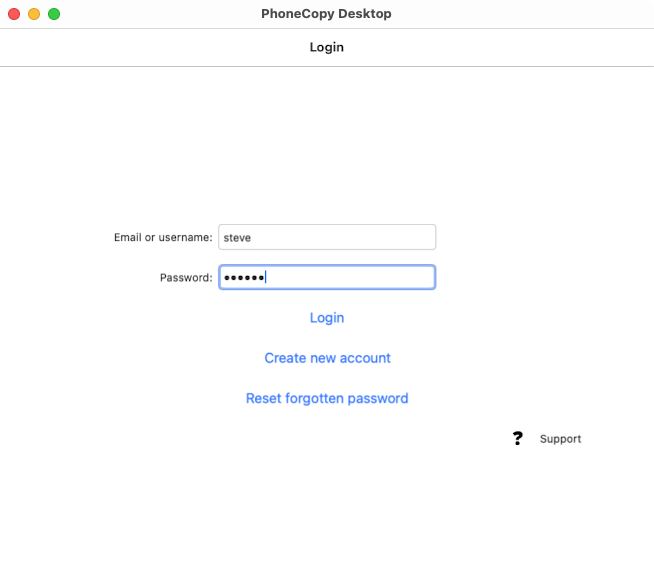
After installing PhoneCopy on your Mac, click the app icon. You will be prompted to sign in to your account.
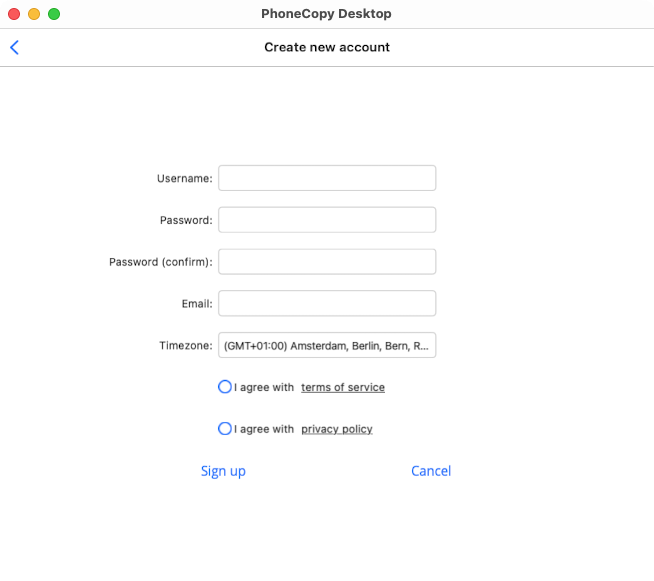
If you do not already have a PhoneCopy account, click "Create New Account".
Contacts and calendar
Contacts and calendar are synced directly to your Mac addressbook and calendar apps. You can enable syncing for contacts or calendar (or both) in the proper box on the main screen.
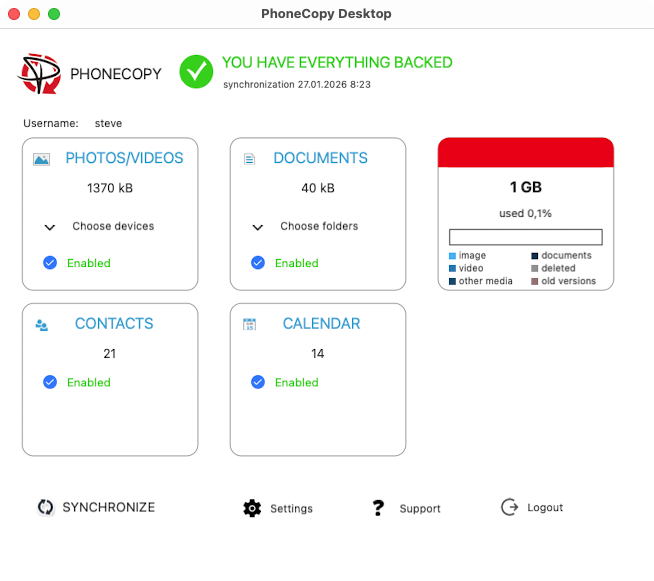
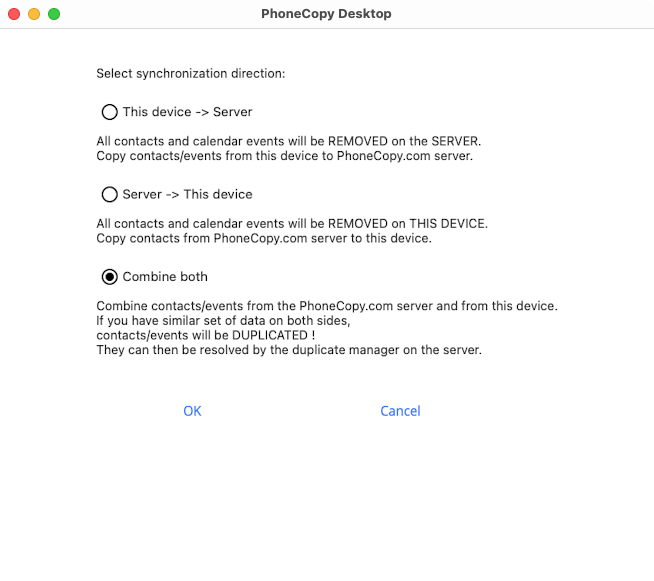
Before the first synchronization, you may be asked for synchronization direction of your contacts to avoid duplicates in case you have contacts on both your PC and PhoneCopy server.
Photos / videos
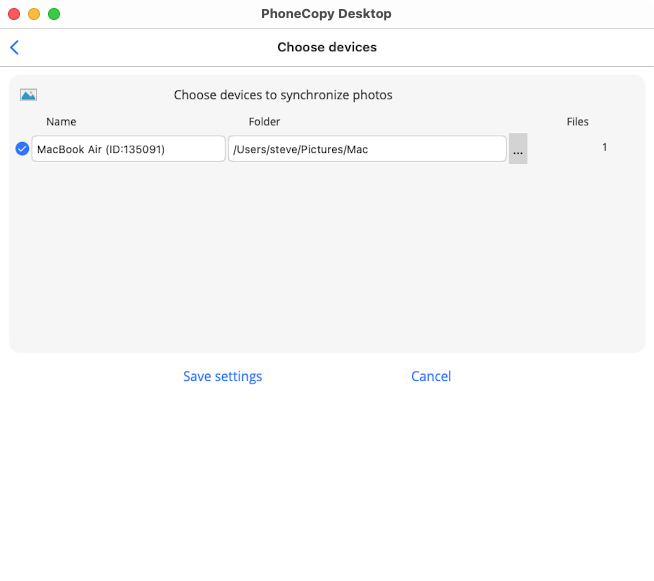
PhoneCopy allows you to sync media from many different devices that you have previously synced with the server. You can view the list of all devices by clicking on "Choose devices" on the app's main screen, in the PHOTOS / VIDEOS frame.
In the list of devices, there are check boxes on the left to choose which devices you want to sync to this computer. You can also set which folders the photos will be saved in. If you have multiple devices, you have to create a separate folder for each device, e.g. by using Finder app, before setting up the synchronization.
Documents
On your computer, you can choose any number of folders that you want to back up to cloud storage. You can select folders by clicking on the "Choose folders" button located on the main screen in the DOCUMENTS box. There are check boxes on the left side of the folder list that you can use to pause the synchronization of certain folders. At the bottom of the window there is the "Add Folder" button to add other folders you want to sync. You can only select folders to which you have to write access. After adding a folder, be sure to set its name. It is not possible to change the name later. For example, the folder name is visible when viewing documents on the Web. To the right of the list of folders are buttons with a red X, which completely remove the folder from the PhoneCopy server. It will be deleted the next time you sync. The files on your computer will be preserved.
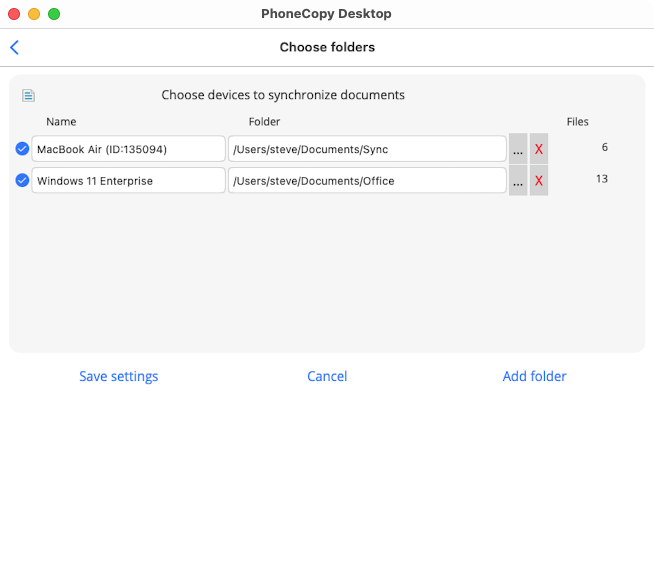
You can also sync files between multiple computers. Each computer may have a different directory structure. This means that folder paths are set on each computer separately, independent of the others. Non-existent folders has to be created prior selecting, e.g. by using Finder app.
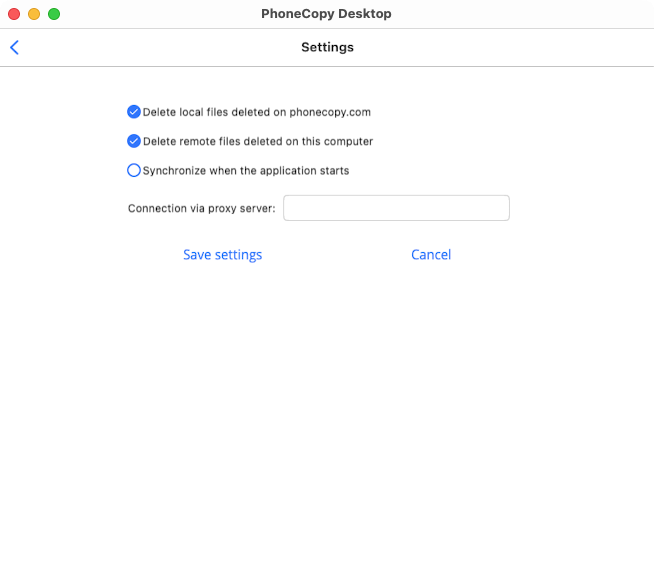
In some cases, there should be useful to use settings, too.