How to install the app from our website

Android is gradually tightening the rules for applications installed outside of Google Play. For apps obtained from unknown sources, the system may restrict access to certain sensitive functions and permissions. This affects the PhoneCopy app which we distribute via our website as it requires access to SMS messages stored on the device to perform SMS synchronization. To address this, we have prepared a simple guide titled "How to install the app from our website". It explains how to configure everything correctly so you can make full use of PhoneCopy according to your needs. We have also included screenshots in the guide to make the process clearer.
You can find other useful guides on the Tips and Guides page, or visit our YouTube channel.
How to get started?
Naturally, you need a mobile phone (or tablet) running Android version 5.0, 5.1 (Lollipop), 6.0 (Marshmallow), 7.0, 7.1 (Nougat), 8.0, 8.1 (Oreo), 9.0 (Pie), 10, 11, 12, 13, 14, 15, 16, or 17. Please note that PhoneCopy currently transfers contacts, SMS messages, call logs, photos, and videos. You can find a list of all officially supported phones here.
- Downloading the installation file
- Allowing installation from unknown sources
- Granting SMS permissions
Downloading the installation file
The app's installation file is provided directly from our official, secure server, ensuring you download the genuine version from a trusted source. During installation, Android performs standard security checks to help protect your device from potentially harmful apps. Once installed, you can use the app just like any other app on your device.
If you wish to install the app directly from our official website, you can download it as an installation file with the .apk extension.
Download PhoneCopy for Android to your device.
The Android operating system may notify you that the file comes from an "unknown source." This notification is completely normal—it simply means the app was not downloaded from Google Play, not that it is dangerous.
Allowing installation from unknown sources
To open the installation file, you need to allow installation from the specific source where the file originated (for example, the web browser you are using). This permission applies only to that specific application (e.g., Chrome, Files by Google, etc.) and can be disabled again at any time.
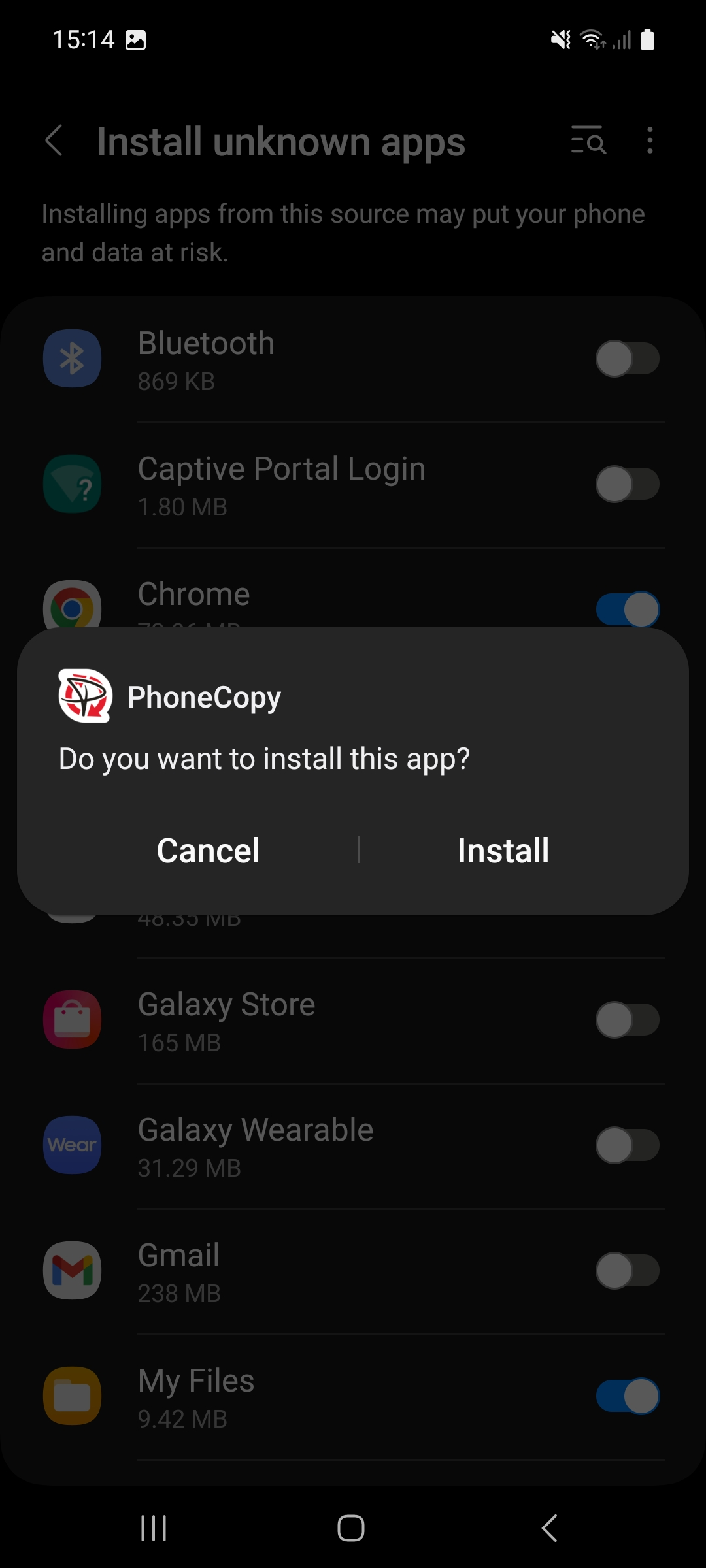
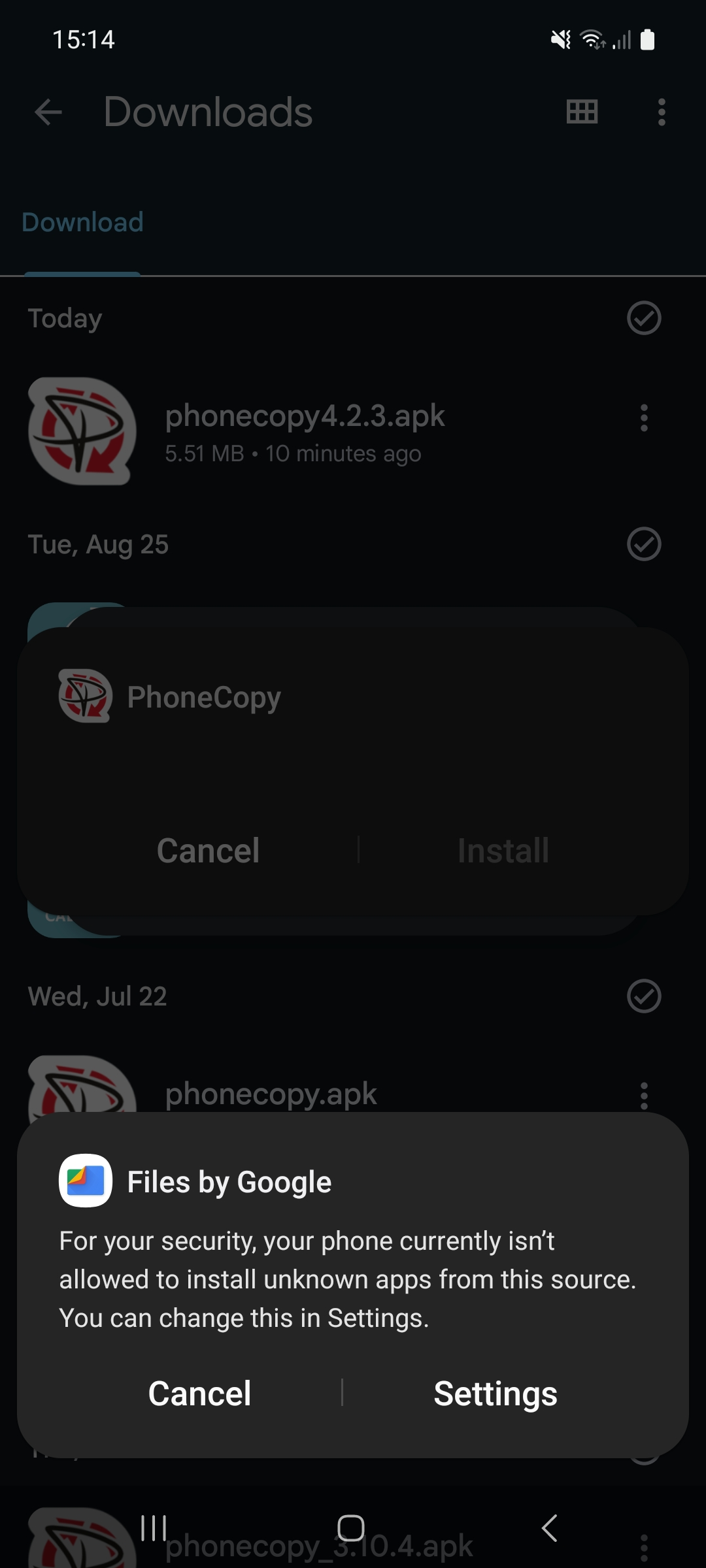
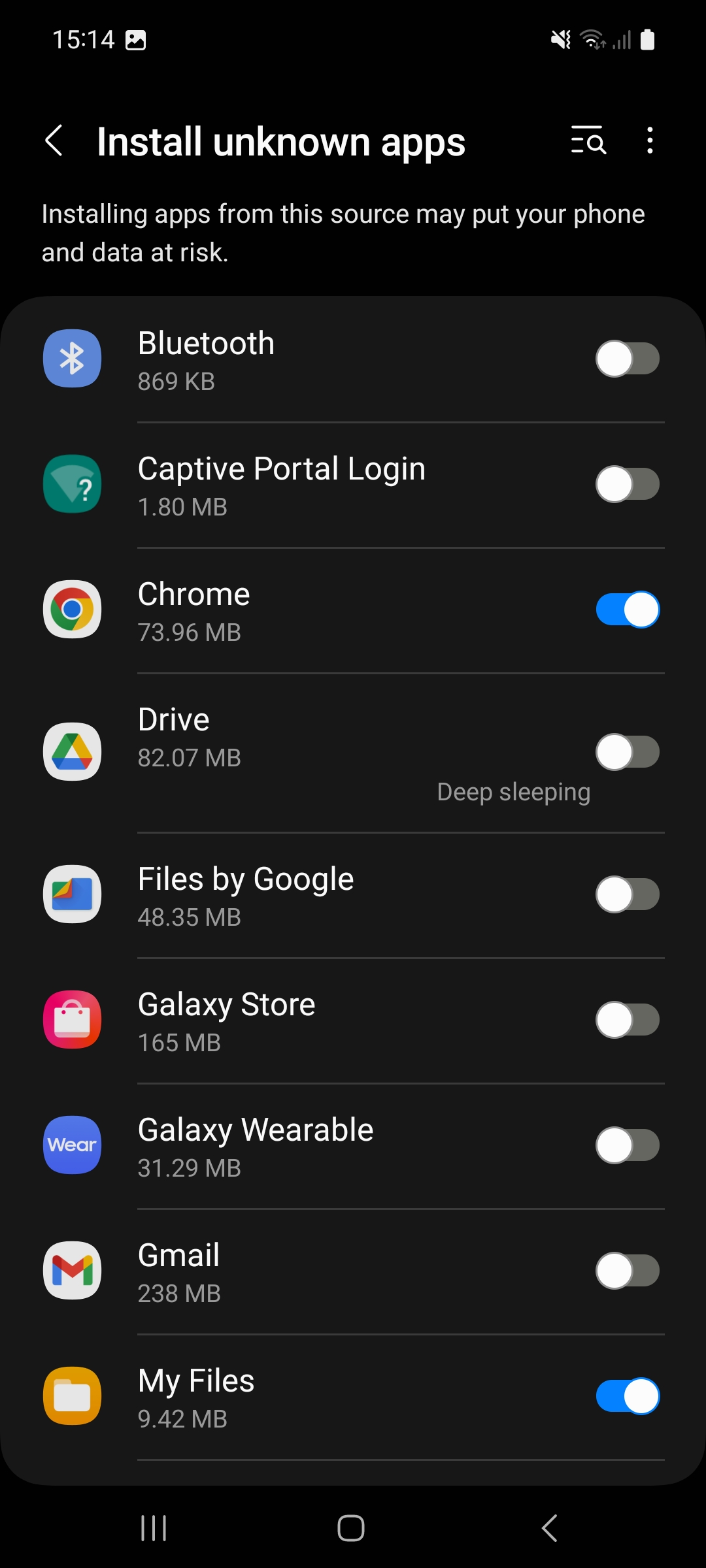
1. Tap the downloaded file and select the Install option. 2. Android will notify you that the installation is blocked and offer the option to go to settings. Go to Settings. 3. A list of applications with permission (or restriction) to install apps from unknown sources will open. Grant the selected application permission to install unknown apps (e.g., Files by Google after downloading the file).
Granting SMS permission access
Starting with Android 15, Google has introduced new restrictions for applications installed outside the Google Play Store. This change, known as "Restricted Settings," serves as an additional security measure requiring user confirmation before granting certain sensitive permissions to these apps.
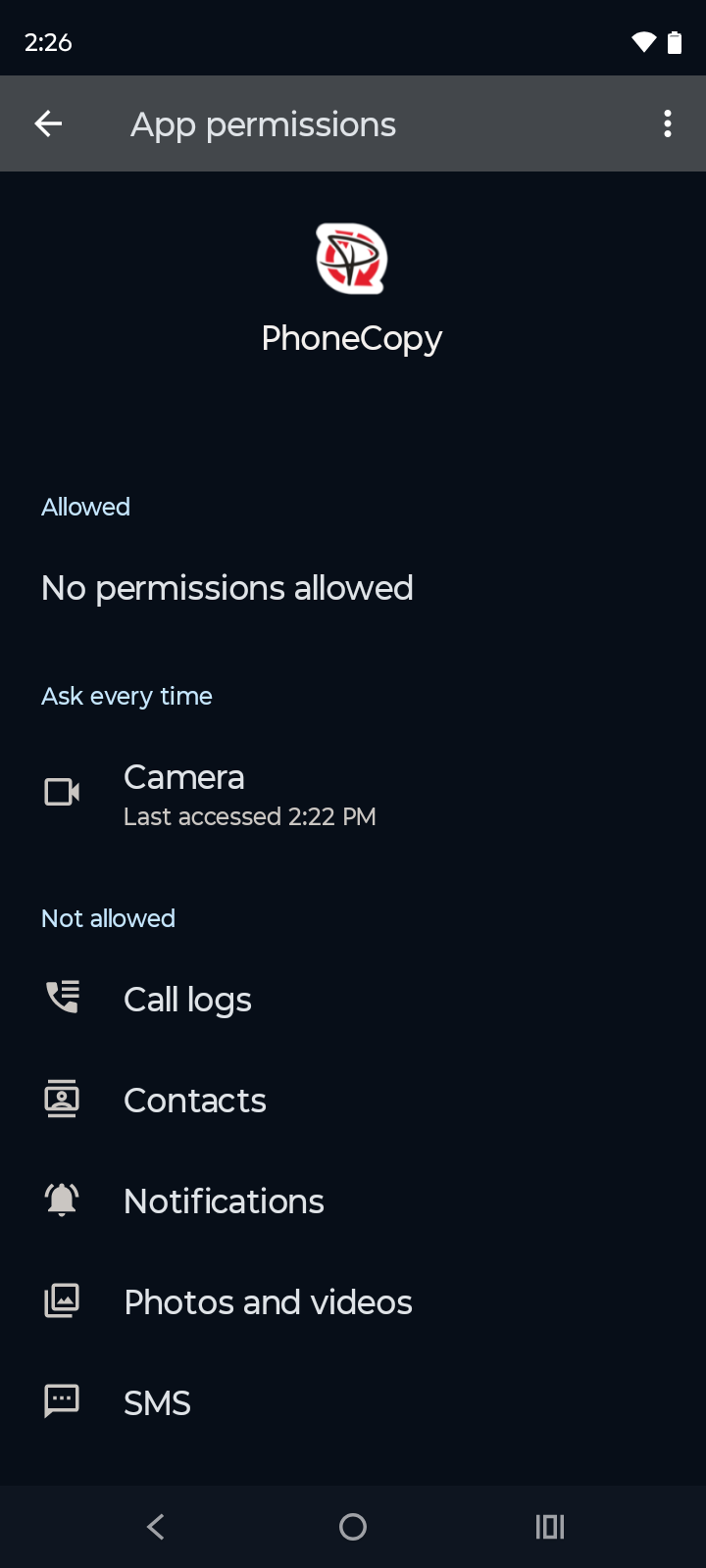
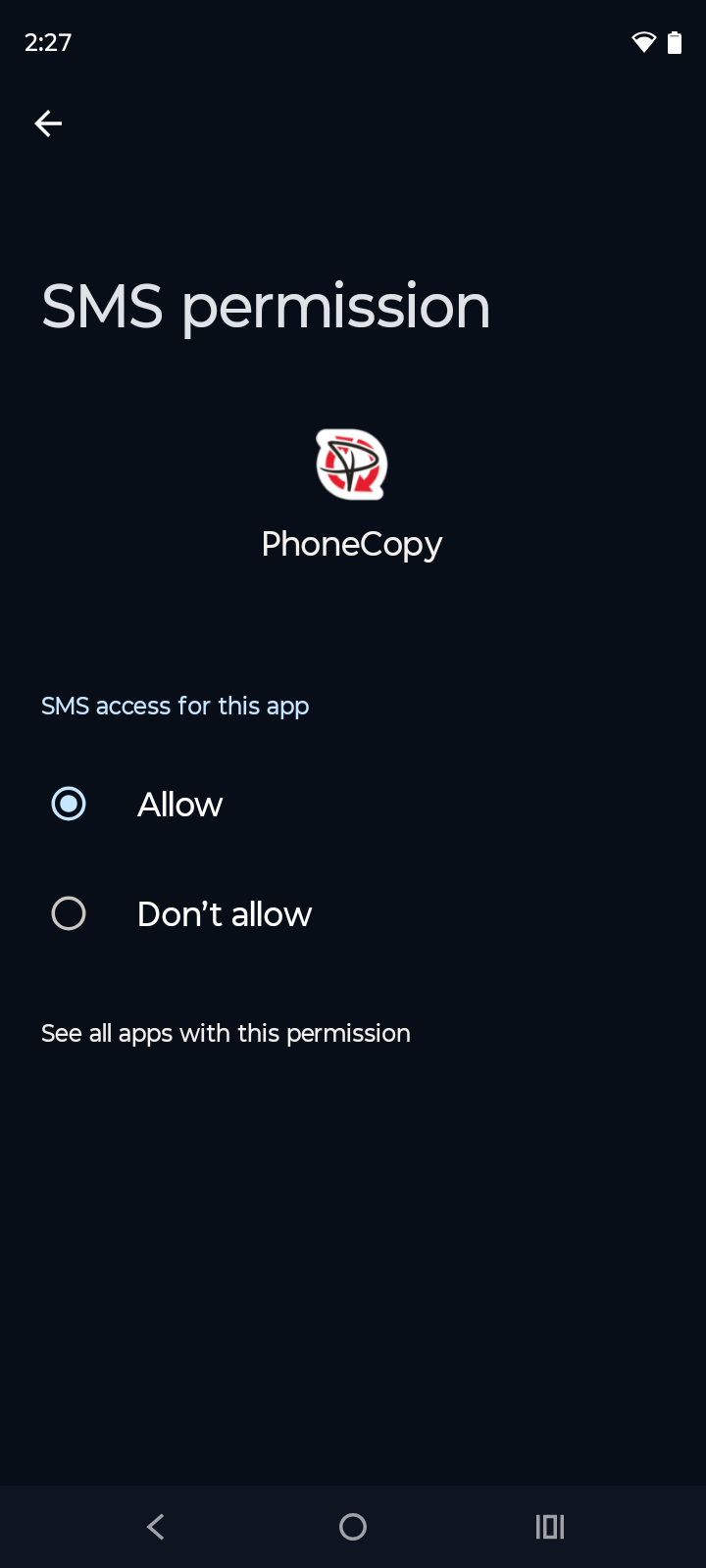
For the PhoneCopy app, this restriction affects access to SMS messages, which is necessary for synchronizing them from the device. Consequently, if you install the app from our website (i.e., outside of Google Play), the system may not allow it to access SMS messages in the standard way. You must first enable Restricted Settings for the app in the system settings; only then can you grant the app permission to access SMS messages.
Manually granting SMS permission
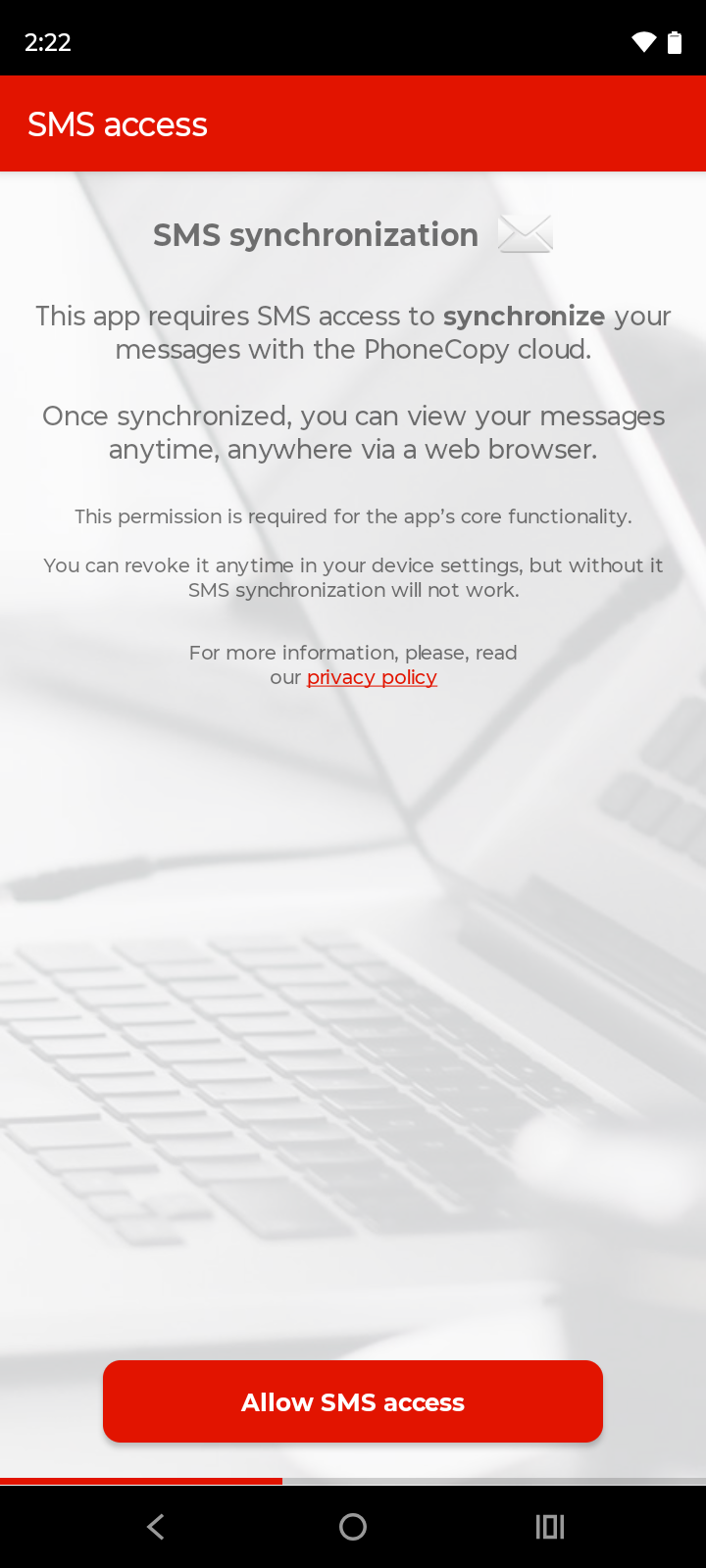
After launching the app for the first time and logging into your PhoneCopy account, a setup wizard will guide you through the synchronization setup process. A more detailed description of this process can be found in one of our other guides: "How to easily synchronize contacts, SMS, call logs, photos, and videos from Android".
When attempting to grant access to SMS, a warning message appears: "App was denied access to SMS," stating "The app requested access to a sensitive permission which can put your personal and financial info at risk. It's possible the app won't work properly without this restricted permission."
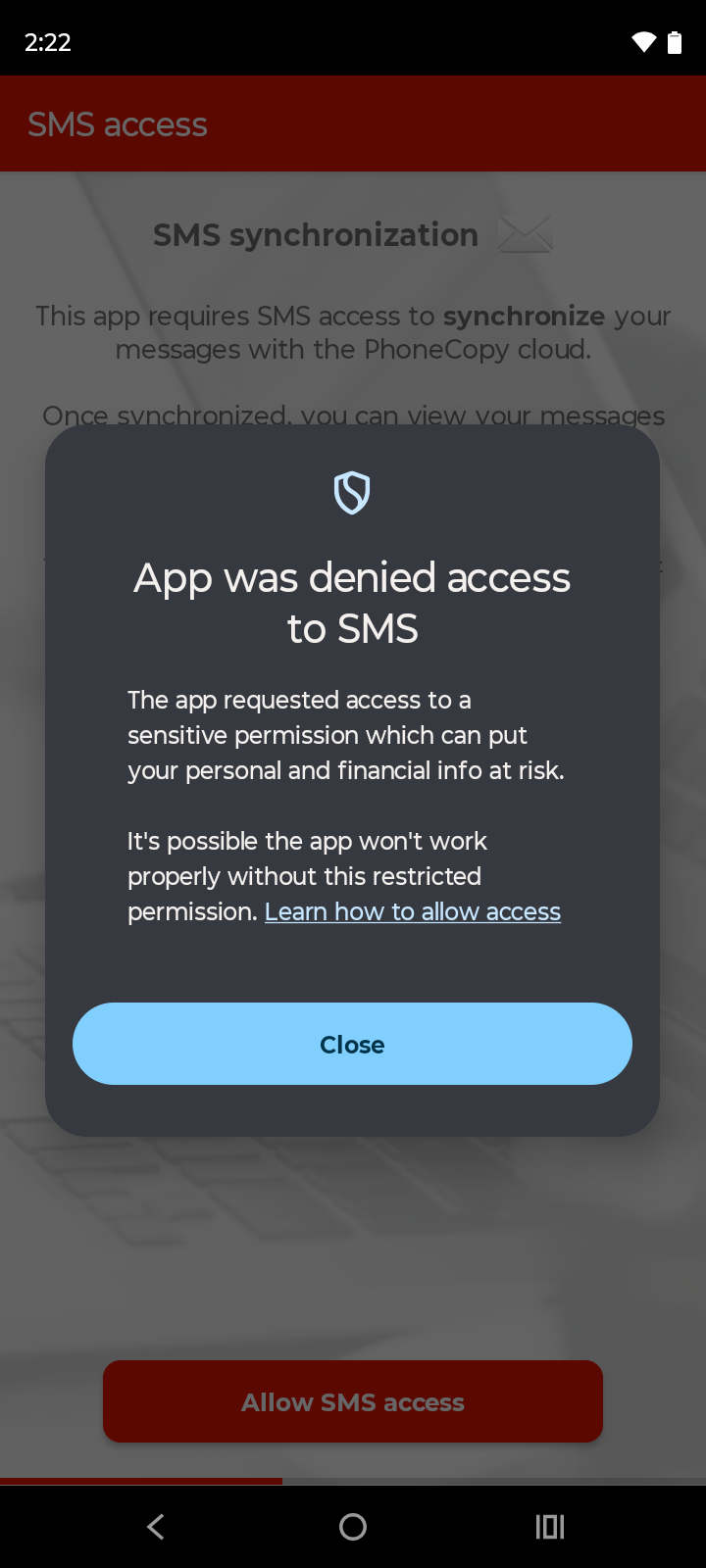
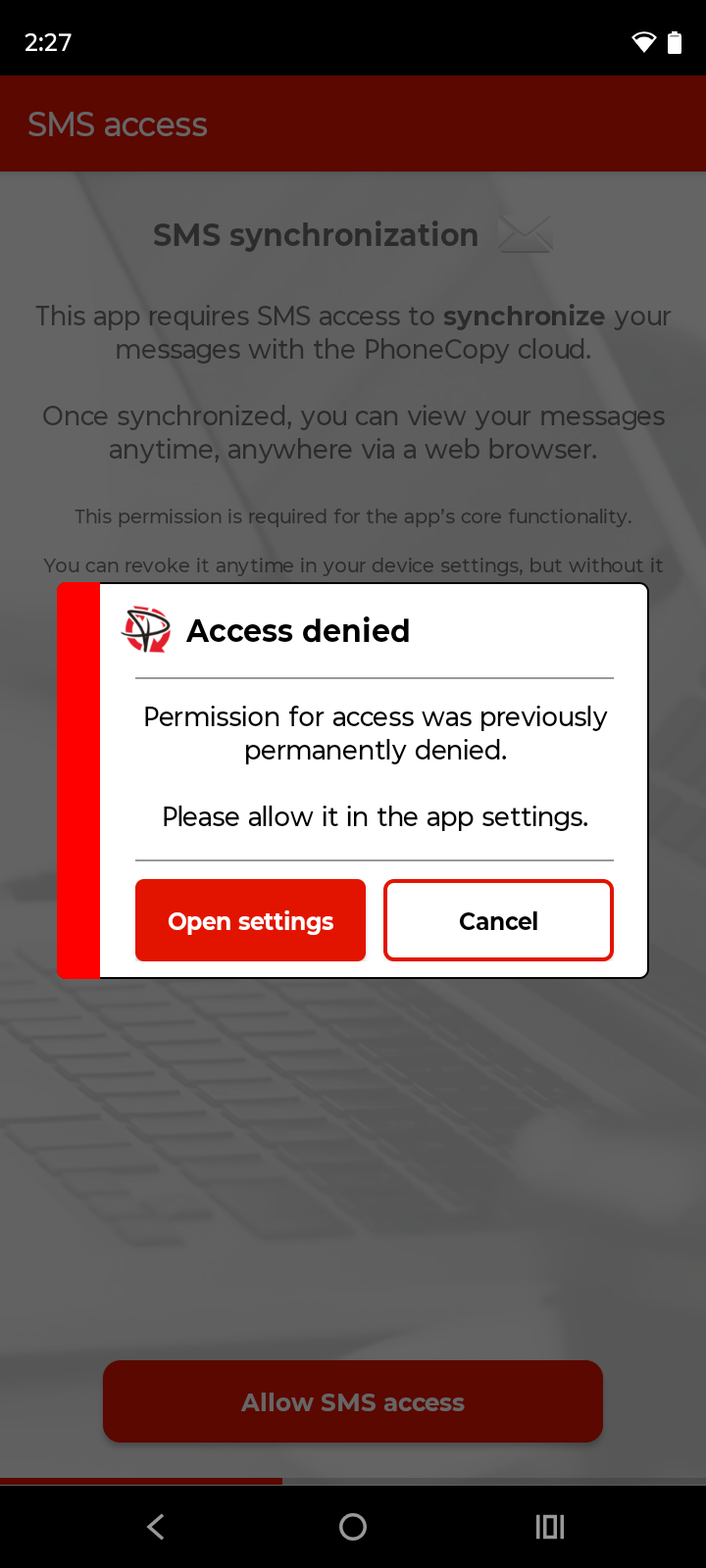
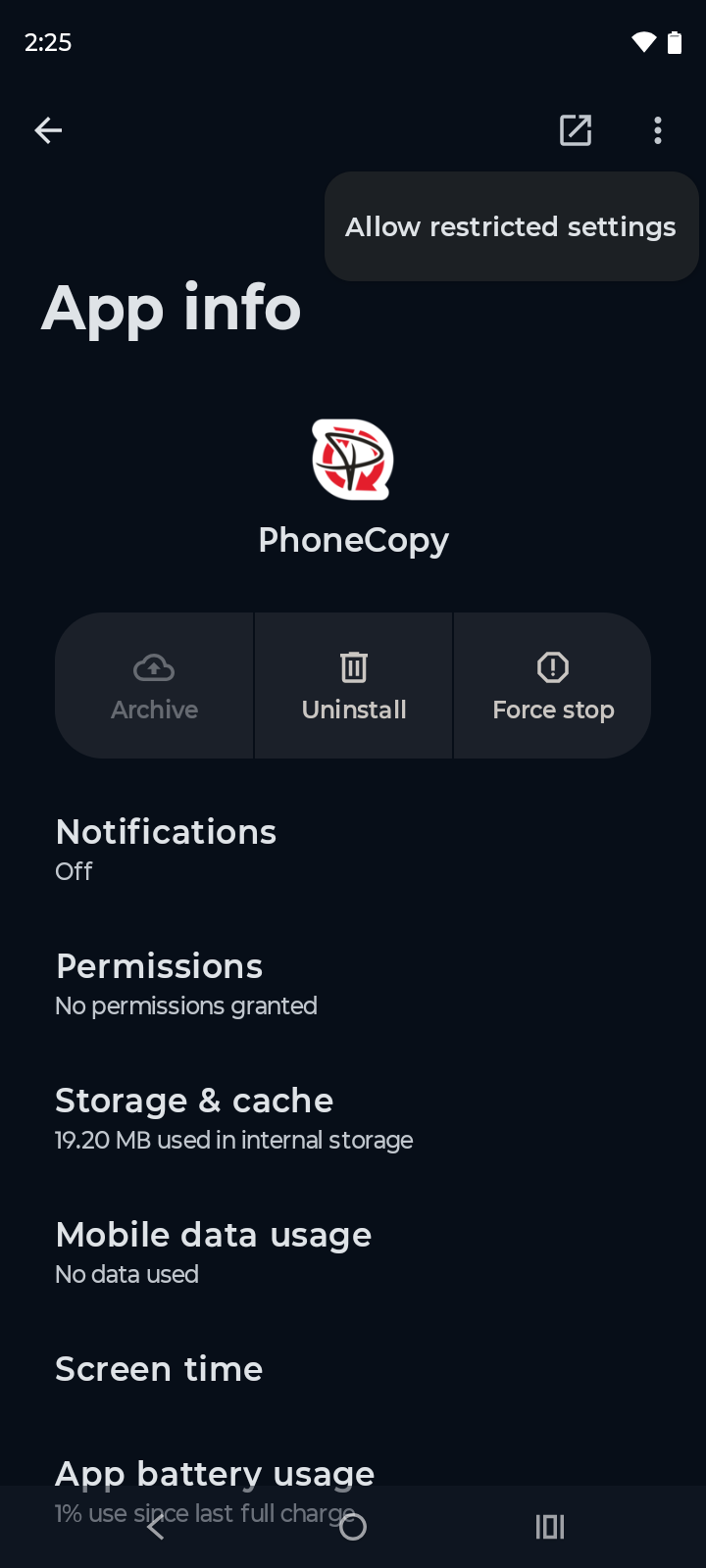
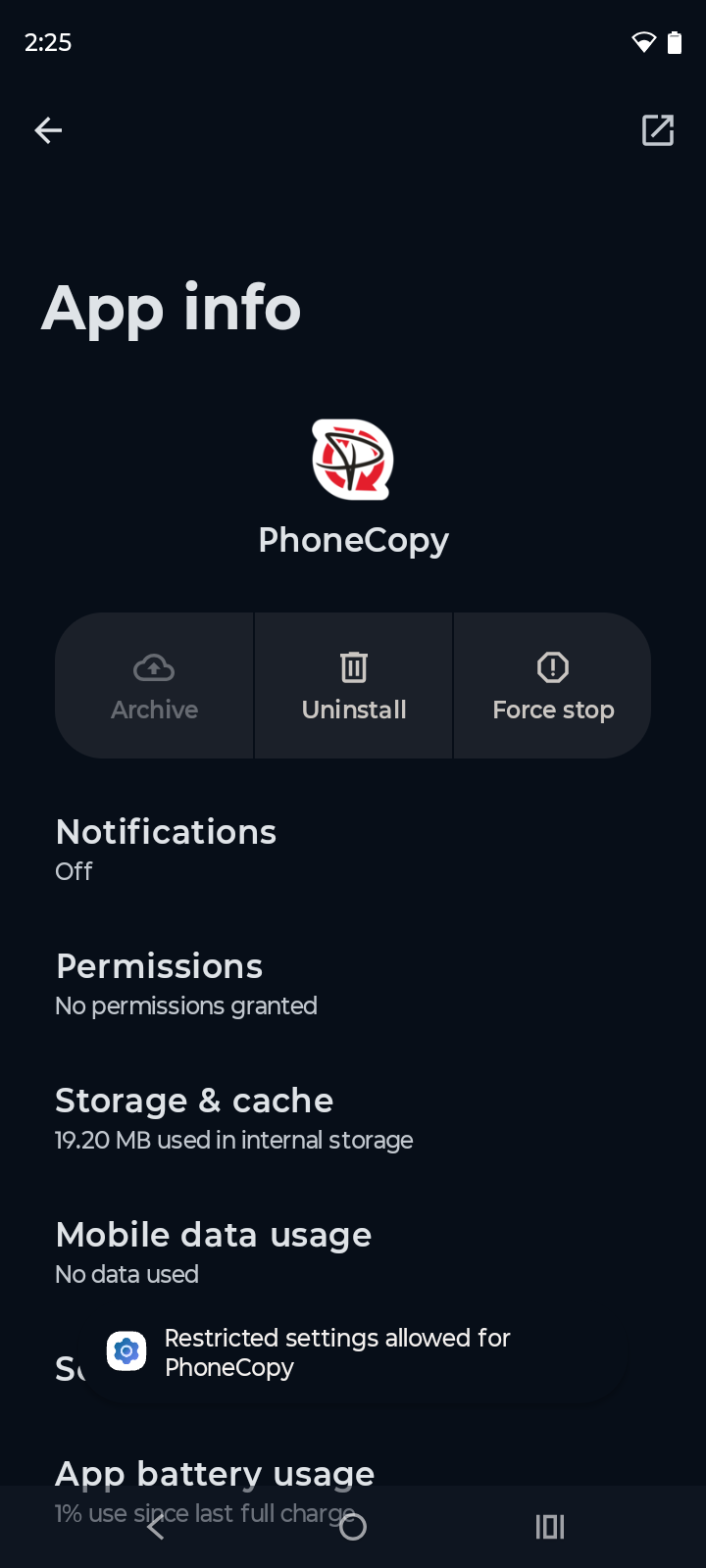
1. Close the warning message. Then, press the "Allow SMS access" button again. A warning message stating "Access denied" will appear, with the text "Access permission was previously permanently denied. Please enable it in the app settings." 2. Press the "Open settings" button. This will open the system settings for the PhoneCopy app. 3. Tap the menu button (three vertical dots) in the top-right corner of the screen. The "Allow restricted settings" option will appear. 4. Tap "Allow restricted settings" to proceed. A notification stating "Restricted settings allowed for PhoneCopy" will appear.
To complete the initial app setup, follow these guides: "How to easily synchronize contacts, SMS, call logs, photos, and videos from Android" or "How to easily synchronize contacts, messages, photos, or videos to Android"
For more information about our app, visit the PhoneCopy for Android page.
