Fazer cópia de segurança de contactos, fotografias, vídeos e mensagens SMS de Advan Vandroid S5 Smart Note
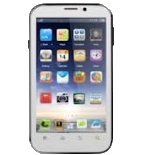
Guias disponíveis para sincronização com a nuvem segura
Funções suportadas
- sincronização de contactos
- cópia de segurança de SMS
- sincronização de fotografias
- sincronização de vídeos
- sincronização automática

Transfira os seus contactos, fotografias, vídeos e mensagens SMS de Advan Vandroid S5 Smart Note para um armazenamento online e vice-versa para os manter seguros e atualizados.
Advan Vandroid S5 Smart Note é suportado pelo PhoneCopy.
Por favor, tenha em conta que as definições seguintes podem variar ligeiramente consoante a versão do firmware.
Modelos confirmados
Versões confirmadas
- Android 4.2 Jelly Bean
- Android 4.0 Ice Cream Sandwich
versões do Android a executar no Advan Vandroid S5 Smart Note
Ao sincronizar, os utilizadores do PhoneCopy tinham as seguintes versões do Android no seu Advan Vandroid S5 Smart Note: Android 4.0 Ice Cream Sandwich (66.67%), Android 4.2 Jelly Bean (33.33%).
versões do Android no Advan Vandroid S5 Smart Note
O gráfico seguinte mostra as sincronizações de contactos com o Advan Vandroid S5 Smart Note a executar diferentes versões do Android.
Guia de texto - Como fazer a cópia de segurança
Com Advan Vandroid S5 Smart Note
- Descarregue a nossa aplicação PhoneCopy for Android para o seu dispositivo móvel.
- Depois de iniciar a aplicação, crie uma nova conta a partir da aplicação. Se já criou uma conta nas páginas web www.phonecopy.com, inicie sessão nesta conta existente na aplicação.
- Após um início de sessão bem-sucedido, siga o assistente de configuração da aplicação e depois selecione Synchronize (para uma conta com uma cópia de segurança existente) / Backup (para uma conta vazia) ou clique no botão Later e depois selecione a opção no menu lateral Back up contacts / Restore contacts para sincronização unidirecional.
Para mais informações sobre a nossa aplicação, visite a nossa página do PhoneCopy for Android.
Em caso de problemas com a sincronização, contacte-nos.
Comentários de utilizadores
Para deixar um comentário, inicie sessão.
-
Add new email shaunmusa1824, ontem
