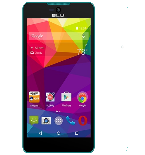
Backup contactos, photos, videos, sms messages and call logs from BLU Studio C5+5
Available guides for synchronization to the secure cloud
Supported functions
- contact synchronization
- sms backup
- call log backup
- photo synchronization
- video synchronization
- automatic sync


Transfer your contactos, photos, videos, sms messages and call logs from BLU Studio C5+5 to an online storage and back to keep them safe and up to date.
BLU Studio C5+5 is supported on PhoneCopy.
Please note that following settings may vary a little depending on the firmware version.
Confirmed models
Confirmed versions
- Android 5.1 Lollipop
- Android 5.0 Lollipop
News
- 21/09/22
- Even in Canada we have a user with BLU Studio C5+5 phone. He backs up his contactos and sms messages.
- 18/09/20
- Recently we got new user of BLU Studio C5+5 also in Trinidad and Tobago. He is using PhoneCopy for backup of contactos.
- 25/07/20
- First user from Venezuela just synced his contactos on BLU Studio C5+5 phone.
Android versions running on BLU Studio C5+5
PhoneCopy for Android app supports various Android versions. Our users synchronized their BLU Studio C5+5 running Android 5.0 Lollipop (92.37%), Android 5.1 Lollipop (7.63%).
Following pie chart illustrates share between Android versions on BLU Studio C5+5 when syncing with PhoneCopy.
BLU Studio C5+5 users around the world
BLU Studio C5+5 is often used by PhoneCopy users in countries like Venezuela - 88.76%, Trinidad and Tobago - 10.11%, Canada - 1.12%.
Following heat map illustrates share between users around the world synchronizing their BLU Studio C5+5 using PhoneCopy.
Text guideline - How to backup
With BLU Studio C5+5
- Download our PhoneCopy for Android application to your mobile device.
- After launching the application, create a new account from the application. If you have already created an account on web pages www.phonecopy.com, log in to this existing account in the application.
- After successful login, go through the application setup wizard and then select Synchronize (for an account with an existing backup) / Backup (for an empty account) or press the Later button and then select option in the side menu Back up contacts / Restore contacts for one-way synchronization.
For more information about our app, visit our PhoneCopy for Android page.
In the case of problems with synchronization, please contact us.
Comentários de utilizador
To leave a comment please sign in.
-
-
Hi, did you download PhoneCopy application from Google Play or Huawei AppGallery?
-
Hi, on Windowsphone it was from Google Play, on new P40 plus, I honestly don't remember, but THINK it was from H AppGalley. I even paid for a month's premium upgrade. Having a look around 'tinternet' I've seen one version of PhoneCopy with the red/black background and another with a pale blue background. Both mine are red/black. Should I delete both phones and start again? Can't actually find the 'pale-blue-one' in a store? Is the blue one the newer version? Regards, Trevor L
-
Hi, Windows mobile (Lumia) has older design because we keep it working until Microsoft will keep live their store. That step don't need to be repeated. Huawei P40 application is the same like on the following guide https://www.phonecopy.com/en/pages/how_to_synchronize_contacts_to_android . We found your phone contacting our servers but still not synchronized. Our technical team will contact you on Monday to check what should be wrong.
-
Hello again, and thank you for your prompt response. I will be patient and wait 'till Monday then. Trevor L
-
Hello,
your Huawei does not support Google Play Services.
In this case, please, install PhoneCopy for Huawei:
https://appgallery7.huawei.com/#/app/C102701109-
-
My Huawei DOES support Google Play Services...., what it will NOT do is respond to the link that you've sent me. I think I may have to write-off the £1:92 I've paid to PhoneCopy. I still have the same problem! I've successfully uploaded my contacts from my Lumia 640 LTE to your 'Cloud'. But cannot download anything to my Huawei P40 pro. In the app, the P40 Think I want to UPload, but says there is nothing to upload. Is there anything else you can suggest please?
-
Hello again, sorry, but official Huawei documentation says that Huawei P40 does not contain Google Services and running on Android 10.
In our logs, generated by communication with your phone is named as P40 pro, but running on Android 4.4.2 KITKAT with older type of processor, what is very unusual.
We will send you more informaction to your private mail.-
Thank you for this information. I've had this handset for less than a week. It came unlocked, apparently 'sealed', boxed, with the usual very small instruction leaflet, from a usually reliable source that I've used for a long time. I do now wonder though, if it is a genuine Huawei product? I have not owned any Huawei products before, so cannot compare. It is advertised variously at between £695:00 and £875:00 approx. I am very careful about buying things on the internet, but there's always a first time to be conned. I'm SURE that your information is correct. I'll await your further contact with interest. Thanks again, Trevor L
-
-
-
-
-
Answered via private mail.
-
Hello again PhoneCopy team,
Just wanted to say a really big thank you. After a complete week of communication to/fro between us, I have finally synchronised my Lumia 640 LTE with my new (highly suspect P40 pro) You even built a version of your app specifically for my use.
I now have all 87 contacts and hundreds of diary entries on the Android P40 pro. Sorted all the contacts; now just looking around for a decent calendar📅diary for other content.
Upgraded to premium at the start of this 'adventure' and have just paid for a bit😊more storage, (not that I'll need it) by way of a Thank You. Kind Regards, Trevor L
-
Thanks
-
-
-
-
-
-
-

I have uploaded my contacts+diary etc, from my Lumia 640 LTE (windows phone) successfully, but I don't seem to be able to download (from your cloud) to my new Huawei P40 Pro..., (previously known as the P40 els-nx9) which your systems say is supported. Spent hours so far..., even losing weight now! Help PLEASE...., REGARDS, Trev. trevor.lidbury, 29/08/20