Backup contactos, photos, videos, sms messages and call logs from Tecno Pouvoir 4 Pro LC8
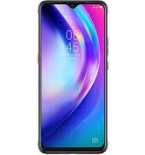
Available guides for synchronization to the secure cloud
Supported functions
- contact synchronization
- sms backup
- call log backup
- photo synchronization
- video synchronization
- automatic sync


Transfer your contactos, photos, videos, sms messages and call logs from Tecno Pouvoir 4 Pro LC8 to an online storage and back to keep them safe and up to date.
Tecno Pouvoir 4 Pro LC8 is supported on PhoneCopy.
Please note that following settings may vary a little depending on the firmware version.
Confirmed models
Confirmed versions
- Android 10
News
- 16/04/21
- Someone just used PhoneCopy for backup of Tecno Pouvoir 4 Pro LC8 in country Nigeria. His contactos were backed up.
- 06/02/21
- This phone model was just synchronized by PhoneCopy user in Ghana. It transferred contactos.
- 14/01/21
- This phone model was just synchronized by PhoneCopy user in India. It transferred contactos.
- 31/10/20
- User from Cameroon has synchronized contactos with his phone.
Android versions running on Tecno Pouvoir 4 Pro LC8
When synchronizing, PhoneCopy users had following Android versions on their Tecno Pouvoir 4 Pro LC8: Android 10 (100.00%).
Tecno Pouvoir 4 Pro LC8 users around the world
According to our statistics, PhoneCopy users use Tecno Pouvoir 4 Pro LC8 for data backup in countries India (Bharôt, ভাৰত, ভারত, Bhārat, ભારત, भारत, Bhārata, ಭಾರತ, Bhāratam, ഭാരതം, Bharôtô, ଭାରତ, ਭਾਰਤ, भारतम्, Bārata, பாரதம், Bhāratadēsam, భారత దేశం) - 33.33%, Nigeria (Nijeriya, Naigeria, Nàìjíríà) - 33.33%, Ghana (Gaana, Gana) - 22.22%, Cameroon (Cameroun) - 11.11%.
The map shows usage of Tecno Pouvoir 4 Pro LC8 for contact backup with PhoneCopy around the world.
Text guideline - How to backup
With Tecno Pouvoir 4 Pro LC8
- Download our PhoneCopy for Android application to your mobile device.
- After launching the application, create a new account from the application. If you have already created an account on web pages www.phonecopy.com, log in to this existing account in the application.
- After successful login, go through the application setup wizard and then select Synchronize (for an account with an existing backup) / Backup (for an empty account) or press the Later button and then select option in the side menu Back up contacts / Restore contacts for one-way synchronization.
For more information about our app, visit our PhoneCopy for Android page.
In the case of problems with synchronization, please contact us.
Comentários de utilizador
To leave a comment please sign in.
-
-
Hello, answered via private email.
-

Phonecopy App on Android phone sees only Phone contacts and Google Account contacts. But if the phone has Exchange Account (and contacts), Phonecopy App does not see this account and cannot add it as source of data (contacts). comsync, 08/07/22