Kontakte, Kalender, Fotos und Videos sichern: myPhone Up Smart 3G
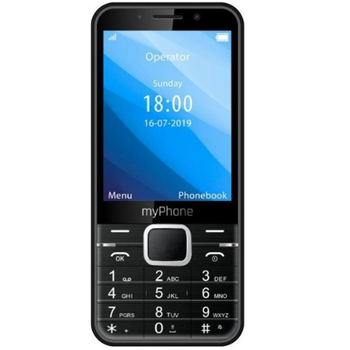
Verfügbare Anleitungen für die Synchronisierung mit der sicheren Cloud
Unterstützte Funktionen
- Kontakt-Synchronisation
- Kalender-Synchronisation
- Foto-Synchronisierung
- Video-Synchronisation
- automatisch synchronisieren


Übertragen Sie Ihre Kontakte, Kalender, Fotos und Videos von myPhone Up Smart 3G in einen Online-Speicher und zurück, um sie sicher und aktuell zu halten.
myPhone Up Smart 3G wird von PhoneCopy unterstützt.
Bitte beachten Sie, dass die folgenden Einstellungen je nach Firmware-Version leicht variieren können.
Bestätigte Modelle
Bestätigte Versionen
News
- 14.11.23
- Wir haben gerade den ersten Benutzer von myPhone Up Smart 3G in Frankreich bekommen! Jemand hat gerade seine Kontakte und Medien von einem neuen Telefon gesichert.
- 08.10.23
- Wir haben die PhoneCopy-App auf einem myPhone Up Smart 3G-Telefon in Russland erkannt. Alle Kontakte wurden gesichert.
- 16.08.23
- Der erste Benutzer aus Italien hat gerade seine Kontakte auf seinem myPhone Up Smart 3G-Telefon synchronisiert.
- 07.07.23
- Jemand hat gerade PhoneCopy zur Sicherung von myPhone Up Smart 3G im Land Rumänien verwendet. Seine Kontakte und Medien wurden gesichert.
- 23.04.23
- Ein neuer Telefonbenutzer hat seine Kontakte von Luxemburg aus mit PhoneCopy synchronisiert.
KaiOS-Versionen auf myPhone Up Smart 3G
Bei der Synchronisierung hatten PhoneCopy-Benutzer folgende KaiOS-Versionen auf ihrem myPhone Up Smart 3G: KaiOS 2.5.1.1 (100.00%).
myPhone Up Smart 3G Nutzer auf der ganzen Welt
myPhone Up Smart 3G wird für die Kontaktsicherung von PhoneCopy-Benutzern in mehreren Ländern auf der ganzen Welt bevorzugt - Luxemburg (Lëtzebuerg, Luxemburg) - 37.50%, Russland (Rossiya, Rossiâ, Россия) - 12.50%, Polen (Polska) - 12.50%, Rumänien (România) - 12.50%, Italien (Italia) - 12.50%, Tschechien (Czech Republic, Česká republika) - 6.25%, Frankreich - 6.25%.
Die folgende Heatmap zeigt Kontaktsynchronisierungen mit myPhone Up Smart 3G über PhoneCopy weltweit.
Textanleitung - So sichern Sie Ihre Daten
Von myPhone Up Smart 3G
- Download our PhoneCopy for KaiOS from application KaiOS Marketplace to your mobile device.
- After launching the application, log in to this existing account in the application.
- After succesful login press "Synchronize" for complete synchronization, you can choose "Server >> This device" for one-way sync.
If you need more help with the settings, visit our step by step screenshot guide: How to synchronize contacts to phone with KaiOS
If you need more help with the settings, visit our step by step screenshot guide: How to backup contacts from phone with Kai OS
Bei Problemen mit der Synchronisierung, bitte kontaktieren Sie uns.
Zu myPhone Up Smart 3G
- Download our PhoneCopy for KaiOS from application KaiOS Marketplace to your mobile device.
- After launching the application, create a new account from the application. If you have already created an account on web pages www.phonecopy.com, log in to this existing account in the application.
- After succesful login press "Synchronize" for complete synchronization, you can choose "This device >> Server" for one-way sync.
If you need more help with the settings, visit our step by step screenshot guide: How to synchronize contacts to phone with KaiOS
If you need more help with the settings, visit our step by step screenshot guide: How to backup contacts from phone with Kai OS
Bei Problemen mit der Synchronisierung, bitte kontaktieren Sie uns.
Benutzer Kommentare
Um einen Kommentar zu hinterlassen, melden Sie sich an.
-
I have a TCL Flip 3 with KaiOS 3.1. The PhoneCopy app does not appear in the app store, and I cannot get the CalDav syncing to work. I keep getting a server busy error message. Help! unbekannten Benutzer, 29.03.26
-
I tried it again and now I'm getting an incorrect username or password error message. Should the username I type on my phone be my email or my username (which is my email without the @gmail.com portion)?
-
Hello,
CalDAV shares the same username / password as your account. Yes, as username, use the name displayed in the upper right corner of this webpage (jawz02). Ensure you have used the full URL suggested by the "Add DAV device" page. We check the logs and the username/password seems to have been written improperly.
-
-
