myPhone Up Smart 3G dan yedeklenen kişiler, takvim, fotoğraflar ve videolar
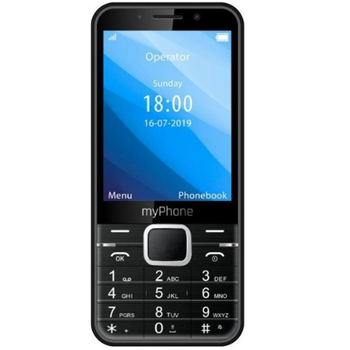
Güvenli buluta senkronizasyon için mevcut kılavuzlar
Desteklenen işlevler
- Kişiler senkronizasyonu
- Takvim senkronizasyonu
- fotoğraf senkronizasyonu
- video senkronizasyonu
- Otomatik senkronizasyon


kişiler, takvim, fotoğraflar ve videolar verilerinizi myPhone Up Smart 3G cihazından çevrimiçi bir depolama alanına ve geri aktararak güvende ve güncel tutun.
myPhone Up Smart 3G cihazını PhoneCopy desteklenmektedir.
Lütfen aşağıdaki ayarların ürün yazılımı sürümüne bağlı olarak biraz değişebileceğini unutmayın.
Onaylanan modeller
Onaylanan sürümler
Haberler
- 14.11.2023
- We just got first user of myPhone Up Smart 3G in Fransa! Someone just backed up his kişiler ve medya from a new phone.
- 8.10.2023
- We detected PhoneCopy app on myPhone Up Smart 3G phone in Rusya. All kişiler were backed up.
- 16.08.2023
- First user from İtalya just synced his kişiler on myPhone Up Smart 3G phone.
- 7.07.2023
- Someone just used PhoneCopy for backup of myPhone Up Smart 3G in country Romanya. His kişiler ve medya were backed up.
- 23.04.2023
- A new phone user has synchronized his kişiler to PhoneCopy from Lüksemburg.
myPhone Up Smart 3G üzerinde çalışan KaiOS sürümleri
Senkronizasyon sırasında, PhoneCopy kullanıcılarının myPhone Up Smart 3G cihazlarında şu KaiOS sürümleri vardı: KaiOS 2.5.1.1 (100.00%).
dünya genelindeki myPhone Up Smart 3G kullanıcıları
myPhone Up Smart 3G, dünya genelindeki birçok ülkede PhoneCopy kullanıcıları tarafından kişi yedeklemesi için tercih edilmektedir - Lüksemburg (Lëtzebuerg, Luxemburg) - 37.50%, Rusya (Rossiya, Rossiâ, Россия) - 12.50%, Polonya (Polska) - 12.50%, Romanya (România) - 12.50%, İtalya (Italia) - 12.50%, Çekya (Czech Republic, Česká republika) - 6.25%, Fransa - 6.25%.
Aşağıdaki ısı haritası, dünya genelinde PhoneCopy kullanarak myPhone Up Smart 3G ile yapılan kişi senkronizasyonlarını göstermektedir.
Talimat metni - Nasıl yedekleme yapılır
myPhone Up Smart 3G 'dan
- Download our PhoneCopy for KaiOS from application KaiOS Marketplace to your mobile device.
- After launching the application, log in to this existing account in the application.
- After succesful login press "Synchronize" for complete synchronization, you can choose "Server >> This device" for one-way sync.
If you need more help with the settings, visit our step by step screenshot guide: How to synchronize contacts to phone with KaiOS
If you need more help with the settings, visit our step by step screenshot guide: How to backup contacts from phone with Kai OS
Senkronizasyon esnasında herhangi bir problemle karşılaşırsanız Yardım İsteyin
myPhone Up Smart 3G 'a doğru
- Download our PhoneCopy for KaiOS from application KaiOS Marketplace to your mobile device.
- After launching the application, create a new account from the application. If you have already created an account on web pages www.phonecopy.com, log in to this existing account in the application.
- After succesful login press "Synchronize" for complete synchronization, you can choose "This device >> Server" for one-way sync.
If you need more help with the settings, visit our step by step screenshot guide: How to synchronize contacts to phone with KaiOS
If you need more help with the settings, visit our step by step screenshot guide: How to backup contacts from phone with Kai OS
Senkronizasyon esnasında herhangi bir problemle karşılaşırsanız Yardım İsteyin
Kullanıcı yorumları
Yorum yazmak için lütfen Giriş yapın
-
I have a TCL Flip 3 with KaiOS 3.1. The PhoneCopy app does not appear in the app store, and I cannot get the CalDav syncing to work. I keep getting a server busy error message. Help! bilinmeyen kullanıcı, 29.03.2026
-
I tried it again and now I'm getting an incorrect username or password error message. Should the username I type on my phone be my email or my username (which is my email without the @gmail.com portion)?
-
Hello,
CalDAV shares the same username / password as your account. Yes, as username, use the name displayed in the upper right corner of this webpage (jawz02). Ensure you have used the full URL suggested by the "Add DAV device" page. We check the logs and the username/password seems to have been written improperly.
-
-
