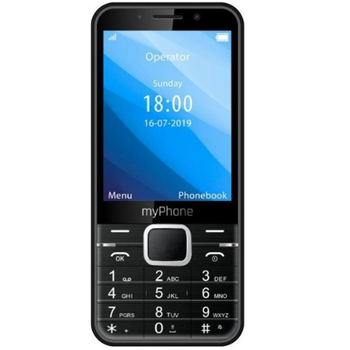
Realizar copia de seguridad de contactos, calendário, fotos y vídeos desde myPhone Up Smart 3G
Guías disponibles para la sincronización con la nube segura
Funciones compatibles
- sincronización de contactos
- sincronización de calendario
- sincronización de fotos
- sincronización de vídeos
- sincronización automática


Transfiera sus contactos, calendário, fotos y vídeos desde myPhone Up Smart 3G a un almacenamiento en línea y viceversa para mantenerlos seguros y actualizados.
myPhone Up Smart 3G es compatible con PhoneCopy.
Tenga en cuenta que la siguiente configuración puede variar ligeramente según la versión del firmware.
Modelos confirmados
Versiones confirmadas
Noticias
- 14/11/23
- ¡Acabamos de conseguir el primer usuario de myPhone Up Smart 3G en Francia! Alguien acaba de hacer una copia de seguridad de sus contactos y multimedia desde un nuevo teléfono.
- 8/10/23
- Detectamos la aplicación PhoneCopy en un teléfono myPhone Up Smart 3G en Rusia. Todos los contactos fueron respaldados.
- 16/8/23
- El primer usuario de Italia acaba de sincronizar sus contactos en su teléfono myPhone Up Smart 3G.
- 7/7/23
- Alguien acaba de usar PhoneCopy para hacer una copia de seguridad de myPhone Up Smart 3G en el país Rumanía. Sus contactos y multimedia fueron respaldados.
- 23/4/23
- Un nuevo usuario de teléfono ha sincronizado sus contactos con PhoneCopy desde Luxemburgo.
versiones de KaiOS ejecutándose en myPhone Up Smart 3G
Al sincronizar, los usuarios de PhoneCopy tenían las siguientes versiones de KaiOS en su myPhone Up Smart 3G: KaiOS 2.5.1.1 (100.00%).
usuarios de myPhone Up Smart 3G en todo el mundo
myPhone Up Smart 3G es preferido para la copia de seguridad de contactos por usuarios de PhoneCopy en varios países del mundo - Luxemburgo (Lëtzebuerg, Luxemburg) - 37.50%, Rusia (Rossiya, Rossiâ, Россия) - 12.50%, Polonia (Polska) - 12.50%, Rumanía (România) - 12.50%, Italia (Italia) - 12.50%, Chequia (Czech Republic, Česká republika) - 6.25%, Francia - 6.25%.
El siguiente mapa de calor muestra las sincronizaciones de contactos con myPhone Up Smart 3G utilizando PhoneCopy en todo el mundo.
Guía de texto - Cómo hacer copias de seguridad
Desde myPhone Up Smart 3G
- Download our PhoneCopy for KaiOS from application KaiOS Marketplace to your mobile device.
- After launching the application, log in to this existing account in the application.
- After succesful login press "Synchronize" for complete synchronization, you can choose "Server >> This device" for one-way sync.
If you need more help with the settings, visit our step by step screenshot guide: How to synchronize contacts to phone with KaiOS
If you need more help with the settings, visit our step by step screenshot guide: How to backup contacts from phone with Kai OS
En el caso de problemas con la sincronización, contacte con nosotros.
A myPhone Up Smart 3G
- Download our PhoneCopy for KaiOS from application KaiOS Marketplace to your mobile device.
- After launching the application, create a new account from the application. If you have already created an account on web pages www.phonecopy.com, log in to this existing account in the application.
- After succesful login press "Synchronize" for complete synchronization, you can choose "This device >> Server" for one-way sync.
If you need more help with the settings, visit our step by step screenshot guide: How to synchronize contacts to phone with KaiOS
If you need more help with the settings, visit our step by step screenshot guide: How to backup contacts from phone with Kai OS
En el caso de problemas con la sincronización, contacte con nosotros.
Comentarios de usuarios
Para dejar un comentario, por favor inicie sesión.
-
I have a TCL Flip 3 with KaiOS 3.1. The PhoneCopy app does not appear in the app store, and I cannot get the CalDav syncing to work. I keep getting a server busy error message. Help! usuario desconocido, 29/3/26
-
I tried it again and now I'm getting an incorrect username or password error message. Should the username I type on my phone be my email or my username (which is my email without the @gmail.com portion)?
-
Hello,
CalDAV shares the same username / password as your account. Yes, as username, use the name displayed in the upper right corner of this webpage (jawz02). Ensure you have used the full URL suggested by the "Add DAV device" page. We check the logs and the username/password seems to have been written improperly.
-
-
