Kontakte, Fotos, Videos, SMS-Nachrichten und Anrufprotokolle sichern: Realme Narzo 50 Pro 5G (rmx3395)
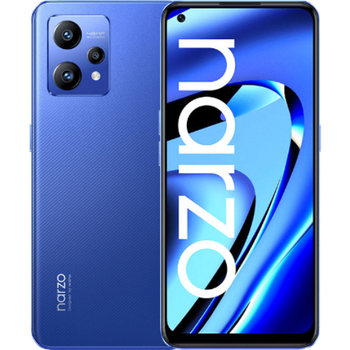
Verfügbare Anleitungen für die Synchronisierung mit der sicheren Cloud
Unterstützte Funktionen
- Kontakt-Synchronisation
- sms-Sicherung
- Sicherung des Anrufprotokolls
- Foto-Synchronisierung
- Video-Synchronisation
- automatisch synchronisieren


Übertragen Sie Ihre Kontakte, Fotos, Videos, SMS-Nachrichten und Anrufprotokolle von Realme Narzo 50 Pro 5G (rmx3395) in einen Online-Speicher und zurück, um sie sicher und aktuell zu halten.
Realme Narzo 50 Pro 5G (rmx3395) wird von PhoneCopy unterstützt.
Bitte beachten Sie, dass die folgenden Einstellungen je nach Firmware-Version leicht variieren können.
Bestätigte Modelle
Bestätigte Versionen
- Android 12
News
- 27.02.23
- Personal data backup from Realme Narzo 50 Pro 5G (rmx3395) with Android 12 is now officially supported with our PhoneCopy mobile app.
- 21.01.23
- Kürzlich haben wir auch in Indien einen neuen Benutzer von Realme Narzo 50 Pro 5G (rmx3395) bekommen. Er nutzt PhoneCopy zur Sicherung von Kontakte.
Android-Versionen auf Realme Narzo 50 Pro 5G (rmx3395)
Bei der Synchronisierung hatten PhoneCopy-Benutzer folgende Android-Versionen auf ihrem Realme Narzo 50 Pro 5G (rmx3395): Android 12 (100.00%).
Realme Narzo 50 Pro 5G (rmx3395) Nutzer auf der ganzen Welt
Realme Narzo 50 Pro 5G (rmx3395) wird häufig von PhoneCopy-Benutzern in Ländern wie Indien (Bharôt, ভাৰত, ভারত, Bhārat, ભારત, भारत, Bhārata, ಭಾರತ, Bhāratam, ഭാരതം, Bharôtô, ଭାରତ, ਭਾਰਤ, भारतम्, Bārata, பாரதம், Bhāratadēsam, భారత దేశం) - 100.00% verwendet.
Die folgende Heatmap zeigt Kontaktsynchronisierungen mit Realme Narzo 50 Pro 5G (rmx3395) über PhoneCopy weltweit.
Textanleitung - So sichern Sie Ihre Daten
Mit Realme Narzo 50 Pro 5G (rmx3395)
- Laden Sie unsere PhoneCopy für Android-Anwendung auf Ihr Mobilgerät herunter.
- Erstellen Sie nach dem Start der Anwendung ein neues Konto in der Anwendung. Wenn Sie bereits ein Konto auf der Webseite www.phonecopy.com erstellt haben, melden Sie sich in der Anwendung mit diesem bestehenden Konto an.
- Nach erfolgreicher Anmeldung durchlaufen Sie den Einrichtungsassistenten der Anwendung und wählen Sie dann Synchronize (für ein Konto mit einer bestehenden Sicherung) / Backup (für ein leeres Konto) aus, oder drücken Sie die Schaltfläche Later und wählen Sie dann im Seitenmenü die Option Back up contacts / Restore contacts für eine einseitige Synchronisierung.
Weitere Informationen zu unserer App finden Sie auf unserer PhoneCopy für Android-Seite.
Bei Problemen mit der Synchronisierung, bitte kontaktieren Sie uns.
Benutzer Kommentare
Um einen Kommentar zu hinterlassen, melden Sie sich an.
-
-
Hello, 96,486 is really big count of SMS. It is possible that the processing of such a number of items takes a long time and it is possible that server terminate the communication due to a long time without response from the device.
We are curently working on optimalization of application, which may solve issue like yours. We will release new version of app asap, within a few days at the latest. We will contact you. Please, be patient.
Thank you-
Hello,
we developed a promised new beta version (3.4.3) of app. This optimized version should solve your reported issue. Please, download and install new version and try to sync again with it.
I recommend, plug in charger during sync, because sync of big count of items take long time and it is possible that Android system will try to limit the app due to battery life.
Download link: https://www.phonecopy.com/android/download/phonecopy.apk
Please, send us feedback, if it works now or not.
Thank you for your patience and cooperation.
-
-

My phone has 96,486 SMS that has to be backed up but the process keeps terminating due to "internet connection lost". My fiber internet access is quite stable so I don't think disruption is the cause. Is there a way I can back up the sms in parts? mebacal1960, 19.10.20