Kontakte, Fotos, Videos, SMS-Nachrichten und Anrufprotokolle sichern: Samsung Galaxy S24 Ultra 5G sm-s928w
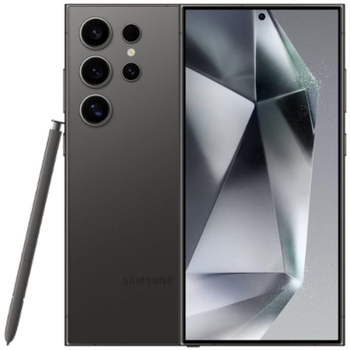
Verfügbare Anleitungen für die Synchronisierung mit der sicheren Cloud
Unterstützte Funktionen
- Kontakt-Synchronisation
- sms-Sicherung
- Sicherung des Anrufprotokolls
- Foto-Synchronisierung
- Video-Synchronisation
- automatisch synchronisieren


Übertragen Sie Ihre Kontakte, Fotos, Videos, SMS-Nachrichten und Anrufprotokolle von Samsung Galaxy S24 Ultra 5G sm-s928w in einen Online-Speicher und zurück, um sie sicher und aktuell zu halten.
Samsung Galaxy S24 Ultra 5G sm-s928w wird von PhoneCopy unterstützt.
Bitte beachten Sie, dass die folgenden Einstellungen je nach Firmware-Version leicht variieren können.
Bestätigte Modelle
Bestätigte Versionen
- Android 16
News
- 16.02.26
- Ein Samsung Galaxy S24 Ultra 5G sm-s928w-Telefon wurde von einem PhoneCopy-Benutzer in Kanada synchronisiert. Seine Kontakte wurden übertragen.
- 02.02.26
- Die Sicherung persönlicher Daten von Samsung Galaxy S24 Ultra 5G sm-s928w mit Android 16 wird jetzt offiziell von unserer PhoneCopy-App unterstützt.
- 31.01.26
- Dieses Telefonmodell wurde gerade von einem PhoneCopy-Benutzer in Vereinigte Staaten synchronisiert. Es hat Kontakte, SMS-Nachrichten und Anrufprotokolle übertragen.
Android-Versionen auf Samsung Galaxy S24 Ultra 5G sm-s928w
Bei der Synchronisierung hatten PhoneCopy-Benutzer folgende Android-Versionen auf ihrem Samsung Galaxy S24 Ultra 5G sm-s928w: Android 16 (100.00%).
Samsung Galaxy S24 Ultra 5G sm-s928w Nutzer auf der ganzen Welt
Samsung Galaxy S24 Ultra 5G sm-s928w wird für die Kontaktsicherung von PhoneCopy-Benutzern in mehreren Ländern auf der ganzen Welt bevorzugt - Kanada - 50.00%, Vereinigte Staaten (Estados Unidos, États-Unis, ‘Amelika Hui Pū ‘ia) - 50.00%.
Die Karte zeigt die Nutzung von Samsung Galaxy S24 Ultra 5G sm-s928w für die Kontaktsicherung mit PhoneCopy weltweit.
Textanleitung - So sichern Sie Ihre Daten
Mit Samsung Galaxy S24 Ultra 5G sm-s928w
- Laden Sie unsere PhoneCopy für Android-Anwendung auf Ihr Mobilgerät herunter.
- Erstellen Sie nach dem Start der Anwendung ein neues Konto in der Anwendung. Wenn Sie bereits ein Konto auf der Webseite www.phonecopy.com erstellt haben, melden Sie sich in der Anwendung mit diesem bestehenden Konto an.
- Nach erfolgreicher Anmeldung durchlaufen Sie den Einrichtungsassistenten der Anwendung und wählen Sie dann Synchronize (für ein Konto mit einer bestehenden Sicherung) / Backup (für ein leeres Konto) aus, oder drücken Sie die Schaltfläche Later und wählen Sie dann im Seitenmenü die Option Back up contacts / Restore contacts für eine einseitige Synchronisierung.
Weitere Informationen zu unserer App finden Sie auf unserer PhoneCopy für Android-Seite.
Bei Problemen mit der Synchronisierung, bitte kontaktieren Sie uns.
Benutzer Kommentare
Um einen Kommentar zu hinterlassen, melden Sie sich an.
-
-
Hello, PhoneCopy backs up all SMS on the phone, there is no need to set anything else. Our records show a backup of 1818 SMS firstly and then adding of two more SMS (one by one) during consequent backups. Are you sure that the other messages that were not backed up are also SMS?
-

I don't see where to add more. Can anyone help me figure this out?
adolph1960, 01.08.22