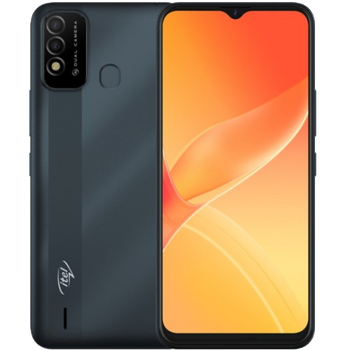
Backup contacts, photos, videos, sms messages and call logs from Itel P37 p651w
Available guides for synchronization to the secure cloud
Supported functions
- contact synchronization
- sms backup
- call log backup
- photo synchronization
- video synchronization
- automatic sync
Itel P37 p651w is supported on PhoneCopy. Please note that following settings may vary a little depending on the firmware version.
Confirmed models
Confirmed versions
- Android 10
News
- 18/06/2022
- Itel P37 p651w phone was synchronized by PhoneCopy user in Nigeria. His contacts and sms messages were transferred.
- 15/04/2022
- Someone just used PhoneCopy for backup of Itel P37 p651w in country Kenya. His contacts were backed up.
- 12/04/2022
- We just got first user of this model in Zimbabwe! Someone just backed up his contacts.
- 06/02/2022
- Recently we got new user of Itel P37 p651w also in Uganda. He is using PhoneCopy for backup of contacts.
- 31/01/2022
- We added Itel P37 p651w to supported devices with Android 10.
Android versions running on Itel P37 p651w
When synchronizing, PhoneCopy users had following Android versions on their Itel P37 p651w: Android 10 (100.00%).
Itel P37 p651w users around the world
Itel P37 p651w is preffered for contact backup by PhoneCopy users in several countries around the world - Kenya - 79.49%, Nigeria (Nijeriya, Naigeria, Nàìjíríà) - 12.82%, Zimbabwe - 5.13%, Uganda - 2.56%.
Following heat map shows contacts synchronisations with Itel P37 p651w using PhoneCopy across the globe.
Text guideline - How to backup
From Itel P37 p651w
- Download our PhoneCopy for Android application to your mobile device.
- After launching the application, create a new account from the application. If you have already created an account on web pages www.phonecopy.com, log in to this existing account in the application.
- After successful login, go through the application setup wizard and then select "Synchronize" (for an account with an existing backup) / "Backup" (for an empty account) or press the "Later" button and then select option in the side menu "Back up contacts" / "Restore contacts" for one-way synchronization.
More detailed information and instructions include screenshots: how to backup and synchronize contacts from Android
For more information about our app, visit our PhoneCopy for Android page.
You need an Android phone version 4.4 (KitKat), 5.0, 5.1 (Lollipop), 6.0 (Marshmallow), 7.0, 7.1 (Nougat), 8.0, 8.1 (Oreo), 9.0 (Pie), 10, 11, 12, 13 and 14 incl. tablets. Let us just remind you, that for now PhoneCopy for Android transfers to server contacts, photos, videos and SMS.
In the case of problems with synchronization, please contact us.
To Itel P37 p651w
- Download our PhoneCopy for Android application to your mobile device.
- After launching the application, create a new account from the application. If you have already created an account on web pages www.phonecopy.com, log in to this existing account in the application.
- After successful login, go through the application setup wizard and then select "Synchronize" (for an account with an existing backup) / "Backup" (for an empty account) or press the "Later" button and then select option in the side menu "Back up contacts" / "Restore contacts" for one-way synchronization.
More detailed information and instructions include screenshots: how transfer contacts to Android
For more information about our app, visit our PhoneCopy for Android page.
You need an Android phone version 4.4 (KitKat), 5.0, 5.1 (Lollipop), 6.0 (Marshmallow), 7.0, 7.1 (Nougat), 8.0, 8.1 (Oreo), 9.0 (Pie), 10, 11, 12, 13 and 14 incl. tablets. Let us just remind you, that for now, PhoneCopy for Android transfers to server contacts, photos, videos, and SMS.
In the case of problems with synchronization, please contact us.
User comments
To leave a comment please sign in.
-
-
It sounds like the cloud version still holds your old contacts. Try deleting the extra contacts directly from your PhoneCopy cloud account, then force a manual sync from your device. If that doesn’t work, you might need to reset the sync or re-link your account. Hope this helps!
-
Hello,
the number of contacts online is what matters. So please remove unnecessary contacts on the web. After that, the synchronization will be allowed again.-
So, though I did all the cleanup locally in my phone's contacts, and though the App DOES see the local number as less than 500 it will not initiate uploading the information as for the deletions? Because if it replicated the deletions, then there would not be a sync problem.
-
Hello,
the limit works this way. It is stated in the email user receives when the limit is exceeded.-
I realize the limitation of the platform, and since it is not capable of synchronizing in the traditional technical meaning of the term, could you suggest a workaround?
Perhaps if I deleted my account, removed my app and started over in a suggested sequence so that my less than 500 contacts would be then uploaded?-
If you have blocked an account because of exceeding limits, you just need to delete some contacts on the server to fit the limit of 500 and your account will be unlocked.
-
there is much overhead to re-do the same thing I already did locally a few months ago.
Do you think, considering all I have previously mentioned, that there is a different work-around to the platform not being able to two-say sync the information?-
It seems we are discussing several contacts which have to be deleted from your online profile to make it free again. We explained to you that contacts online are what matters. If you don't want to follow our recommendation you can delete the whole account and create it as a new profile with the number of contacts stored in your mobile phone.
-
-
-
-
-
-
-


But on Phonecopy on the cloud there is a different amount of Contacts, much more than 600. On the app I see that it recognizes that I do have less than 500 contacts on my device.
But of course it does not sync. What do I have to do to make this work? kanoyati, 03/01/2024
