Realizar copia de seguridad de contactos, fotos, vídeos, mensajes SMS y registros de llamadas desde Caterpillar S52
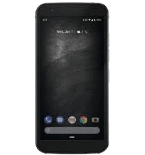
Guías disponibles para la sincronización con la nube segura
Funciones compatibles
- sincronización de contactos
- copia de seguridad de SMS
- copia de seguridad del registro de llamadas
- sincronización de fotos
- sincronización de vídeos
- sincronización automática


Transfiera sus contactos, fotos, vídeos, mensajes SMS y registros de llamadas desde Caterpillar S52 a un almacenamiento en línea y viceversa para mantenerlos seguros y actualizados.
Caterpillar S52 es compatible con PhoneCopy.
Tenga en cuenta que la siguiente configuración puede variar ligeramente según la versión del firmware.
Modelos confirmados
Versiones confirmadas
- Android 10
- Android 9.0 Pie
Noticias
- 28/7/22
- Un usuario de Noruega ha sincronizado sus contactos con su teléfono.
- 25/5/22
- Un teléfono Caterpillar S52 fue sincronizado por un usuario de PhoneCopy en Eslovaquia. Sus contactos fueron transferidos.
- 29/3/22
- Detectamos la aplicación PhoneCopy en un teléfono Caterpillar S52 en Bulgaria. Todos los contactos fueron respaldados.
- 4/3/22
- Recientemente también obtuvimos un nuevo usuario de Caterpillar S52 en Chipre. Está usando PhoneCopy para hacer copia de seguridad de contactos.
- 21/3/21
- Un nuevo usuario de teléfono ha sincronizado sus contactos con PhoneCopy desde Seychelles.
versiones de Android ejecutándose en Caterpillar S52
Al sincronizar, los usuarios de PhoneCopy tenían las siguientes versiones de Android en su Caterpillar S52: Android 10 (81.48%), Android 9.0 Pie (18.52%).
El siguiente gráfico muestra las sincronizaciones de contactos con Caterpillar S52 ejecutando diferentes versiones de Android.
usuarios de Caterpillar S52 en todo el mundo
Según nuestras estadísticas, los usuarios de PhoneCopy utilizan Caterpillar S52 para la copia de seguridad de datos en los países Países Bajos (Nederland, Nederlân) - 37.04%, Chipre (Kypros, Κύπρος, Kıbrıs) - 27.78%, Suecia (Sverige) - 16.67%, Chequia (Czech Republic, Česká republika) - 5.56%, Eslovaquia (Slovensko) - 3.70%, Bulgaria (Bulgariya, Bălgarija, България) - 3.70%, Croacia (Hrvatska) - 1.85%, Seychelles (Sesel) - 1.85%, Noruega (Norge, Noreg) - 1.85%.
El siguiente mapa de calor muestra las sincronizaciones de contactos con Caterpillar S52 utilizando PhoneCopy en todo el mundo.
Guía de texto - Cómo hacer copias de seguridad
Con Caterpillar S52
- Descargue nuestra aplicación PhoneCopy para Android en su dispositivo móvil.
- Después de abrir la aplicación, cree una nueva cuenta desde la aplicación. Si ya ha creado una cuenta en la página web www.phonecopy.com, inicie sesión con esa cuenta existente en la aplicación.
- Tras iniciar sesión correctamente, siga el asistente de configuración de la aplicación y, a continuación, seleccione Synchronize (para una cuenta con una copia de seguridad existente) / Backup (para una cuenta vacía), o pulse el botón Later y luego seleccione la opción correspondiente en el menú lateral Back up contacts / Restore contacts para una sincronización unidireccional.
Para obtener más información sobre nuestra aplicación, visite nuestra página de PhoneCopy para Android.
En el caso de problemas con la sincronización, contacte con nosotros.
Comentarios de usuarios
Para dejar un comentario, por favor inicie sesión.
-
v1sqs35h.58-10-8-5 (unknown/mbm-3.0-eqs-36ab776a002-251119-ssq3s2hv-v1-st19.1-40ea8) arnishahridoy, 13/3/26