Realizar copia de seguridad de contactos, fotos, vídeos, mensajes SMS y registros de llamadas desde Unihertz Jelly Star
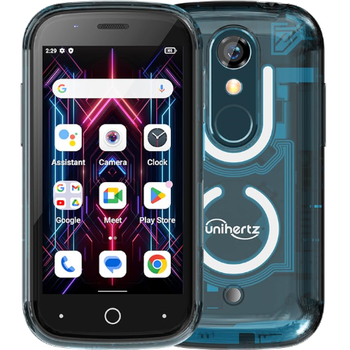
Guías disponibles para la sincronización con la nube segura
Funciones compatibles
- sincronización de contactos
- copia de seguridad de SMS
- copia de seguridad del registro de llamadas
- sincronización de fotos
- sincronización de vídeos
- sincronización automática


Transfiera sus contactos, fotos, vídeos, mensajes SMS y registros de llamadas desde Unihertz Jelly Star a un almacenamiento en línea y viceversa para mantenerlos seguros y actualizados.
Unihertz Jelly Star es compatible con PhoneCopy.
Tenga en cuenta que la siguiente configuración puede variar ligeramente según la versión del firmware.
Modelos confirmados
Versiones confirmadas
- Android 13
Noticias
- 1/8/25
- Un nuevo usuario de teléfono ha sincronizado sus contactos, mensajes SMS y registros de llamadas con PhoneCopy desde Israel.
- 4/12/24
- Este modelo de teléfono acaba de ser sincronizado por un usuario de PhoneCopy en España. Transfirió contactos, mensajes SMS y registros de llamadas.
- 4/12/23
- Personal data backup from Unihertz Jelly Star with Android 13 is now officially supported with our PhoneCopy mobile app.
- 27/11/23
- Recientemente también obtuvimos un nuevo usuario de Unihertz Jelly Star en Reino Unido. Está usando PhoneCopy para hacer copia de seguridad de contactos, multimedia y mensajes SMS.
- 12/9/23
- Detectamos la aplicación PhoneCopy en un teléfono Unihertz Jelly Star en Estados Unidos. Todos los contactos fueron respaldados.
versiones de Android ejecutándose en Unihertz Jelly Star
Al sincronizar, los usuarios de PhoneCopy tenían las siguientes versiones de Android en su Unihertz Jelly Star: Android 13 (100.00%).
usuarios de Unihertz Jelly Star en todo el mundo
Unihertz Jelly Star es utilizado a menudo por usuarios de PhoneCopy en países como Estados Unidos (Estados Unidos, États-Unis, ‘Amelika Hui Pū ‘ia) - 80.00%, Reino Unido (Y Deyrnas Unedig, Unitit Kinrick, Rìoghachd Aonaichte, Ríocht Aontaithe, An Rywvaneth Unys) - 8.00%, España (España, Espanya, Espainia, Espanha) - 8.00%, Israel (Yisra'el, ישראל, Israʼiyl, إسرائيل) - 4.00%.
El mapa muestra el uso de Unihertz Jelly Star para la copia de seguridad de contactos con PhoneCopy en todo el mundo.
Guía de texto - Cómo hacer copias de seguridad
Con Unihertz Jelly Star
- Descargue nuestra aplicación PhoneCopy para Android en su dispositivo móvil.
- Después de abrir la aplicación, cree una nueva cuenta desde la aplicación. Si ya ha creado una cuenta en la página web www.phonecopy.com, inicie sesión con esa cuenta existente en la aplicación.
- Tras iniciar sesión correctamente, siga el asistente de configuración de la aplicación y, a continuación, seleccione Synchronize (para una cuenta con una copia de seguridad existente) / Backup (para una cuenta vacía), o pulse el botón Later y luego seleccione la opción correspondiente en el menú lateral Back up contacts / Restore contacts para una sincronización unidireccional.
Para obtener más información sobre nuestra aplicación, visite nuestra página de PhoneCopy para Android.
En el caso de problemas con la sincronización, contacte con nosotros.
Comentarios de usuarios
Para dejar un comentario, por favor inicie sesión.
-
-
Hello, 96,486 is really big count of SMS. It is possible that the processing of such a number of items takes a long time and it is possible that server terminate the communication due to a long time without response from the device.
We are curently working on optimalization of application, which may solve issue like yours. We will release new version of app asap, within a few days at the latest. We will contact you. Please, be patient.
Thank you-
Hello,
we developed a promised new beta version (3.4.3) of app. This optimized version should solve your reported issue. Please, download and install new version and try to sync again with it.
I recommend, plug in charger during sync, because sync of big count of items take long time and it is possible that Android system will try to limit the app due to battery life.
Download link: https://www.phonecopy.com/android/download/phonecopy.apk
Please, send us feedback, if it works now or not.
Thank you for your patience and cooperation.
-
-

My phone has 96,486 SMS that has to be backed up but the process keeps terminating due to "internet connection lost". My fiber internet access is quite stable so I don't think disruption is the cause. Is there a way I can back up the sms in parts? mebacal1960, 19/10/20