Fazer cópia de segurança de contactos, fotografias, vídeos, mensagens SMS e registos de chamadas de Motorola Moto G24 Power
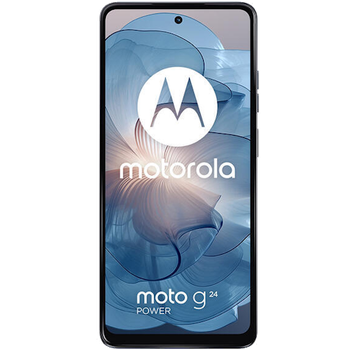
Guias disponíveis para sincronização com a nuvem segura
Funções suportadas
- sincronização de contactos
- cópia de segurança de SMS
- cópia de segurança do registo de chamadas
- sincronização de fotografias
- sincronização de vídeos
- sincronização automática


Transfira os seus contactos, fotografias, vídeos, mensagens SMS e registos de chamadas de Motorola Moto G24 Power para um armazenamento online e vice-versa para os manter seguros e atualizados.
Motorola Moto G24 Power é suportado pelo PhoneCopy.
Por favor, tenha em conta que as definições seguintes podem variar ligeiramente consoante a versão do firmware.
Modelos confirmados
Versões confirmadas
- Android 14
Novidades
- 01/12/25
- Personal data backup from Motorola Moto G24 Power with Android 14 is now officially supported with our PhoneCopy mobile app.
- 21/02/25
- Recentemente tivemos também um novo utilizador do Motorola Moto G24 Power em Dinamarca. Está a usar o PhoneCopy para fazer cópia de segurança de contactos e registos de chamadas.
versões do Android a executar no Motorola Moto G24 Power
A aplicação PhoneCopy para Android suporta várias versões do Android. Os nossos utilizadores sincronizaram os seus Motorola Moto G24 Power com Android 14 (100.00%).
utilizadores do Motorola Moto G24 Power em todo o mundo
O Motorola Moto G24 Power é preferido para a cópia de segurança de contactos pelos utilizadores do PhoneCopy em vários países do mundo - Dinamarca (Danmark) - 100.00%.
O histograma mostra a cópia de segurança do Motorola Moto G24 Power com o PhoneCopy em todo o mundo.
Guia de texto - Como fazer a cópia de segurança
Com Motorola Moto G24 Power
- Descarregue a nossa aplicação PhoneCopy for Android para o seu dispositivo móvel.
- Depois de iniciar a aplicação, crie uma nova conta a partir da aplicação. Se já criou uma conta nas páginas web www.phonecopy.com, inicie sessão nesta conta existente na aplicação.
- Após um início de sessão bem-sucedido, siga o assistente de configuração da aplicação e depois selecione Synchronize (para uma conta com uma cópia de segurança existente) / Backup (para uma conta vazia) ou clique no botão Later e depois selecione a opção no menu lateral Back up contacts / Restore contacts para sincronização unidirecional.
Para mais informações sobre a nossa aplicação, visite a nossa página do PhoneCopy for Android.
Em caso de problemas com a sincronização, contacte-nos.
Comentários de utilizadores
Para deixar um comentário, inicie sessão.
-
-
Hello, 96,486 is really big count of SMS. It is possible that the processing of such a number of items takes a long time and it is possible that server terminate the communication due to a long time without response from the device.
We are curently working on optimalization of application, which may solve issue like yours. We will release new version of app asap, within a few days at the latest. We will contact you. Please, be patient.
Thank you-
Hello,
we developed a promised new beta version (3.4.3) of app. This optimized version should solve your reported issue. Please, download and install new version and try to sync again with it.
I recommend, plug in charger during sync, because sync of big count of items take long time and it is possible that Android system will try to limit the app due to battery life.
Download link: https://www.phonecopy.com/android/download/phonecopy.apk
Please, send us feedback, if it works now or not.
Thank you for your patience and cooperation.
-
-

My phone has 96,486 SMS that has to be backed up but the process keeps terminating due to "internet connection lost". My fiber internet access is quite stable so I don't think disruption is the cause. Is there a way I can back up the sms in parts? mebacal1960, 19/10/20