Fazer cópia de segurança de contactos, fotografias, vídeos, mensagens SMS e registos de chamadas de Samsung Galaxy A35 5G sm-a366u
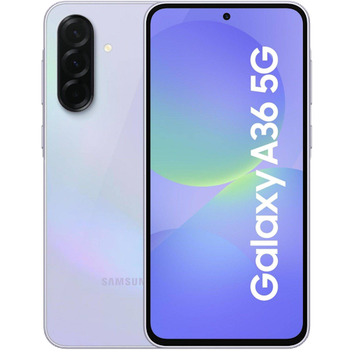
Guias disponíveis para sincronização com a nuvem segura
Funções suportadas
- sincronização de contactos
- cópia de segurança de SMS
- cópia de segurança do registo de chamadas
- sincronização de fotografias
- sincronização de vídeos
- sincronização automática


Transfira os seus contactos, fotografias, vídeos, mensagens SMS e registos de chamadas de Samsung Galaxy A35 5G sm-a366u para um armazenamento online e vice-versa para os manter seguros e atualizados.
Samsung Galaxy A35 5G sm-a366u é suportado pelo PhoneCopy.
Por favor, tenha em conta que as definições seguintes podem variar ligeiramente consoante a versão do firmware.
Modelos confirmados
Versões confirmadas
- Android 16
- Android 15
Novidades
- 20/06/26
- We added Samsung Galaxy A35 5G sm-a366u to supported devices with Android 15.
- 08/03/26
- Já está disponível a atualização do Samsung Galaxy A35 5G sm-a366u para o Android 16, incluindo a cópia de segurança totalmente funcional de contactos, SMS, fotografias e vídeos para a PhoneCopy Cloud.
- 05/03/26
- Este modelo de telemóvel acabou de ser sincronizado por um utilizador do PhoneCopy em Estados Unidos. Transferiu contactos.
versões do Android a executar no Samsung Galaxy A35 5G sm-a366u
A aplicação PhoneCopy para Android suporta várias versões do Android. Os nossos utilizadores sincronizaram os seus Samsung Galaxy A35 5G sm-a366u com Android 16 (92.86%), Android 15 (7.14%).
O gráfico mostra a cópia de segurança do Samsung Galaxy A35 5G sm-a366u com o PhoneCopy, a executar várias versões do Android.
utilizadores do Samsung Galaxy A35 5G sm-a366u em todo o mundo
O Samsung Galaxy A35 5G sm-a366u é preferido para a cópia de segurança de contactos pelos utilizadores do PhoneCopy em vários países do mundo - Estados Unidos (Estados Unidos, États-Unis, ‘Amelika Hui Pū ‘ia) - 100.00%.
O histograma mostra a cópia de segurança do Samsung Galaxy A35 5G sm-a366u com o PhoneCopy em todo o mundo.
Guia de texto - Como fazer a cópia de segurança
Com Samsung Galaxy A35 5G sm-a366u
- Descarregue a nossa aplicação PhoneCopy for Android para o seu dispositivo móvel.
- Depois de iniciar a aplicação, crie uma nova conta a partir da aplicação. Se já criou uma conta nas páginas web www.phonecopy.com, inicie sessão nesta conta existente na aplicação.
- Após um início de sessão bem-sucedido, siga o assistente de configuração da aplicação e depois selecione Synchronize (para uma conta com uma cópia de segurança existente) / Backup (para uma conta vazia) ou clique no botão Later e depois selecione a opção no menu lateral Back up contacts / Restore contacts para sincronização unidirecional.
Para mais informações sobre a nossa aplicação, visite a nossa página do PhoneCopy for Android.
Em caso de problemas com a sincronização, contacte-nos.
Comentários de utilizadores
Para deixar um comentário, inicie sessão.
-
-
What do I need to download my photos
-
Please check our guide https://www.phonecopy.com/en/pages/how_to_synchronize_contacts_to_android
-
-
abbas
-
When you synchronize your photos to PhoneCopy.com you can download them from your profile or you can synchronize them directly to your Windows PC via PhoneCopy for Windows. https://www.phonecopy.com/discussion/?comment_id=7263&category_id=237
-

jakeabobich, 22/10/21