Backup контакты, photos, videos, sms messages and call logs from Motorola Razr 60 Ultra
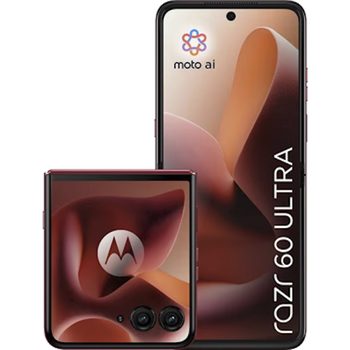
Available guides for synchronization to the secure cloud
Supported functions
- contact synchronization
- sms backup
- call log backup
- photo synchronization
- video synchronization
- automatic sync


Transfer your контакты, photos, videos, sms messages and call logs from Motorola Razr 60 Ultra to an online storage and back to keep them safe and up to date.
Motorola Razr 60 Ultra is supported on PhoneCopy.
Please note that following settings may vary a little depending on the firmware version.
Confirmed models
Confirmed versions
- Android 15
News
- 01.12.2025
- We freshly support Motorola Razr 60 Ultra with Android 15 OS for photo, video, SMS, call log and contact backup.
- 09.07.2025
- We just got first user of this model in France! Someone just backed up his контакты, sms messages and call logs.
Android versions running on Motorola Razr 60 Ultra
When synchronizing, PhoneCopy users had following Android versions on their Motorola Razr 60 Ultra: Android 15 (100.00%).
Motorola Razr 60 Ultra users around the world
Motorola Razr 60 Ultra is often used by PhoneCopy users in countries like France - 100.00%.
Following heat map shows contacts synchronisations with Motorola Razr 60 Ultra using PhoneCopy across the globe.
Text guideline - How to backup
With Motorola Razr 60 Ultra
- Скачайте приложение PhoneCopy для Android
- После запуска приложения, войдите в свой аккаунт или создайте новую учетную запись.
- Выполните синхронизацию при помощи приложения. Синхронизированные контакты можно просмотреть на сайте www.phonecopy.com.
In the case of problems with synchronization, please contact us.
Комментарии пользователей
To leave a comment please sign in.
-
-
Hi, I am sorry but the current version doesn't support automatic synchronization. But the next version which will be launched soon will allow it.
-

I have synchronized manually, but I would like to avoid having to open the app and manually click on the synchronize menu option? arthurquinlan, 07.09.2021