Apple iPhone 17 Pro dan yedeklenen kişiler, takvim, fotoğraflar ve videolar
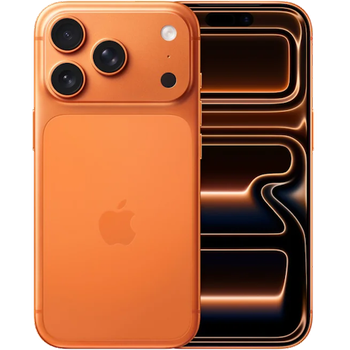
Güvenli buluta senkronizasyon için mevcut kılavuzlar
Desteklenen işlevler
- Kişiler senkronizasyonu
- Takvim senkronizasyonu
- fotoğraf senkronizasyonu
- video senkronizasyonu
- Otomatik senkronizasyon

kişiler, takvim, fotoğraflar ve videolar verilerinizi Apple iPhone 17 Pro cihazından çevrimiçi bir depolama alanına ve geri aktararak güvende ve güncel tutun.
Apple iPhone 17 Pro cihazını PhoneCopy desteklenmektedir.
Lütfen aşağıdaki ayarların ürün yazılımı sürümüne bağlı olarak biraz değişebileceğini unutmayın.
Haberler
- 31.08.2026
- Apple iPhone 17 Pro phone was synchronized by PhoneCopy user in Yeni Zelanda. His kişiler were transferred.
- 30.08.2026
- We just got first user of Apple iPhone 17 Pro in Meksika! Someone just backed up his kişiler from a new phone.
- 27.08.2026
- Recently we got new user of Apple iPhone 17 Pro also in Güney Afrika. He is using PhoneCopy for backup of kişiler ve medya.
- 17.08.2026
- A new phone user has synchronized his kişiler to PhoneCopy from Japonya.
- 16.08.2026
- We detected PhoneCopy app on Apple iPhone 17 Pro phone in Katar. All kişiler were backed up.
dünya genelindeki Apple iPhone 17 Pro kullanıcıları
İstatistiklerimize göre, PhoneCopy kullanıcıları Apple iPhone 17 Pro cihazını Çekya (Czech Republic, Česká republika) - 51.41%, Avustralya - 9.56%, Slovakya (Slovensko) - 9.45%, İngiltere (Y Deyrnas Unedig, Unitit Kinrick, Rìoghachd Aonaichte, Ríocht Aontaithe, An Rywvaneth Unys) - 8.66%, Amerika Birleşik Devletleri (Estados Unidos, États-Unis, ‘Amelika Hui Pū ‘ia) - 3.65%, Danimarka (Danmark) - 3.20%, Finlandiya (Suomi) - 2.63%, Romanya (România) - 1.81%, Fransa - 1.69%, Singapur (Singapura, Xīnjiāpō, 新加坡, Singapur, சிங்கப்பூர்) - 1.17% ülkelerinde ve 29 ülkede daha veri yedeklemesi için kullanmaktadır.
Haritada
Histogram, dünya genelinde PhoneCopy ile Apple iPhone 17 Pro yedeklemesini göstermektedir.
Talimat metni - Nasıl yedekleme yapılır
Apple iPhone 17 Pro ile
- Install PhoneCopy for iPhone / iPad from App Store.
- Launch it and follow the wizard that appears. Sign on if you already have a PhoneCopy account or register if you want to create a new one.
- Authorize access to contacts and then select sources (accounts) that you want to synchronize. Next authorize access to media and then select whether you want to synchronize photos and/or videos. If you do not allow PhoneCopy access to your media, only your contacts will by synchronized.
- If you already have media on your PhoneCopy account you can opt in to synchronize (download) them to this device.
- Finally tap on Synchronize to perform the complete synchronization.
If you need to synchronize calendar, see our guide on how to sync calendars with iOS devices.
Senkronizasyon esnasında herhangi bir problemle karşılaşırsanız Yardım İsteyin
Kullanıcı yorumları
- The iPhone application need not to be associated with profile as for other phones, all is automatic.
- The application for iPhone cannot synchronize SMS and notes, because the Apple does not allow application access to them.
- You can synchronize your calendars using CalDAV protocol.
Yorum yazmak için lütfen Giriş yapın
-
help import sms in iphone example ? rqcesa, 28.09.2020
-
Sorry, we don't provide SMS import to iPhone. We can only export it from iPhone to PhoneCopy.
-