Vodafone Smart Turbo 7 (VFD-501) dan yedeklenen kişiler, fotoğraflar, videolar, sms mesajları ve arama günlükleri
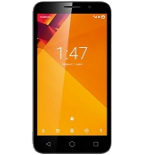
Güvenli buluta senkronizasyon için mevcut kılavuzlar
Desteklenen işlevler
- Kişiler senkronizasyonu
- SMS yedeklemesi
- arama günlüğü yedeklemesi
- fotoğraf senkronizasyonu
- video senkronizasyonu
- Otomatik senkronizasyon


kişiler, fotoğraflar, videolar, sms mesajları ve arama günlükleri verilerinizi Vodafone Smart Turbo 7 (VFD-501) cihazından çevrimiçi bir depolama alanına ve geri aktararak güvende ve güncel tutun.
Vodafone Smart Turbo 7 (VFD-501) cihazını PhoneCopy desteklenmektedir.
Lütfen aşağıdaki ayarların ürün yazılımı sürümüne bağlı olarak biraz değişebileceğini unutmayın.
Onaylanan modeller
Onaylanan sürümler
- Android 6.0 Marshmallow
Haberler
- 4.11.2019
- Recently we got new user of Vodafone Smart Turbo 7 (VFD-501) also in Yeni Zelanda. He is using PhoneCopy for backup of kişiler.
Vodafone Smart Turbo 7 (VFD-501) üzerinde çalışan Android sürümleri
Senkronizasyon sırasında, PhoneCopy kullanıcılarının Vodafone Smart Turbo 7 (VFD-501) cihazlarında şu Android sürümleri vardı: Android 6.0 Marshmallow (100.00%).
dünya genelindeki Vodafone Smart Turbo 7 (VFD-501) kullanıcıları
İstatistiklerimize göre, PhoneCopy kullanıcıları Vodafone Smart Turbo 7 (VFD-501) cihazını Yeni Zelanda (Aotearoa) - 100.00% ülkelerinde veri yedeklemesi için kullanmaktadır.
Harita, dünya genelinde PhoneCopy ile kişi yedeklemesi için Vodafone Smart Turbo 7 (VFD-501) kullanımını göstermektedir.
Talimat metni - Nasıl yedekleme yapılır
Vodafone Smart Turbo 7 (VFD-501) ile
- PhoneCopy for Android uygulamamızı mobil cihazınıza indirin.
- Uygulamayı başlattıktan sonra, uygulama üzerinden yeni bir hesap oluşturun. www.phonecopy.com web sayfalarında zaten bir hesap oluşturduysanız, bu mevcut hesapla uygulamada giriş yapın.
- Başarılı bir girişten sonra, uygulamanın kurulum sihirbazını takip edin ve ardından (mevcut bir yedeği olan hesaplar için) Synchronize / (boş bir hesap için) Backup öğesini seçin veya Later düğmesine basıp tek yönlü senkronizasyon için yan menüden Back up contacts / Restore contacts seçeneğini belirleyin.
Uygulamamız hakkında daha fazla bilgi için, PhoneCopy for Android sayfamızı.
Senkronizasyon esnasında herhangi bir problemle karşılaşırsanız Yardım İsteyin
Kullanıcı yorumları
Yorum yazmak için lütfen Giriş yapın
-
For some strange reason, app cannot access phone contacts stored on device - after granting proper permission it will show 0 contacts. Checked with other contact app, and they can be accessed. Android 11 (Lineage OS 18.1), Sony Xperia ZX 1 Compact gladykov, 3.01.2022
-
Answered via private email.
-
Nuruseyd842@gmail.com
-
-
