Kontakte sichern: DELL Chromebook 11
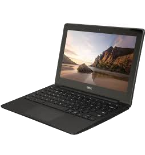
Verfügbare Anleitungen für die Synchronisierung mit der sicheren Cloud
Unterstützte Funktionen
- Kontakt-Synchronisation
- automatisch synchronisieren

Übertragen Sie Ihre Kontakte von DELL Chromebook 11 in einen Online-Speicher und zurück, um sie sicher und aktuell zu halten.
DELL Chromebook 11 wird von PhoneCopy unterstützt.
Bitte beachten Sie, dass die folgenden Einstellungen je nach Firmware-Version leicht variieren können.
Bestätigte Modelle
Bestätigte Versionen
News
- 26.03.24
- Ein Benutzer aus Türkei hat seine Kontakte, SMS-Nachrichten und Anrufprotokolle mit seinem Telefon synchronisiert.
- 26.09.20
- Ein DELL Chromebook 11-Telefon wurde von einem PhoneCopy-Benutzer in Vereinigte Staaten synchronisiert. Seine Kontakte wurden übertragen.
DELL Chromebook 11 Nutzer auf der ganzen Welt
Laut unseren Statistiken verwenden PhoneCopy-Benutzer DELL Chromebook 11 für die Datensicherung in Ländern Vereinigte Staaten (Estados Unidos, États-Unis, ‘Amelika Hui Pū ‘ia) - 80.00%, Türkei (Türkiye) - 20.00%.
Auf der Karte
Die Karte zeigt die Nutzung von DELL Chromebook 11 für die Kontaktsicherung mit PhoneCopy weltweit.
Textanleitung - So sichern Sie Ihre Daten
Mit DELL Chromebook 11
- Install the "PhoneCopy" application from the "Productivity" section on the "Windows Store" .
- In main menu press PhoneCopy.
- Do you have an account on the www.phoneCopy.com? ▼ hide "create new account"
- Choose Create new account and fill in the following fields. If you already made your registration on pages www.phonecopy.com, please go to indent "use existing account".
- Username
- your_username
- Password
- your_password
- Repeat password
- retype your password once again
- fill in your email so we can contact you in case you will lost password.
- Timezone
- select your timezone - important for calendar on the web
- Captcha
- retype the code to prove that you are human
- Press Sign up
▼ hide "use existing account"- Choose Use existing account and fill in the following fields.
- Username
- your_username
- Password
- your_password
- Contacts folder
- select where the synchronized contacts will be located
- Press OK.
- Choose Create new account and fill in the following fields. If you already made your registration on pages www.phonecopy.com, please go to indent "use existing account".
- Press synchronize. You can see your synchronized contacts on www.phonecopy.com.
If you need more help with the settings, visit our step by step screenshot guide.
For more information about our app, visit our PhoneCopy for Windows page.
Bei Problemen mit der Synchronisierung, bitte kontaktieren Sie uns.
Benutzer Kommentare
Um einen Kommentar zu hinterlassen, melden Sie sich an.
-
How to uninstall PhoneCopy from Windows 11? fieloryb, 21.12.25
-
Go to Settings -> Application, then find PhoneCopy and press Uninstall button
-
