DELL Chromebook 11 dan yedeklenen kişiler
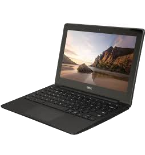
Güvenli buluta senkronizasyon için mevcut kılavuzlar
Desteklenen işlevler
- Kişiler senkronizasyonu
- Otomatik senkronizasyon

kişiler verilerinizi DELL Chromebook 11 cihazından çevrimiçi bir depolama alanına ve geri aktararak güvende ve güncel tutun.
DELL Chromebook 11 cihazını PhoneCopy desteklenmektedir.
Lütfen aşağıdaki ayarların ürün yazılımı sürümüne bağlı olarak biraz değişebileceğini unutmayın.
Onaylanan modeller
Onaylanan sürümler
Haberler
- 26.03.2024
- User from Türkiye has synchronized kişiler, sms mesajları ve arama günlükleri with his phone.
- 26.09.2020
- DELL Chromebook 11 phone was synchronized by PhoneCopy user in Amerika Birleşik Devletleri. His kişiler were transferred.
dünya genelindeki DELL Chromebook 11 kullanıcıları
İstatistiklerimize göre, PhoneCopy kullanıcıları DELL Chromebook 11 cihazını Amerika Birleşik Devletleri (Estados Unidos, États-Unis, ‘Amelika Hui Pū ‘ia) - 80.00%, Türkiye (Türkiye) - 20.00% ülkelerinde veri yedeklemesi için kullanmaktadır.
Haritada
Harita, dünya genelinde PhoneCopy ile kişi yedeklemesi için DELL Chromebook 11 kullanımını göstermektedir.
Talimat metni - Nasıl yedekleme yapılır
DELL Chromebook 11 ile
- Install the "PhoneCopy" application from the "Productivity" section on the "Windows Store" .
- In main menu press PhoneCopy.
- Do you have an account on the www.phoneCopy.com? ▼ hide "create new account"
- Choose Create new account and fill in the following fields. If you already made your registration on pages www.phonecopy.com, please go to indent "use existing account".
- Username
- your_username
- Password
- your_password
- Repeat password
- retype your password once again
- fill in your email so we can contact you in case you will lost password.
- Timezone
- select your timezone - important for calendar on the web
- Captcha
- retype the code to prove that you are human
- Press Sign up
▼ hide "use existing account"- Choose Use existing account and fill in the following fields.
- Username
- your_username
- Password
- your_password
- Contacts folder
- select where the synchronized contacts will be located
- Press OK.
- Choose Create new account and fill in the following fields. If you already made your registration on pages www.phonecopy.com, please go to indent "use existing account".
- Press synchronize. You can see your synchronized contacts on www.phonecopy.com.
If you need more help with the settings, visit our step by step screenshot guide.
For more information about our app, visit our PhoneCopy for Windows page.
Senkronizasyon esnasında herhangi bir problemle karşılaşırsanız Yardım İsteyin
Kullanıcı yorumları
Yorum yazmak için lütfen Giriş yapın
-
How to uninstall PhoneCopy from Windows 11? fieloryb, 21.12.2025
-
Go to Settings -> Application, then find PhoneCopy and press Uninstall button
-
