Realizar copia de seguridad de contactos desde DELL Chromebook 11
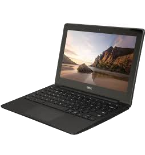
Guías disponibles para la sincronización con la nube segura
Funciones compatibles
- sincronización de contactos
- sincronización automática

Transfiera sus contactos desde DELL Chromebook 11 a un almacenamiento en línea y viceversa para mantenerlos seguros y actualizados.
DELL Chromebook 11 es compatible con PhoneCopy.
Tenga en cuenta que la siguiente configuración puede variar ligeramente según la versión del firmware.
Modelos confirmados
Versiones confirmadas
Noticias
- 26/3/24
- Un usuario de Turquía ha sincronizado sus contactos, mensajes SMS y registros de llamadas con su teléfono.
- 26/9/20
- Un teléfono DELL Chromebook 11 fue sincronizado por un usuario de PhoneCopy en Estados Unidos. Sus contactos fueron transferidos.
usuarios de DELL Chromebook 11 en todo el mundo
Según nuestras estadísticas, los usuarios de PhoneCopy utilizan DELL Chromebook 11 para la copia de seguridad de datos en los países Estados Unidos (Estados Unidos, États-Unis, ‘Amelika Hui Pū ‘ia) - 80.00%, Turquía (Türkiye) - 20.00%.
En el mapa
El mapa muestra el uso de DELL Chromebook 11 para la copia de seguridad de contactos con PhoneCopy en todo el mundo.
Guía de texto - Cómo hacer copias de seguridad
Con DELL Chromebook 11
- Install the "PhoneCopy" application from the "Productivity" section on the "Windows Store" .
- In main menu press PhoneCopy.
- Do you have an account on the www.phoneCopy.com? ▼ hide "create new account"
- Choose Create new account and fill in the following fields. If you already made your registration on pages www.phonecopy.com, please go to indent "use existing account".
- Username
- your_username
- Password
- your_password
- Repeat password
- retype your password once again
- fill in your email so we can contact you in case you will lost password.
- Timezone
- select your timezone - important for calendar on the web
- Captcha
- retype the code to prove that you are human
- Press Sign up
▼ hide "use existing account"- Choose Use existing account and fill in the following fields.
- Username
- your_username
- Password
- your_password
- Contacts folder
- select where the synchronized contacts will be located
- Press OK.
- Choose Create new account and fill in the following fields. If you already made your registration on pages www.phonecopy.com, please go to indent "use existing account".
- Press synchronize. You can see your synchronized contacts on www.phonecopy.com.
If you need more help with the settings, visit our step by step screenshot guide.
For more information about our app, visit our PhoneCopy for Windows page.
En el caso de problemas con la sincronización, contacte con nosotros.
Comentarios de usuarios
Para dejar un comentario, por favor inicie sesión.
-
How to uninstall PhoneCopy from Windows 11? fieloryb, 21/12/25
-
Go to Settings -> Application, then find PhoneCopy and press Uninstall button
-
