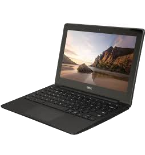
Sauvegarder contacts depuis DELL Chromebook 11
Guides disponibles pour la synchronisation vers le cloud sécurisé
Fonctions prises en charge
- synchronisation des contacts
- synchronisation automatique

Transférez vos contacts de DELL Chromebook 11 vers un espace de stockage en ligne et inversement pour les garder en sécurité et à jour.
DELL Chromebook 11 est pris en charge avec PhoneCopy.
Veuillez noter que les paramètres suivants peuvent varier légèrement en fonction de la version du micrologiciel.
Modèles confirmés
Versions confirmées
Nouvelles
- 26/03/2024
- Un utilisateur dans le pays Turquie a synchronisé ses contacts, SMS et journaux d'appels avec son téléphone.
- 26/09/2020
- Un téléphone DELL Chromebook 11 a été synchronisé par un utilisateur de PhoneCopy dans le pays États-Unis. Ses contacts ont été transférés.
DELL Chromebook 11 utilisateurs dans le monde
D'après nos statistiques, les utilisateurs de PhoneCopy utilisent DELL Chromebook 11 pour la sauvegarde des données dans les pays États-Unis (Estados Unidos, États-Unis, ‘Amelika Hui Pū ‘ia) - 80.00%, Turquie (Türkiye) - 20.00%.
Sur la carte
La carte montre l'utilisation de DELL Chromebook 11 pour la sauvegarde des contacts avec PhoneCopy dans le monde entier.
Guide textuel - Comment sauvegarder
Avec DELL Chromebook 11
- Install the "PhoneCopy" application from the "Productivity" section on the "Windows Store" .
- In main menu press PhoneCopy.
- Do you have an account on the www.phoneCopy.com? ▼ hide "create new account"
- Choose Create new account and fill in the following fields. If you already made your registration on pages www.phonecopy.com, please go to indent "use existing account".
- Username
- your_username
- Password
- your_password
- Repeat password
- retype your password once again
- fill in your email so we can contact you in case you will lost password.
- Timezone
- select your timezone - important for calendar on the web
- Captcha
- retype the code to prove that you are human
- Press Sign up
▼ hide "use existing account"- Choose Use existing account and fill in the following fields.
- Username
- your_username
- Password
- your_password
- Contacts folder
- select where the synchronized contacts will be located
- Press OK.
- Choose Create new account and fill in the following fields. If you already made your registration on pages www.phonecopy.com, please go to indent "use existing account".
- Press synchronize. You can see your synchronized contacts on www.phonecopy.com.
If you need more help with the settings, visit our step by step screenshot guide.
For more information about our app, visit our PhoneCopy for Windows page.
En cas de problèmes dans la synchronisation, veuillez nous contacter.
Commentaires des utilisateurs
Pour laisser un commentaire identifiez-vous.
-
How to uninstall PhoneCopy from Windows 11? fieloryb, 21/12/2025
-
Go to Settings -> Application, then find PhoneCopy and press Uninstall button
-
