Kontakte, Fotos, Videos, SMS-Nachrichten und Anrufprotokolle sichern: Motorola Edge 50 Pro
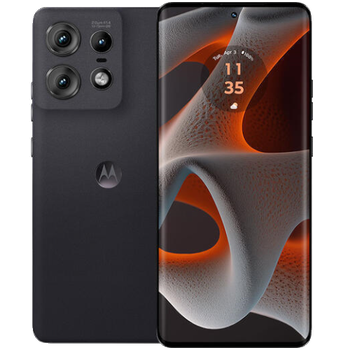
Verfügbare Anleitungen für die Synchronisierung mit der sicheren Cloud
Unterstützte Funktionen
- Kontakt-Synchronisation
- sms-Sicherung
- Sicherung des Anrufprotokolls
- Foto-Synchronisierung
- Video-Synchronisation
- automatisch synchronisieren


Übertragen Sie Ihre Kontakte, Fotos, Videos, SMS-Nachrichten und Anrufprotokolle von Motorola Edge 50 Pro in einen Online-Speicher und zurück, um sie sicher und aktuell zu halten.
Motorola Edge 50 Pro wird von PhoneCopy unterstützt.
Bitte beachten Sie, dass die folgenden Einstellungen je nach Firmware-Version leicht variieren können.
Bestätigte Modelle
Bestätigte Versionen
- Android 16
- Android 15
- Android 14
News
- 13.01.26
- Sogar in Norwegen haben wir einen Benutzer mit einem Motorola Edge 50 Pro-Telefon. Er sichert seine Kontakte, SMS-Nachrichten und Anrufprotokolle.
- 07.01.26
- Wir haben festgestellt, dass Motorola Edge 50 Pro auf eine neue Android-Betriebssystemversion 16 aktualisiert werden kann.
- 12.04.25
- Kürzlich haben wir auch in Vereinigtes Königreich einen neuen Benutzer von Motorola Edge 50 Pro bekommen. Er nutzt PhoneCopy zur Sicherung von Kontakte und Medien.
- 14.03.25
- Motorola Edge 50 Pro now offers an Android 15 update.
- 10.10.24
- Jemand hat gerade PhoneCopy zur Sicherung von Motorola Edge 50 Pro im Land Indien verwendet. Seine Kontakte wurden gesichert.
- 14.05.24
- We just added Motorola Edge 50 Pro to supported devices with the Android 14 operating system. We allow synchronization and backup of contacts, SMSes, call log, photos, and videos to a secure PhoneCopy Cloud.
- 12.05.24
- Ein neuer Telefonbenutzer hat seine Kontakte, SMS-Nachrichten und Anrufprotokolle von Deutschland aus mit PhoneCopy synchronisiert.
- 06.05.24
- Der erste Benutzer aus Tschechien hat gerade seine Kontakte, SMS-Nachrichten und Anrufprotokolle auf seinem Motorola Edge 50 Pro-Telefon synchronisiert.
Android-Versionen auf Motorola Edge 50 Pro
Die PhoneCopy-App für Android unterstützt verschiedene Android-Versionen. Unsere Benutzer haben ihr Motorola Edge 50 Pro mit Android 14 (92.16%), Android 15 (3.92%), Android 16 (3.92%) synchronisiert.
Das Diagramm zeigt die Motorola Edge 50 Pro-Sicherung mit PhoneCopy unter verschiedenen Android-Versionen.
Motorola Edge 50 Pro Nutzer auf der ganzen Welt
Motorola Edge 50 Pro wird für die Kontaktsicherung von PhoneCopy-Benutzern in mehreren Ländern auf der ganzen Welt bevorzugt - Tschechien (Czech Republic, Česká republika) - 64.91%, Deutschland (Deutschland) - 24.56%, Indien (Bharôt, ভাৰত, ভারত, Bhārat, ભારત, भारत, Bhārata, ಭಾರತ, Bhāratam, ഭാരതം, Bharôtô, ଭାରତ, ਭਾਰਤ, भारतम्, Bārata, பாரதம், Bhāratadēsam, భారత దేశం) - 5.26%, Norwegen (Norge, Noreg) - 3.51%, Vereinigtes Königreich (Y Deyrnas Unedig, Unitit Kinrick, Rìoghachd Aonaichte, Ríocht Aontaithe, An Rywvaneth Unys) - 1.75%.
Das Histogramm zeigt die Motorola Edge 50 Pro-Sicherung mit PhoneCopy weltweit.
Textanleitung - So sichern Sie Ihre Daten
Mit Motorola Edge 50 Pro
- Laden Sie unsere PhoneCopy für Android-Anwendung auf Ihr Mobilgerät herunter.
- Erstellen Sie nach dem Start der Anwendung ein neues Konto in der Anwendung. Wenn Sie bereits ein Konto auf der Webseite www.phonecopy.com erstellt haben, melden Sie sich in der Anwendung mit diesem bestehenden Konto an.
- Nach erfolgreicher Anmeldung durchlaufen Sie den Einrichtungsassistenten der Anwendung und wählen Sie dann Synchronize (für ein Konto mit einer bestehenden Sicherung) / Backup (für ein leeres Konto) aus, oder drücken Sie die Schaltfläche Later und wählen Sie dann im Seitenmenü die Option Back up contacts / Restore contacts für eine einseitige Synchronisierung.
Weitere Informationen zu unserer App finden Sie auf unserer PhoneCopy für Android-Seite.
Bei Problemen mit der Synchronisierung, bitte kontaktieren Sie uns.
Benutzer Kommentare
Um einen Kommentar zu hinterlassen, melden Sie sich an.
-
-
It sounds like the cloud version still holds your old contacts. Try deleting the extra contacts directly from your PhoneCopy cloud account, then force a manual sync from your device. If that doesn’t work, you might need to reset the sync or re-link your account. Hope this helps!
-
Hello,
the number of contacts online is what matters. So please remove unnecessary contacts on the web. After that, the synchronization will be allowed again.-
So, though I did all the cleanup locally in my phone's contacts, and though the App DOES see the local number as less than 500 it will not initiate uploading the information as for the deletions? Because if it replicated the deletions, then there would not be a sync problem.
-
Hello,
the limit works this way. It is stated in the email user receives when the limit is exceeded.-
I realize the limitation of the platform, and since it is not capable of synchronizing in the traditional technical meaning of the term, could you suggest a workaround?
Perhaps if I deleted my account, removed my app and started over in a suggested sequence so that my less than 500 contacts would be then uploaded?-
If you have blocked an account because of exceeding limits, you just need to delete some contacts on the server to fit the limit of 500 and your account will be unlocked.
-
there is much overhead to re-do the same thing I already did locally a few months ago.
Do you think, considering all I have previously mentioned, that there is a different work-around to the platform not being able to two-say sync the information?-
It seems we are discussing several contacts which have to be deleted from your online profile to make it free again. We explained to you that contacts online are what matters. If you don't want to follow our recommendation you can delete the whole account and create it as a new profile with the number of contacts stored in your mobile phone.
-
-
-
-
-
-
-

But on Phonecopy on the cloud there is a different amount of Contacts, much more than 600. On the app I see that it recognizes that I do have less than 500 contacts on my device.
But of course it does not sync. What do I have to do to make this work? kanoyati, 03.01.24