Sauvegarder contacts, photos, vidéos, SMS et journaux d'appels depuis BLU G50 Plus
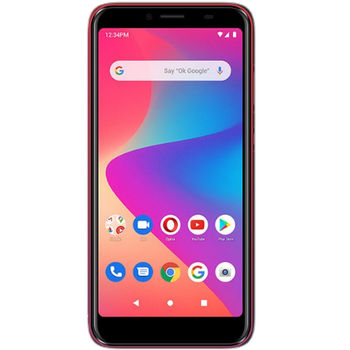
Guides disponibles pour la synchronisation vers le cloud sécurisé
Fonctions prises en charge
- synchronisation des contacts
- synchronisation des sms
- sauvegarde du journal d'appels
- synchronisation des photos
- synchronisation des vidéos
- synchronisation automatique


Transférez vos contacts, photos, vidéos, SMS et journaux d'appels de BLU G50 Plus vers un espace de stockage en ligne et inversement pour les garder en sécurité et à jour.
BLU G50 Plus est pris en charge avec PhoneCopy.
Veuillez noter que les paramètres suivants peuvent varier légèrement en fonction de la version du micrologiciel.
Modèles confirmés
Versions confirmées
- Android 10
Nouvelles
- 01/11/2021
- We added BLU G50 Plus to supported devices with Android 10.
- 27/10/2021
- Quelqu'un a utilisé PhoneCopy pour sauvegarder ce modèle de téléphone dans le pays États-Unis. Ses contacts ont été transférés.
versions Android fonctionnant sur BLU G50 Plus
Lors de la synchronisation, les utilisateurs de PhoneCopy disposaient des versions Android suivantes sur leur BLU G50 Plus: Android 10 (100.00%).
BLU G50 Plus utilisateurs dans le monde
BLU G50 Plus est privilégié pour la sauvegarde des contacts par les utilisateurs de PhoneCopy dans plusieurs pays du monde - États-Unis (Estados Unidos, États-Unis, ‘Amelika Hui Pū ‘ia) - 100.00%.
La carte montre l'utilisation de BLU G50 Plus pour la sauvegarde des contacts avec PhoneCopy dans le monde entier.
Guide textuel - Comment sauvegarder
Avec BLU G50 Plus
- Téléchargez notre application PhoneCopy pour Android sur votre appareil mobile.
- Après avoir lancé l'application, créez un nouveau compte depuis celle-ci. Si vous avez déjà créé un compte sur le site web www.phonecopy.com, connectez-vous à ce compte existant dans l'application.
- Après une connexion réussie, suivez l'assistant de configuration de l'application, puis sélectionnez Synchroniser (pour un compte disposant déjà d'une sauvegarde) / Sauvegarder (pour un compte vide), ou appuyez sur le bouton Plus tard puis sélectionnez l'option correspondante dans le menu latéral Sauvegarder les contacts / Restaurer les contacts pour une synchronisation à sens unique.
Pour plus d'informations sur notre application, consultez notre page PhoneCopy pour Android.
En cas de problèmes dans la synchronisation, veuillez nous contacter.
Commentaires des utilisateurs
Pour laisser un commentaire identifiez-vous.
-
How do I make my American parent as a donation so it accepts it? anniebugg, 12/09/2022
-
Hi, can you, please, a little more explain your request? Our Donation form is located at https://www.phonecopy.com/en/donate/ and supports most cards and Paypal.
-
