Backup contactos, photos, videos and sms messages from HTC Bravo
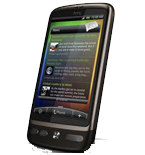
HTC Bravo

Available guides for synchronization to the secure cloud

Supported functions

  • contact synchronization
  • sms backup
  • photo synchronization
  • video synchronization
  • automatic sync

HTC Bravo is supported on PhoneCopy. Please note that following settings may vary a little depending on the firmware version.

Confirmed models

desire: aokp_bravo/bravo (bravo/bravo)
htc desire cdma: htc_bravo/bravoc (bravoc/bravoc)
htc desire: bravo/bravo (bravo/bravo)
htc desire: bravo/bravo (bravo/mahimahi)
htc desire: htc_bravo/bravo (bravo/bravo)
htc desire: htc_bravo/bravo (htcleo/bravo)
htc desire: libra_bravo/bravo (bravo/bravo)
htc desire: passion/passion (bravo/mahimahi)
htc hd2 evohd2: htc_bravo/bravo (htcleo/bravo)
htc hd2: full_passion/bravo (htcleo/bravo)
htc hd2: htc_bravo/bravo (htcleo/bravo)
htc sensation: htc_bravo/bravo (htcleo/bravo)
jaguaralani gamer's edition: htc_bravo/bravo (htcleo/bravo)

Confirmed versions

Android 4.1 Jelly Bean
jro03h (32.49.00.32u_5.11.05.27/6.93.1002)
jro03h (unknown/6.93.1002)
jro03h (unknown/0.93.0001)
Android 4.0 Ice Cream Sandwich
imm76l (15.42.50.11u_2.15.50.14/unknown)
imm76l (unknown/0.93.0001)
imm76d (unknown/0.80.0000)
imm76l (unknown/unknown)
mr1 (unknown/0.93.0001)
Android 2.3 Gingerbread
grj90 (32.49.00.32h_5.11.05.27/6.93.1002)
grj90 (unknown/6.93.1002)
grj90 (unknown/0.93.0001)
gwk74 (unknown/6.93.1002)
gri54 (unknown/1.03.0003)
gri40 (unknown/6.06.1002)
gri40 (unknown/0.93.0001)
gri40 (unknown/0.75.0000)
gri40 (unknown/unknown)
grk39f (32.49.00.32u_5.11.05.27/6.93.1002)
grk39f (unknown/6.93.1002)
grk39f (unknown/1.03.0003)
grk39f (unknown/0.93.0001)
miuid3t0x 1.6.24 (unknown/6.93.1002)
grj22 (unknown/0.93.0001)
grj22 (unknown/0.80.0000)
miui (32.56.00.32u_5.17.05.23/6.93.1002)
hebmiui (32.56.00.32u_5.17.05.23/6.93.1002)
miuiandroid 1.8.12 (32.49.00.32u_5.11.05.27/0.93.0001)
miuiandroid 1.8.12 (unknown/0.93.0001)
miui (unknown/6.93.1002)
miui (unknown/1.03.0003)
miui (unknown/0.93.0001)
miui (unknown/0.83.0001)
miui-xj (unknown/6.93.1002)
miui-xj (unknown/0.93.0001)
Android 2.2 Froyo
frf91 (32.49.00.32u_5.11.05.27/0.93.0001)
frf91 (32.48.00.32u_5.11.05.14/0.93.0001)
frf91 (32.48.00.32u_5.10.05.30/0.93.0001)
frf91 (32.46.00.32u_5.10.05.17_2/0.93.0001)
frf91 (32.44.00.32u_5.09.05.30_2/0.93.0001)
frf91 (15.42.50.11u_2.15.50.14/unknown)
frf91 (unknown/6.93.1002)
frf91 (unknown/1.03.0003)
frf91 (unknown/0.93.0001)
frf91 (unknown/0.80.0000)
frf91 (unknown/0.75.0000)
frf91 (unknown/unknown)
frg83g (32.49.00.32u_5.11.05.27/0.93.0001)
frg83g (32.44.00.32u_5.09.05.30_2/0.93.0001)
frg83g (unknown/6.93.1002)
frg83g (unknown/0.93.0001)

Android versions running on HTC Bravo

When synchronizing, PhoneCopy users had following Android versions on their HTC Bravo: Android 2.2 Froyo (90.73%), Android 2.3 Gingerbread (8.62%), Android 4.0 Ice Cream Sandwich (0.52%), Android 4.1 Jelly Bean (0.14%).

Android versions on HTC Bravo

The chart shows usage of HTC Bravo and Android versions for contact backup with PhoneCopy around the world.

Text guideline - How to backup

From HTC Bravo

A instrução ainda não foi traduzida para seu idioma.
If you want to transfer contacts from your Android device please use following screenshot guide.
  1. Download our PhoneCopy for Android application to your mobile device.
  2. After launching the application, create a new account from the application. If you have already created an account on web pages www.phonecopy.com, log in to this existing account in the application.
  3. After successful login, go through the application setup wizard and then select "Synchronize" (for an account with an existing backup) / "Backup" (for an empty account) or press the "Later" button and then select option in the side menu "Back up contacts" / "Restore contacts" for one-way synchronization.

More detailed information and instructions include screenshots: how to backup and synchronize contacts from Android

For more information about our app, visit our PhoneCopy for Android page.


You need an Android phone version 4.4 (KitKat), 5.0, 5.1 (Lollipop), 6.0 (Marshmallow), 7.0, 7.1 (Nougat), 8.0, 8.1 (Oreo), 9.0 (Pie), 10, 11, 12, 13 and 14 incl. tablets. Let us just remind you, that for now PhoneCopy for Android transfers to server contacts, photos, videos and SMS.

In the case of problems with synchronization, please contact us.

To HTC Bravo

A instrução ainda não foi traduzida para seu idioma.
If you want to transfer contacts to your Android device please use following screenshot guide.
  1. Download our PhoneCopy for Android application to your mobile device.
  2. After launching the application, create a new account from the application. If you have already created an account on web pages www.phonecopy.com, log in to this existing account in the application.
  3. After successful login, go through the application setup wizard and then select "Synchronize" (for an account with an existing backup) / "Backup" (for an empty account) or press the "Later" button and then select option in the side menu "Back up contacts" / "Restore contacts" for one-way synchronization.

More detailed information and instructions include screenshots: how transfer contacts to Android

For more information about our app, visit our PhoneCopy for Android page.


You need an Android phone version 4.4 (KitKat), 5.0, 5.1 (Lollipop), 6.0 (Marshmallow), 7.0, 7.1 (Nougat), 8.0, 8.1 (Oreo), 9.0 (Pie), 10, 11, 12, 13 and 14 incl. tablets. Let us just remind you, that for now, PhoneCopy for Android transfers to server contacts, photos, videos, and SMS.

In the case of problems with synchronization, please contact us.

Comentários de utilizador

To leave a comment please sign in.

  • Backing up your important data is essential for protecting against accidental loss, hardware failure, or malicious attacks. Always start by identifying the files, documents, photos, and other data you cannot afford to lose. Choose a reliable backup method—external hard drives, network storage, or cloud-based services are all good options. For best protection, use the 3-2-1 rule: keep three copies of your data, stored on two different types of media, with one copy offsite. Schedule automatic backups to ensure your data is always up-to-date, and periodically test your backups to confirm they work. Remember, a backup is only useful if it can be restored—make sure you’re ready before disaster strikes. Stay safe, stay prepared! https://teerresulttoday.org/
    karansharma9854, 09/08/25
See whole discussion