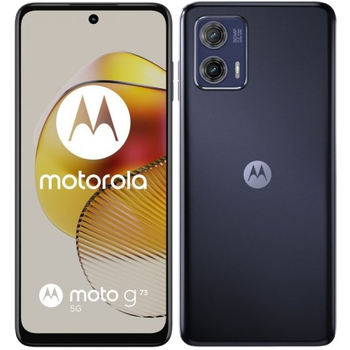
Backup contactos, photos, videos, sms messages and call logs from Motorola Moto G73 5G
Available guides for synchronization to the secure cloud
Supported functions
- contact synchronization
- sms backup
- call log backup
- photo synchronization
- video synchronization
- automatic sync


Transfer your contactos, photos, videos, sms messages and call logs from Motorola Moto G73 5G to an online storage and back to keep them safe and up to date.
Motorola Moto G73 5G is supported on PhoneCopy.
Please note that following settings may vary a little depending on the firmware version.
Confirmed models
Confirmed versions
- Android 14
News
- 20/11/25
- A new phone user has synchronized his contactos to PhoneCopy from Spain.
- 09/05/25
- We detected PhoneCopy app on Motorola Moto G73 5G phone in United Kingdom. All contactos, media, sms messages and call logs were backed up.
- 20/08/24
- We freshly support Motorola Moto G73 5G with Android 14 OS for photo, video, SMS, call log and contact backup.
- 06/08/24
- User from Denmark has synchronized contactos and sms messages with his phone.
Android versions running on Motorola Moto G73 5G
When synchronizing, PhoneCopy users had following Android versions on their Motorola Moto G73 5G: Android 14 (100.00%).
Motorola Moto G73 5G users around the world
Motorola Moto G73 5G is preffered for contact backup by PhoneCopy users in several countries around the world - United Kingdom (Y Deyrnas Unedig, Unitit Kinrick, Rìoghachd Aonaichte, Ríocht Aontaithe, An Rywvaneth Unys) - 57.14%, Spain (España, Espanya, Espainia, Espanha) - 28.57%, Denmark (Danmark) - 14.29%.
The map shows usage of Motorola Moto G73 5G for contact backup with PhoneCopy around the world.
Text guideline - How to backup
With Motorola Moto G73 5G
- Download our PhoneCopy for Android application to your mobile device.
- After launching the application, create a new account from the application. If you have already created an account on web pages www.phonecopy.com, log in to this existing account in the application.
- After successful login, go through the application setup wizard and then select Synchronize (for an account with an existing backup) / Backup (for an empty account) or press the Later button and then select option in the side menu Back up contacts / Restore contacts for one-way synchronization.
For more information about our app, visit our PhoneCopy for Android page.
In the case of problems with synchronization, please contact us.
Comentários de utilizador
To leave a comment please sign in.
-
-
Hello, 96,486 is really big count of SMS. It is possible that the processing of such a number of items takes a long time and it is possible that server terminate the communication due to a long time without response from the device.
We are curently working on optimalization of application, which may solve issue like yours. We will release new version of app asap, within a few days at the latest. We will contact you. Please, be patient.
Thank you-
Hello,
we developed a promised new beta version (3.4.3) of app. This optimized version should solve your reported issue. Please, download and install new version and try to sync again with it.
I recommend, plug in charger during sync, because sync of big count of items take long time and it is possible that Android system will try to limit the app due to battery life.
Download link: https://www.phonecopy.com/android/download/phonecopy.apk
Please, send us feedback, if it works now or not.
Thank you for your patience and cooperation.
-
-

My phone has 96,486 SMS that has to be backed up but the process keeps terminating due to "internet connection lost". My fiber internet access is quite stable so I don't think disruption is the cause. Is there a way I can back up the sms in parts? mebacal1960, 19/10/20