Fazer cópia de segurança de contactos, fotografias, vídeos, mensagens SMS e registos de chamadas de Ulefone Armor 12 5G
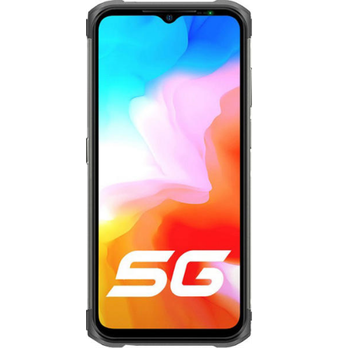
Guias disponíveis para sincronização com a nuvem segura
Funções suportadas
- sincronização de contactos
- cópia de segurança de SMS
- cópia de segurança do registo de chamadas
- sincronização de fotografias
- sincronização de vídeos
- sincronização automática


Transfira os seus contactos, fotografias, vídeos, mensagens SMS e registos de chamadas de Ulefone Armor 12 5G para um armazenamento online e vice-versa para os manter seguros e atualizados.
Ulefone Armor 12 5G é suportado pelo PhoneCopy.
Por favor, tenha em conta que as definições seguintes podem variar ligeiramente consoante a versão do firmware.
Modelos confirmados
Versões confirmadas
- Android 11
Novidades
- 27/12/21
- Personal data backup from Ulefone Armor 12 5G with Android 11 is now officially supported with our PhoneCopy mobile app.
- 24/12/21
- Recentemente tivemos também um novo utilizador do Ulefone Armor 12 5G em Estados Unidos. Está a usar o PhoneCopy para fazer cópia de segurança de contactos.
versões do Android a executar no Ulefone Armor 12 5G
A aplicação PhoneCopy para Android suporta várias versões do Android. Os nossos utilizadores sincronizaram os seus Ulefone Armor 12 5G com Android 11 (100.00%).
utilizadores do Ulefone Armor 12 5G em todo o mundo
De acordo com as nossas estatísticas, os utilizadores do PhoneCopy usam o Ulefone Armor 12 5G para cópia de segurança de dados nos países Estados Unidos (Estados Unidos, États-Unis, ‘Amelika Hui Pū ‘ia) - 100.00%.
O mapa de calor seguinte ilustra a proporção entre utilizadores em todo o mundo que sincronizam o seu Ulefone Armor 12 5G usando o PhoneCopy.
Guia de texto - Como fazer a cópia de segurança
Com Ulefone Armor 12 5G
- Descarregue a nossa aplicação PhoneCopy for Android para o seu dispositivo móvel.
- Depois de iniciar a aplicação, crie uma nova conta a partir da aplicação. Se já criou uma conta nas páginas web www.phonecopy.com, inicie sessão nesta conta existente na aplicação.
- Após um início de sessão bem-sucedido, siga o assistente de configuração da aplicação e depois selecione Synchronize (para uma conta com uma cópia de segurança existente) / Backup (para uma conta vazia) ou clique no botão Later e depois selecione a opção no menu lateral Back up contacts / Restore contacts para sincronização unidirecional.
Para mais informações sobre a nossa aplicação, visite a nossa página do PhoneCopy for Android.
Em caso de problemas com a sincronização, contacte-nos.
Comentários de utilizadores
Para deixar um comentário, inicie sessão.
-
How can I send contacts, photos, sms messages from a Samsung Galaxy A11... to a windows 10 pc as a back up in case my samsung phone crashes? alexoxox1970, 21/12/21
-
Hi, set your android first https://www.phonecopy.com/en/pages/how_to_backup_contacts_from_android
Then, please, download PhoneCopy for Windows and install it to your PC https://www.phonecopy.com/en/pages/how_to_synchronize_data_to_windows_10
-
