Cricket Icon 3 dan yedeklenen kişiler, fotoğraflar, videolar, sms mesajları ve arama günlükleri
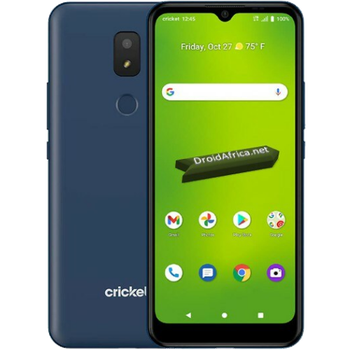
Güvenli buluta senkronizasyon için mevcut kılavuzlar
Desteklenen işlevler
- Kişiler senkronizasyonu
- SMS yedeklemesi
- arama günlüğü yedeklemesi
- fotoğraf senkronizasyonu
- video senkronizasyonu
- Otomatik senkronizasyon


kişiler, fotoğraflar, videolar, sms mesajları ve arama günlükleri verilerinizi Cricket Icon 3 cihazından çevrimiçi bir depolama alanına ve geri aktararak güvende ve güncel tutun.
Cricket Icon 3 cihazını PhoneCopy desteklenmektedir.
Lütfen aşağıdaki ayarların ürün yazılımı sürümüne bağlı olarak biraz değişebileceğini unutmayın.
Onaylanan modeller
Onaylanan sürümler
- Android 11
Haberler
- 8.11.2022
- We just added Cricket Icon 3 to supported devices with the Android 11 operating system. We allow synchronization and backup of contacts, SMSes, call logs, photos, and videos to a secure PhoneCopy Cloud.
- 2.11.2022
- Someone just used PhoneCopy for backup of Cricket Icon 3 in country Amerika Birleşik Devletleri. His kişiler ve sms mesajları were backed up.
Cricket Icon 3 üzerinde çalışan Android sürümleri
Senkronizasyon sırasında, PhoneCopy kullanıcılarının Cricket Icon 3 cihazlarında şu Android sürümleri vardı: Android 11 (100.00%).
dünya genelindeki Cricket Icon 3 kullanıcıları
Cricket Icon 3, dünya genelindeki birçok ülkede PhoneCopy kullanıcıları tarafından kişi yedeklemesi için tercih edilmektedir - Amerika Birleşik Devletleri (Estados Unidos, États-Unis, ‘Amelika Hui Pū ‘ia) - 100.00%.
Aşağıdaki ısı haritası, dünya genelinde PhoneCopy kullanarak Cricket Icon 3 ile yapılan kişi senkronizasyonlarını göstermektedir.
Talimat metni - Nasıl yedekleme yapılır
Cricket Icon 3 ile
- PhoneCopy for Android uygulamamızı mobil cihazınıza indirin.
- Uygulamayı başlattıktan sonra, uygulama üzerinden yeni bir hesap oluşturun. www.phonecopy.com web sayfalarında zaten bir hesap oluşturduysanız, bu mevcut hesapla uygulamada giriş yapın.
- Başarılı bir girişten sonra, uygulamanın kurulum sihirbazını takip edin ve ardından (mevcut bir yedeği olan hesaplar için) Synchronize / (boş bir hesap için) Backup öğesini seçin veya Later düğmesine basıp tek yönlü senkronizasyon için yan menüden Back up contacts / Restore contacts seçeneğini belirleyin.
Uygulamamız hakkında daha fazla bilgi için, PhoneCopy for Android sayfamızı.
Senkronizasyon esnasında herhangi bir problemle karşılaşırsanız Yardım İsteyin
Kullanıcı yorumları
Yorum yazmak için lütfen Giriş yapın
-
-
It sounds like the cloud version still holds your old contacts. Try deleting the extra contacts directly from your PhoneCopy cloud account, then force a manual sync from your device. If that doesn’t work, you might need to reset the sync or re-link your account. Hope this helps!
-
Hello,
the number of contacts online is what matters. So please remove unnecessary contacts on the web. After that, the synchronization will be allowed again.-
So, though I did all the cleanup locally in my phone's contacts, and though the App DOES see the local number as less than 500 it will not initiate uploading the information as for the deletions? Because if it replicated the deletions, then there would not be a sync problem.
-
Hello,
the limit works this way. It is stated in the email user receives when the limit is exceeded.-
I realize the limitation of the platform, and since it is not capable of synchronizing in the traditional technical meaning of the term, could you suggest a workaround?
Perhaps if I deleted my account, removed my app and started over in a suggested sequence so that my less than 500 contacts would be then uploaded?-
If you have blocked an account because of exceeding limits, you just need to delete some contacts on the server to fit the limit of 500 and your account will be unlocked.
-
there is much overhead to re-do the same thing I already did locally a few months ago.
Do you think, considering all I have previously mentioned, that there is a different work-around to the platform not being able to two-say sync the information?-
It seems we are discussing several contacts which have to be deleted from your online profile to make it free again. We explained to you that contacts online are what matters. If you don't want to follow our recommendation you can delete the whole account and create it as a new profile with the number of contacts stored in your mobile phone.
-
-
-
-
-
-
-

But on Phonecopy on the cloud there is a different amount of Contacts, much more than 600. On the app I see that it recognizes that I do have less than 500 contacts on my device.
But of course it does not sync. What do I have to do to make this work? kanoyati, 3.01.2024